Archive Courses & Bulk Actions
📌 Overview
Archiving lets you remove outdated or inactive courses from your active library without deleting them. Archived courses are hidden from learner dashboards and moved to a dedicated Archived tab where you can restore them at any time. You can also use multi-select bulk actions to archive or tag multiple courses at once.
Step 1: Open the Courses Page
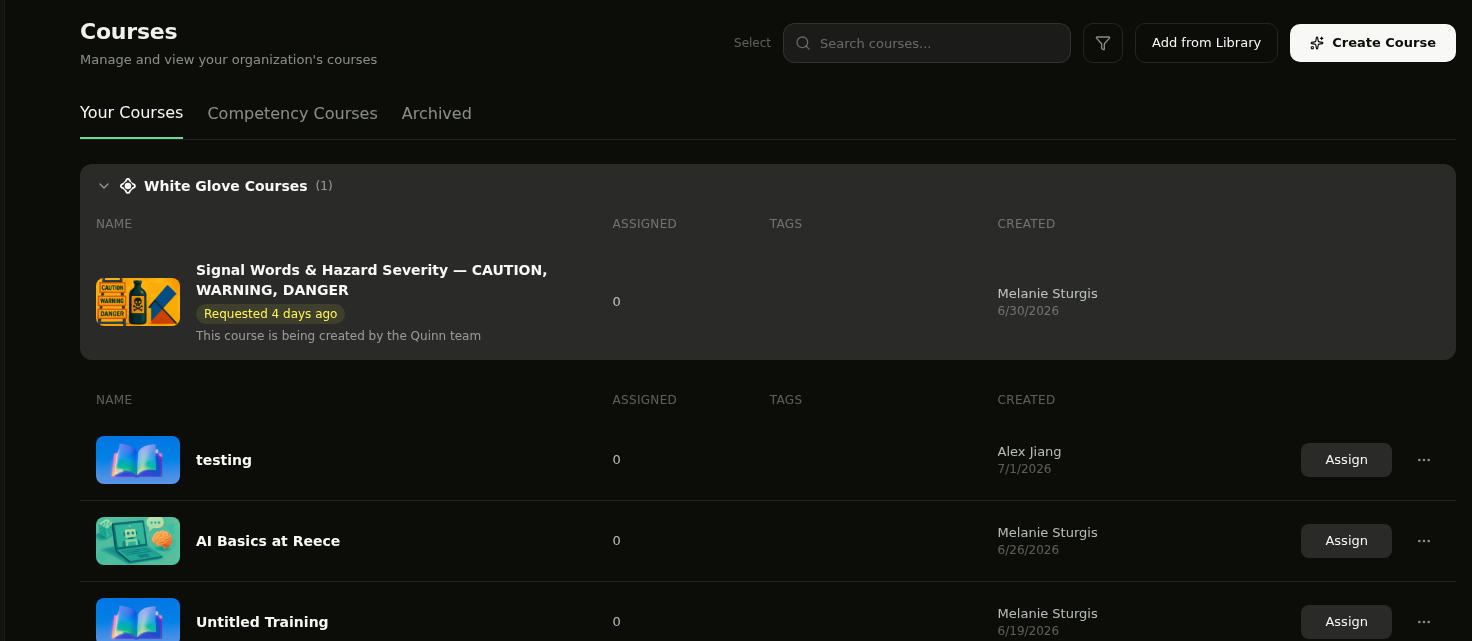
From the sidebar, click Courses to view your course library. You'll see your courses listed under the Your Courses tab, with an Archived tab alongside it.
Step 2: Archive a Single Course
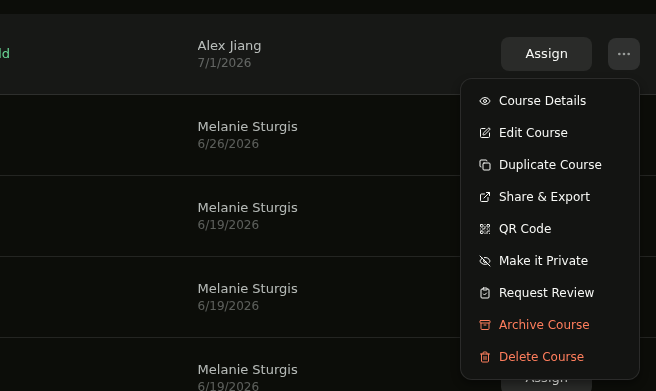
To archive one course, click the ⋯ (three-dot menu) on the course row and select Archive Course.
Step 3: Confirm the Archive
A confirmation dialog appears asking "Archive this course?" and noting that the course will be removed from learners' dashboards. Click Archive to confirm, or Cancel to go back.
💡 Tip: Archiving a course does not delete it — all enrollment data and learner progress are preserved. You can restore it anytime from the Archived tab.
Step 4: Use Multi-Select to Archive or Tag in Bulk
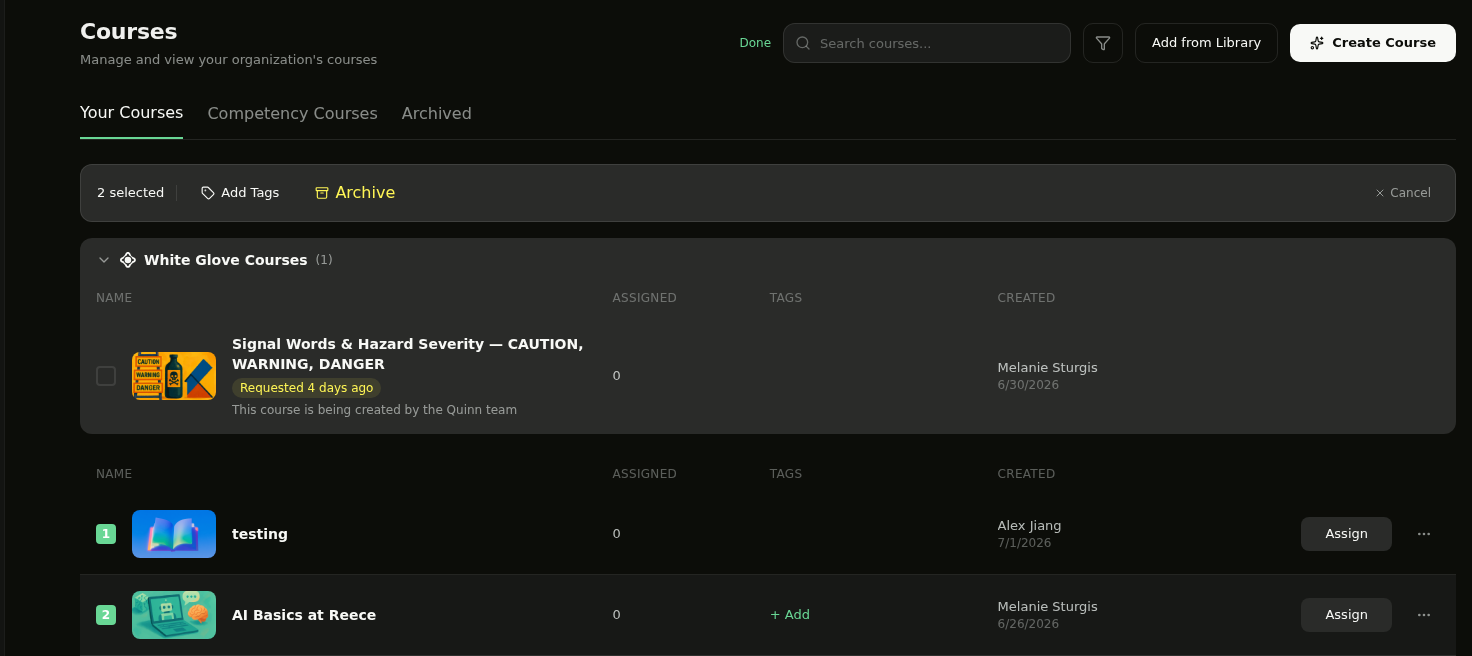
To act on multiple courses at once, click Select in the toolbar. The button changes to Done and checkboxes appear on each course row. Click courses to select them — each shows a numbered badge. A floating action bar appears with your options:
- Add Tags — apply tags to all selected courses at once
- Archive — archive all selected courses (with a confirmation dialog)
- Cancel — exit selection mode without taking action
💡 Tip: Click Done in the toolbar to exit selection mode without performing an action.
Step 5: View and Restore Archived Courses
Click the Archived tab to see all archived courses. To restore a course, click the ⋯ (three-dot menu) on the archived course and select Unarchive Course. The course returns to your active library and becomes visible to learners again.

💡 Tip: You can also use multi-select on the Archived tab — the Archive button changes to Unarchive so you can restore multiple courses at once.
💡 Tips
Archiving removes a course from learner dashboards, but existing enrollment data and progress are preserved.
Use bulk tagging to organize courses before archiving — add a tag like "2024" or "Deprecated" to keep your library tidy.
Courses in an active White Glove pipeline cannot be archived until the build is complete.