Create a Custom Avatar
📌 Overview
Custom avatars are personalized AI presenters your organization can use across its courses. You can generate an avatar with AI or upload a photo of a real person, then crop it, name it, choose a voice — filtering by gender, age, and accent — and add a background. This guide walks through the whole creation workflow and how to manage your avatars afterward. It's for admins, who'll find it under Settings > Custom Avatar.
Step 1: Open Custom Avatar
From Settings, open Custom Avatar. If your organization already has avatars, you'll land on My Custom Avatars — click Create Custom Avatar to start a new one.
Step 2: Choose how to provide the image
On the create screen, pick Generate with AI to answer a few questions and let Quinn generate options, or I already have an image to upload a photo of the person.
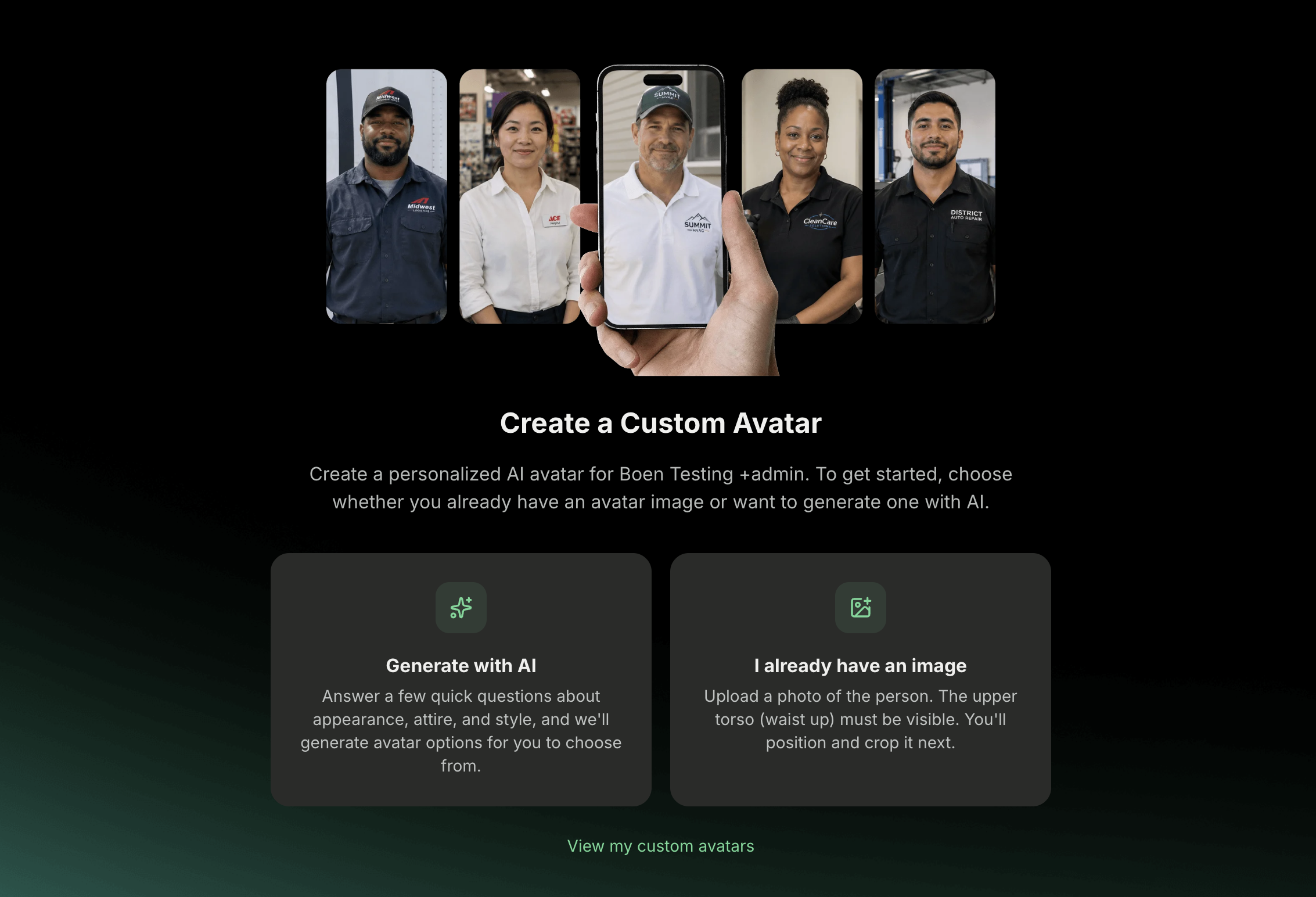
Step 3: Upload your image
Click or drag and drop a photo onto the upload area. For best results, use an image showing the person from the waist up, facing forward. Don't worry about the background — Quinn removes it automatically.
Step 4: Position and crop
Drag the image and use the Zoom slider to fit the head roughly inside the oval guide — it doesn't need to be exact. When it looks right, click Confirm Crop.
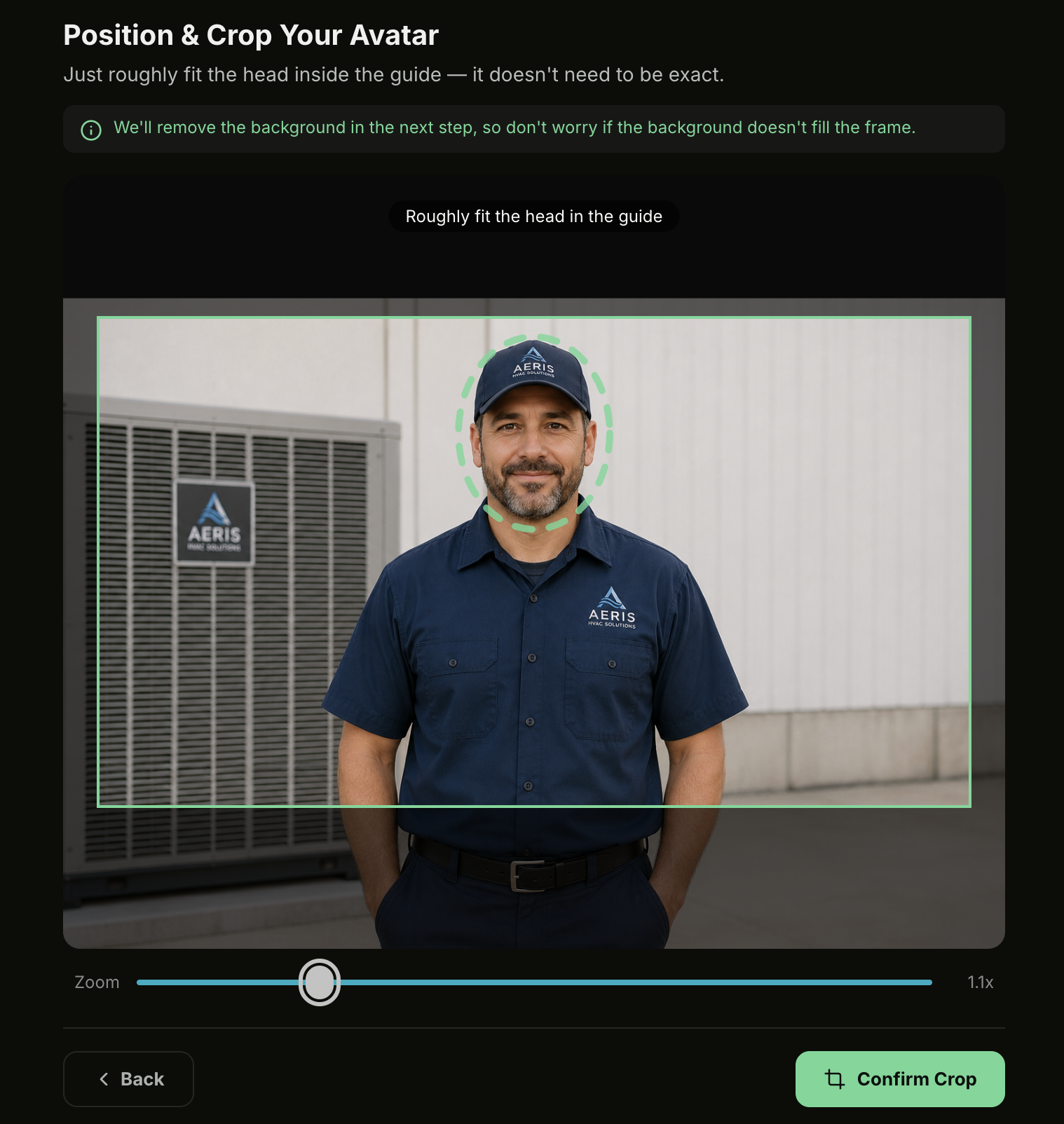
Step 5: Name it and pick a voice
Enter an Avatar Name, then choose a Voice. Narrow the list with the Gender, Age, and Accent filters above the selector, and use the play button to preview a voice. When you're happy, click Create Avatar.
💡 Tip: Only filters with more than one available value appear, so you may see fewer than three.
Step 6: Add a background
Quinn creates the avatar with its background removed. Add a new one with Generate with AI (describe the scene and click Generate) or Upload your own image, then click Continue.
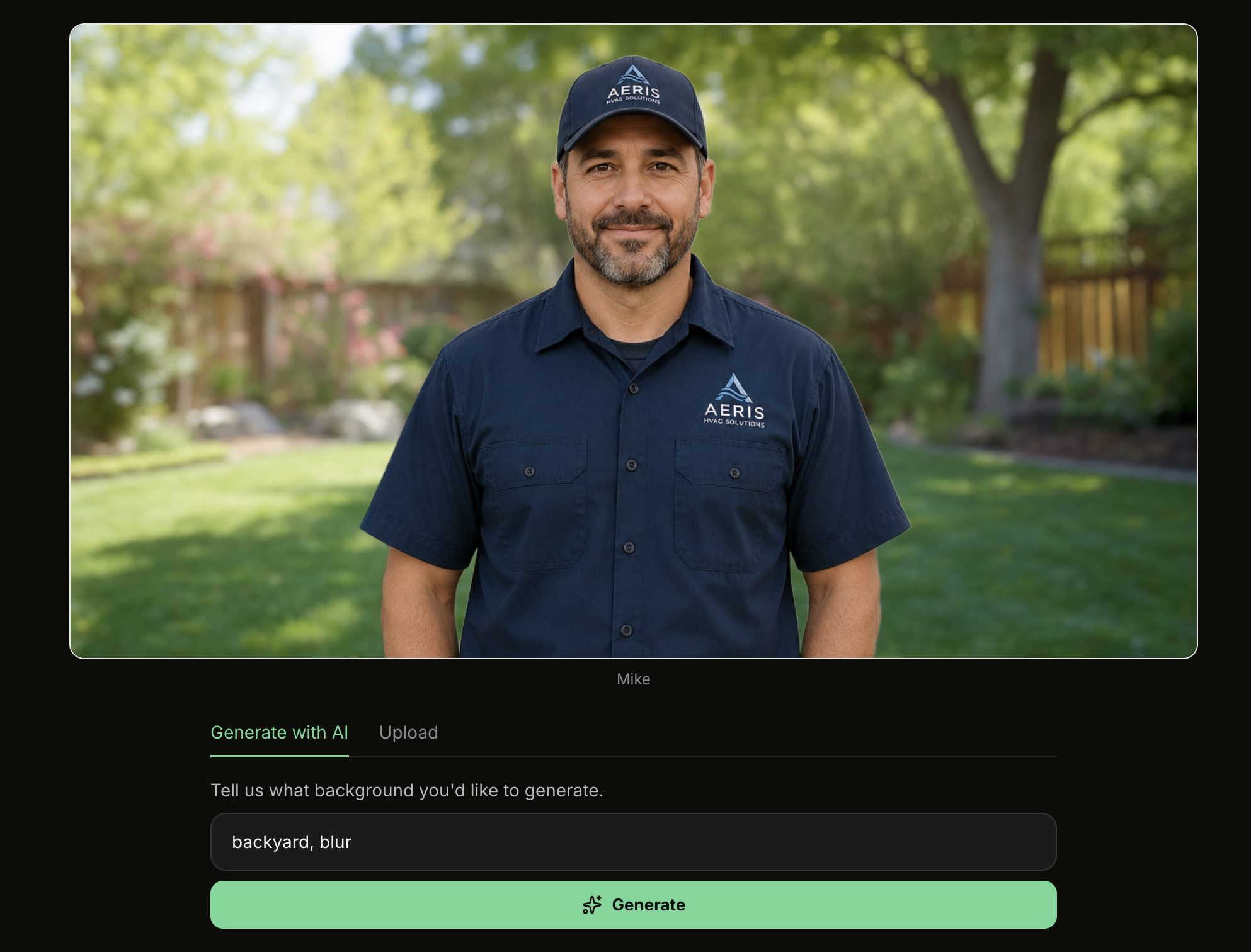
Step 7: Manage your avatars
Back on My Custom Avatars, click an avatar's image to open a large preview, or use Edit background / Add background and Remove background to adjust it. Delete removes an avatar entirely. Your saved avatars are now available when editing a course.
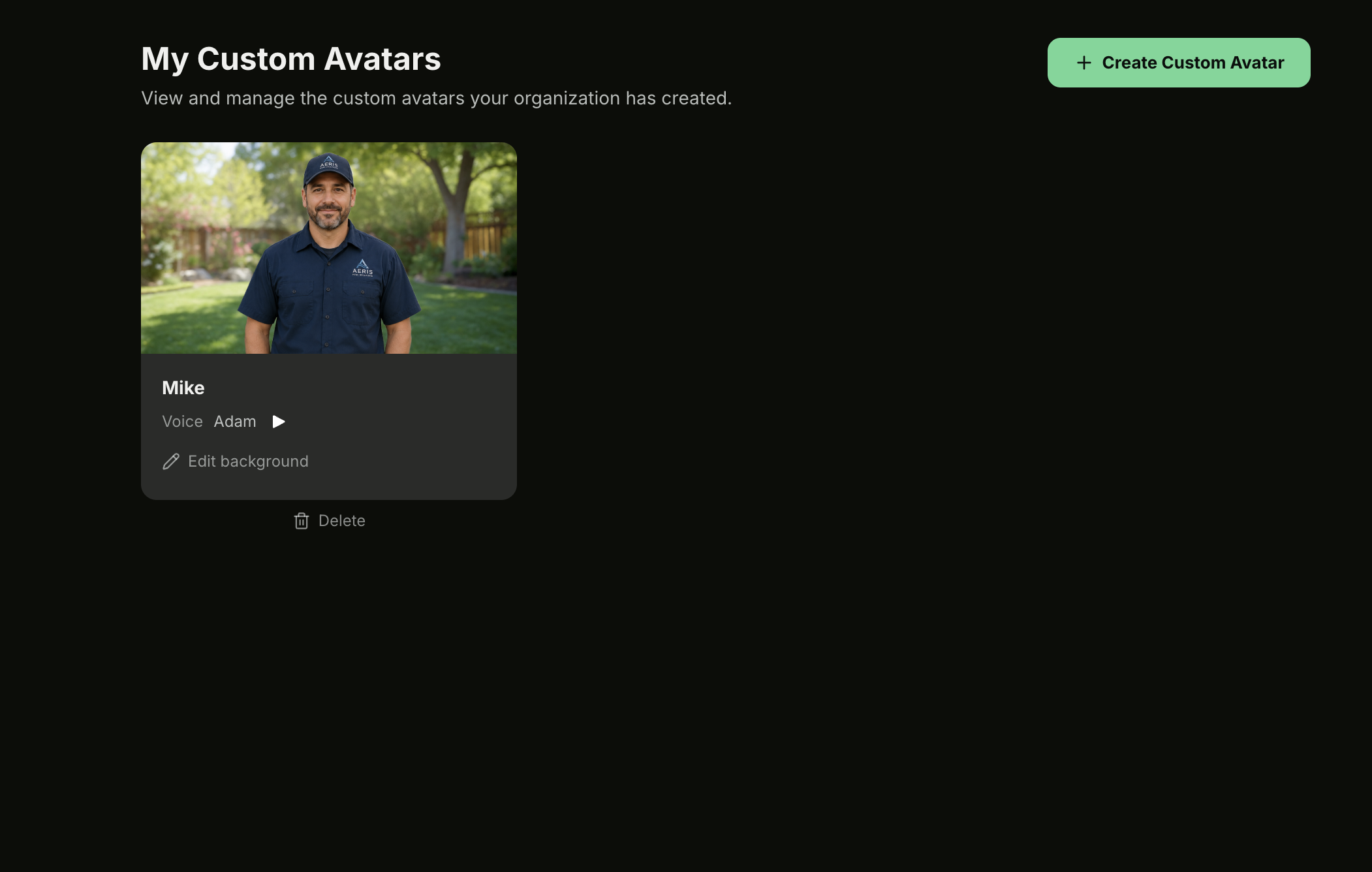
💡 Tip: Organizations have a custom-avatar limit. If you reach it, reach out at info@meetquinn.ai to create more.