Custom Link Buttons for Study Resources
📌 Overview
Tailor each course's study experience by toggling built-in study modes on or off and adding custom link buttons. You can hide resources like Article, Listen, Flashcards, or SOP for courses where they don't apply, and add up to 10 custom URL buttons linking learners to external materials — all from the Course Editor settings.
Step 1: Open Course Settings
Open a course in the Course Editor and click the Settings (gear) icon in the top-right of the header. The settings panel will appear on the right side of the editor.
Step 2: Toggle Study Resources
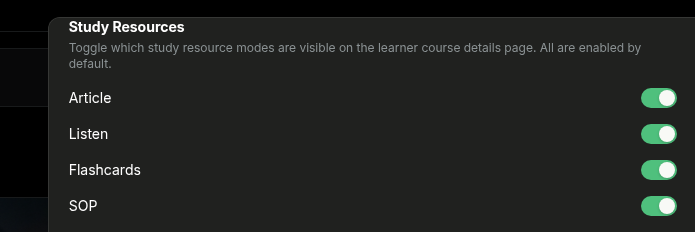
In the settings panel, scroll to the Study Resources section. Study Resources are supplementary learning modes that Quinn automatically generates from your course content, giving learners different ways to review and retain what they've learned. You'll see toggles for each type:
- Article — A written summary of the course content that learners can read at their own pace.
- Listen — An audio version of the course material for on-the-go learning.
- Flashcards — Interactive review cards generated from key concepts and quiz questions.
- SOP — A structured Standard Operating Procedure document distilled from the course.
All four are enabled by default. Turn off any you don't want learners to see on the course details page.
💡 Tip: Disabling a study resource only hides it from learners — it doesn't delete any generated content. You can re-enable it at any time.
Step 3: Add Custom Link Buttons
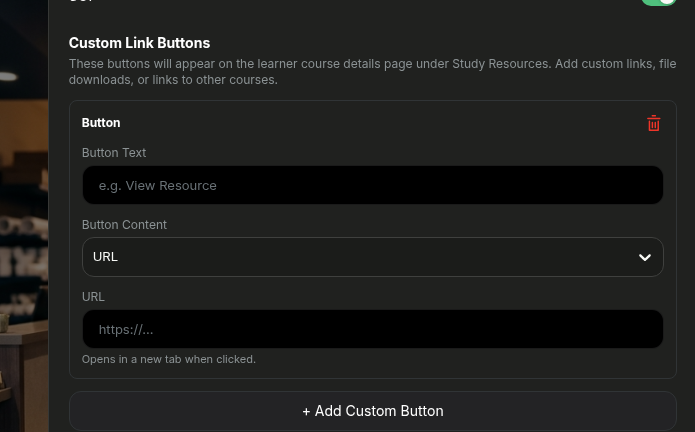
Scroll down to the Custom Link Buttons section. Click + Add Custom Button, then enter a Button Text label, select a content type from the Button Content dropdown (URL, file, or course link), and paste the URL. Click Save to add the button to the learner's course page.
💡 Tips
You can add up to 10 custom link buttons per course.
Custom buttons appear on the learner-facing course details page alongside the built-in study resources.
The Button Content dropdown lets you choose between a URL, a file upload (up to 100 MB), or a link to another course in your library.