Custom Pronunciation Dictionary
📌 Overview
The pronunciation dictionary teaches Quinn how your organization says names, products, acronyms, and specialized terms. Add a pronunciation from a voiceover script once, and Quinn applies it across every course in your organization.
Step 1: Open Pronunciation Tools
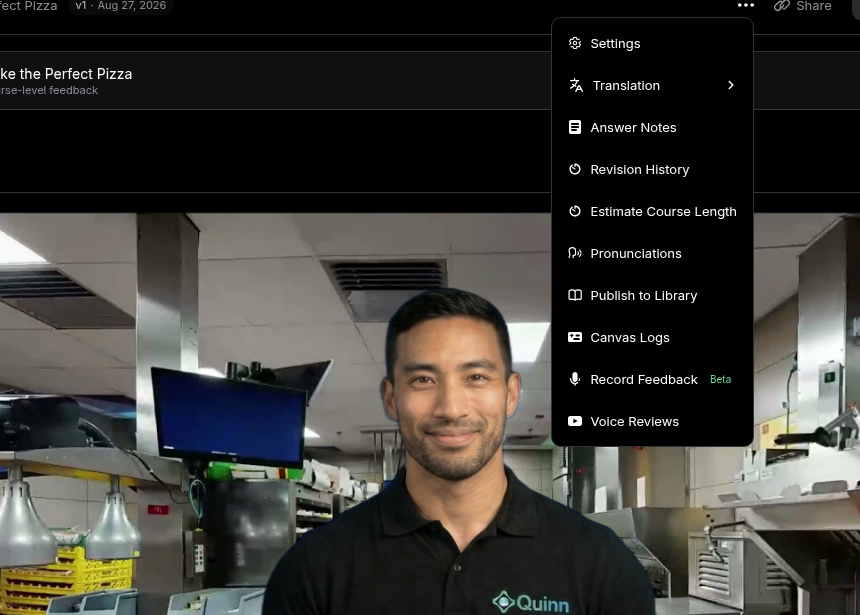
Open a course in the editor, click the More options menu, and select Pronunciations.
Step 2: Review Dictionary Entries
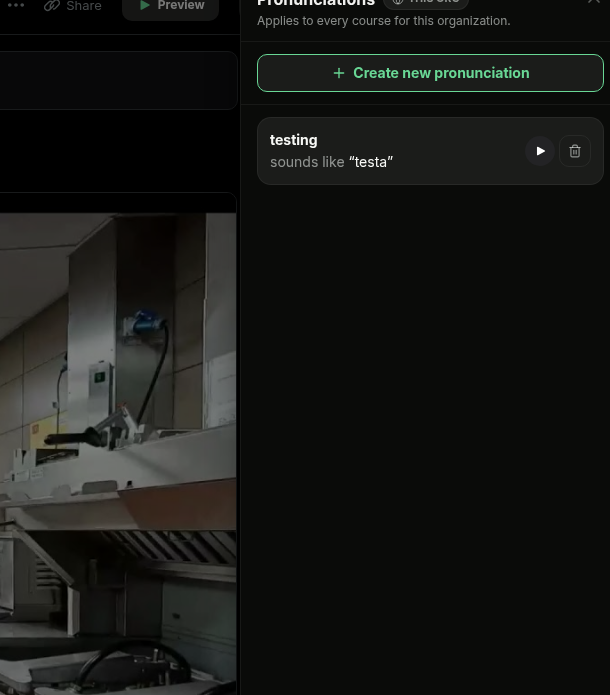
The Pronunciations panel lists the words your organization has already customized and how each one should sound. Use the play button to hear an existing entry.
Step 3: Highlight the Word
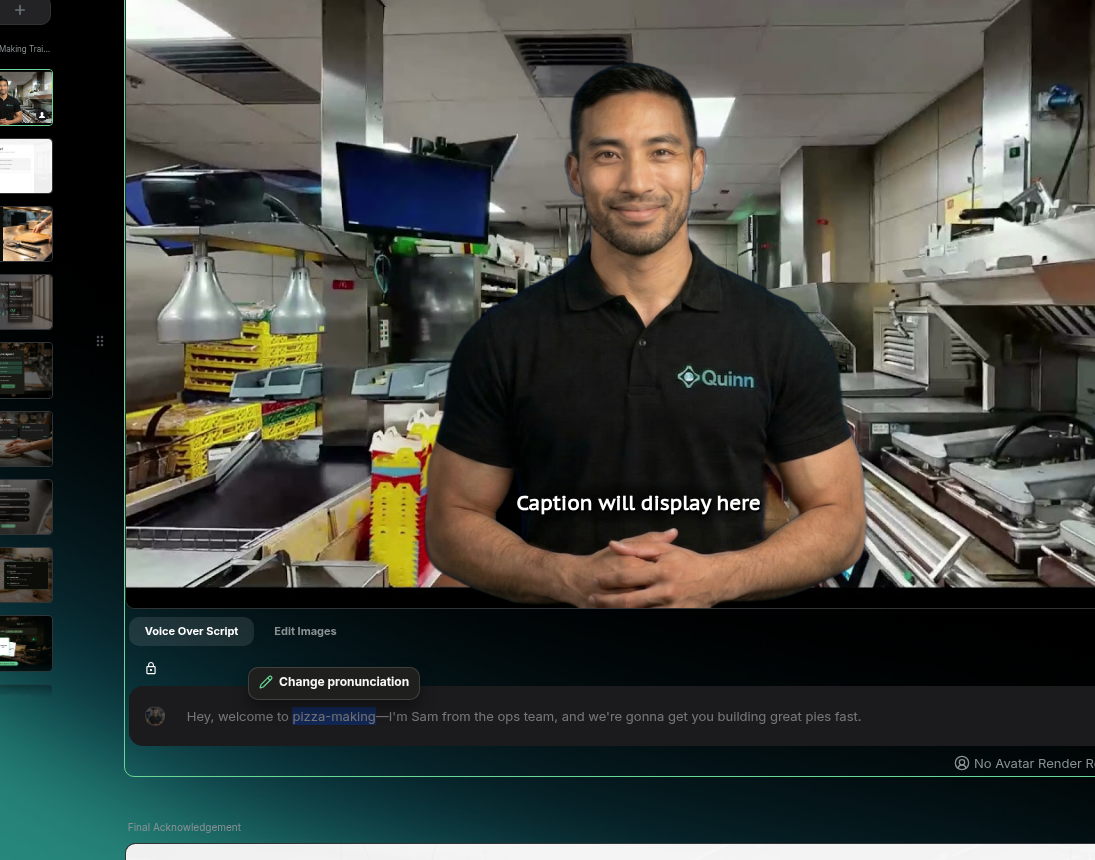
In Voice Over Script, select the word or phrase Quinn should pronounce differently. Click Change pronunciation beneath the script.
Step 4: Open the Editor
The Change pronunciation dialog shows the selected word or phrase. Click the pronunciation field to begin entering how it should sound.
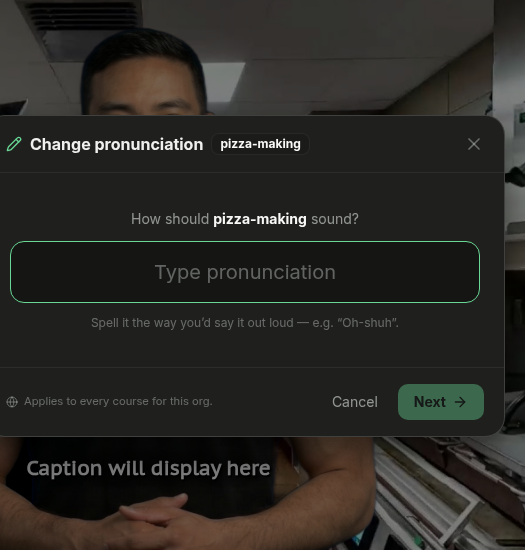
Step 5: Enter the Pronunciation
Spell the term the way you would say it out loud, then click Next. For example, you can enter PEET-suh making for pizza-making.
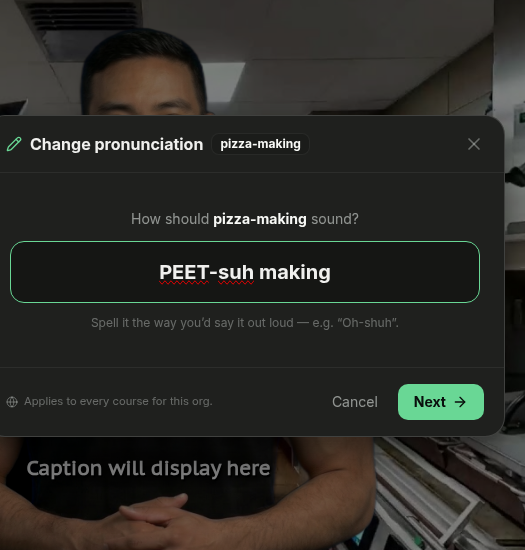
💡 Tip: Break unfamiliar words into clear syllables and use capitalization to emphasize the stressed sound.
Step 6: Preview and Use It
Click the play button under Play preview to hear the pronunciation. If it sounds right, click Use; otherwise, click Back and adjust the spelling.
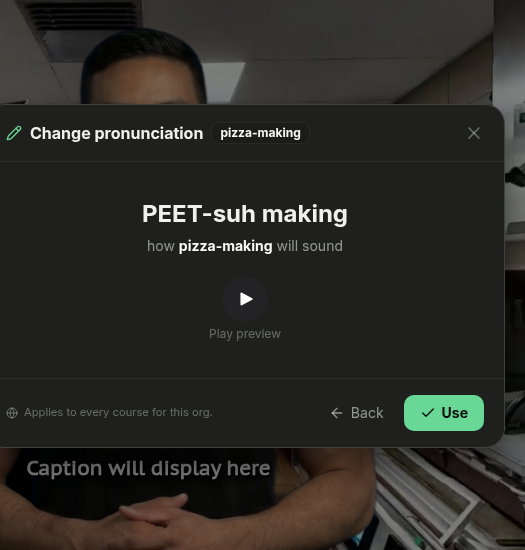
Step 7: Confirm the Entry
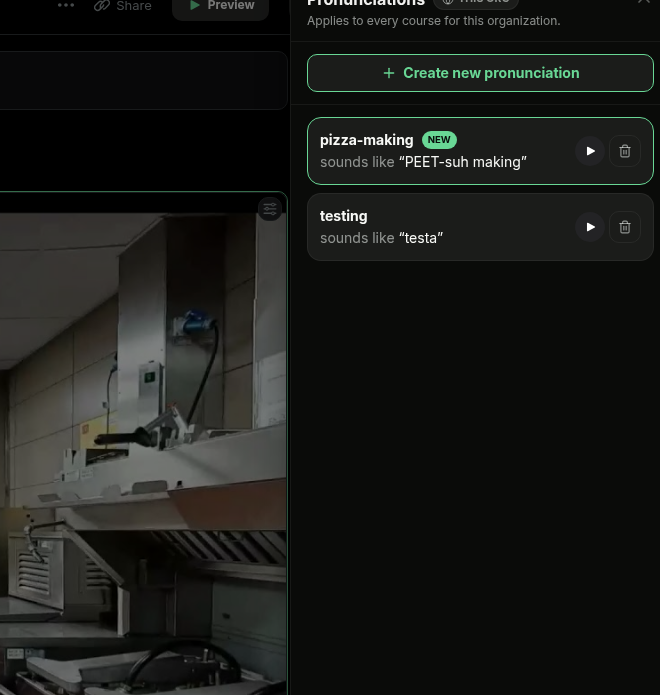
The new pronunciation appears in the Pronunciations panel and is marked New. Quinn will use it anywhere that exact word or phrase appears in your organization's courses.