Electronic Signature Canvas Slide
📌 Overview
An Electronic Signature slide asks a learner to read an acknowledgement, accept a set of agreements, and sign their name — capturing a formal, signed record (for example, a policy attestation or a training sign-off). This guide shows how to add the slide, track who has signed, and download acknowledgement records as PDFs.
Part A: Add the slide with the AI agent
Step 1: Request a Signature Slide
Open your course in the editor and find the Agent panel on the right. In the message box, describe the slide you want — for example, "Add an electronic signature slide at the end where the learner reads an acknowledgement, accepts the agreements, and signs their name." Then send your message.
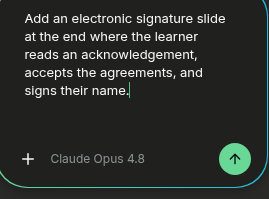
💡 Tip: Any clear request for a signature, signed acknowledgement, or attestation maps to the Electronic Signature template. Use @ in the composer to reference specific slides, Knowledge Base files, or personas.
Step 2: Review the Generated Slide
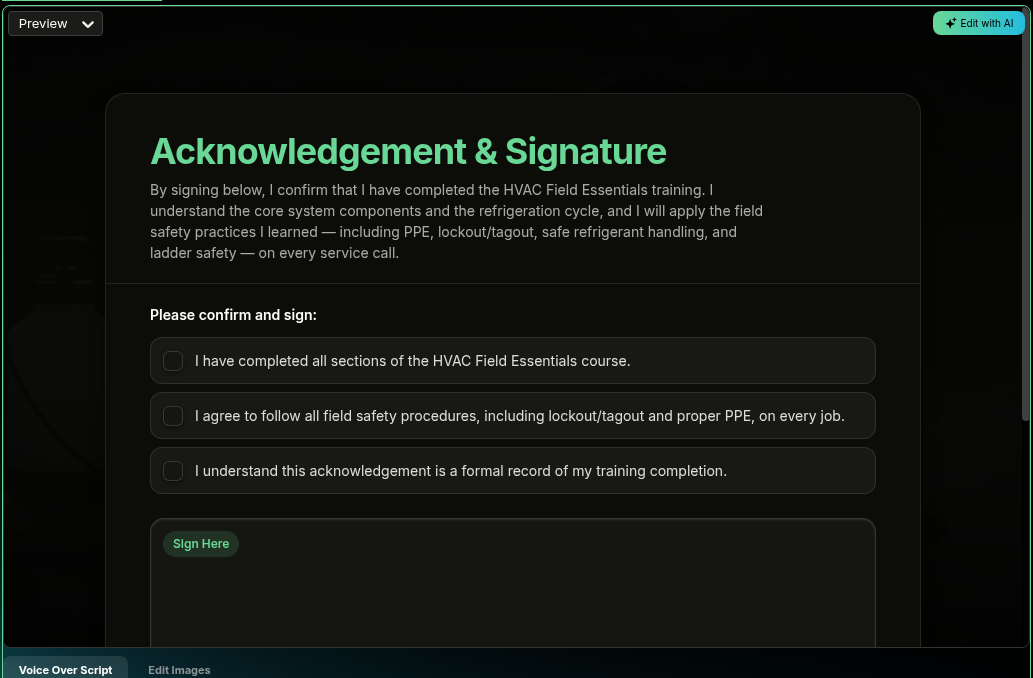
Quinn adds a Canvas slide (by default at the end of the course) with an acknowledgement statement, the agreement checkboxes the learner must accept, and a Sign Here signature field. Open the new slide to review it, then tweak the wording or agreements as needed and re-render.
Part B: Track who has signed
Step 3: Check Acknowledgement Status
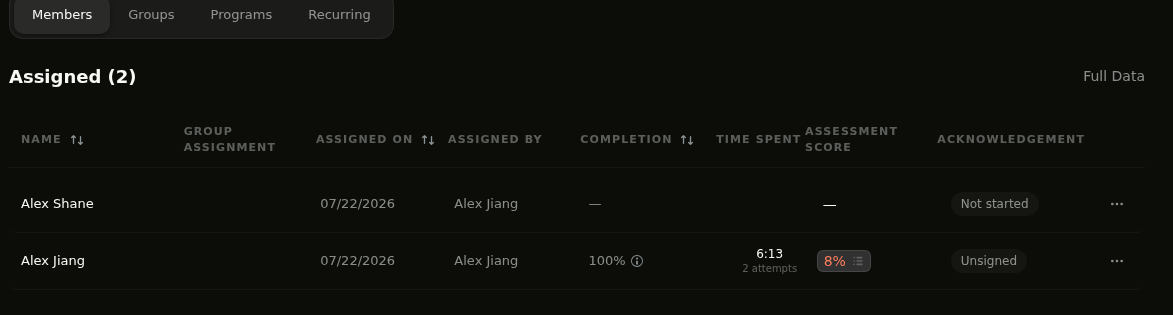
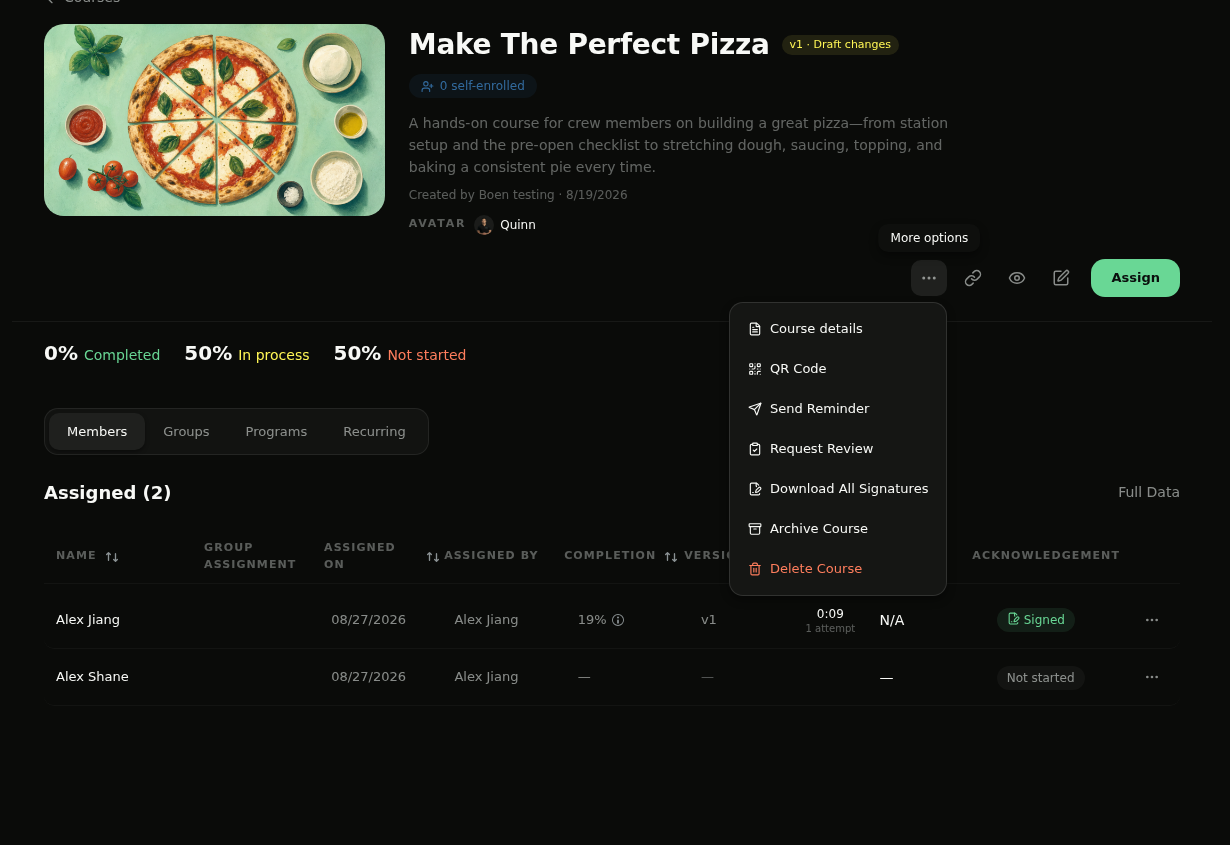
Open the course and go to the Members tab. An Acknowledgement column shows each learner's status: Not started (no progress yet), Unsigned (started but hasn't signed), or Signed. Click a learner's Signed badge to choose View acknowledgement and open their signed record.
Step 4: Find a Signed Learner
In the Members table, find a learner whose Acknowledgement status is Signed. Click the Signed badge to open their Course acknowledgement.

Step 5: Download the Acknowledgement
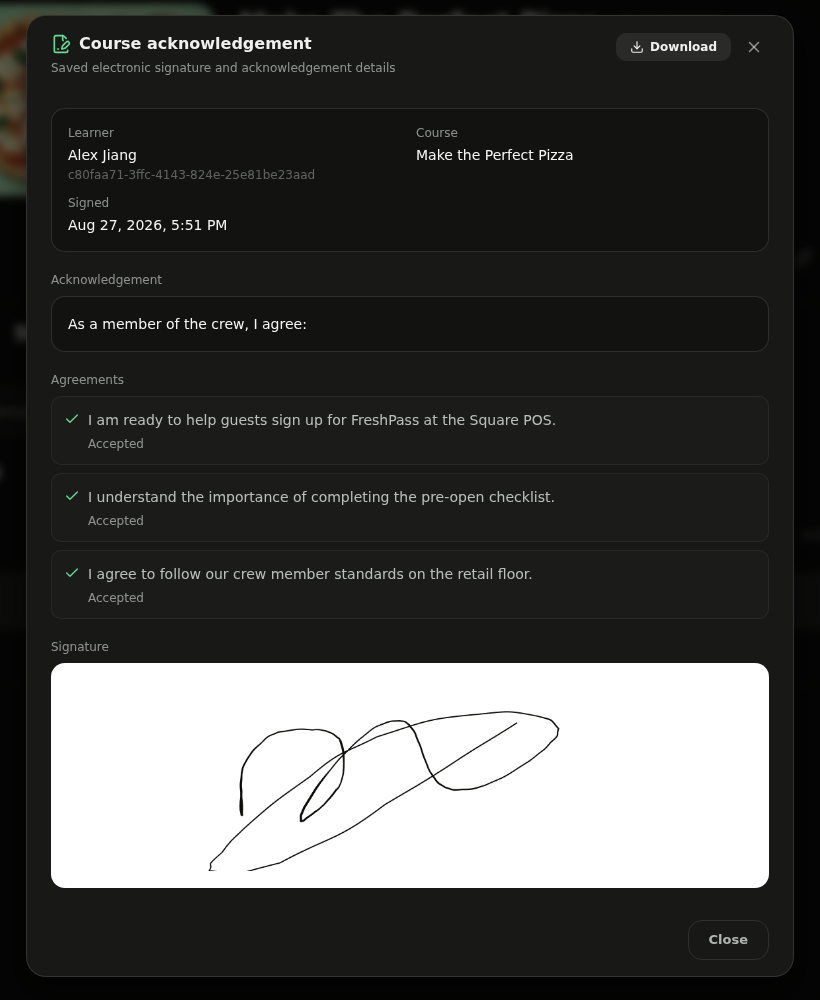
Review the learner, course, signed date, accepted agreements, and saved signature. Click Download to save the complete acknowledgement as a PDF.
Step 6: Download One Signature
For a direct shortcut, open the signed learner's More options menu and select Download Signature. Quinn downloads that learner's signed acknowledgement record.

Step 7: Download All Signatures
To collect all signed records for the course, open the course-level More options menu and select Download All Signatures. This option is useful when multiple learners have completed the acknowledgement.
💡 Tip: Learners who have not signed remain marked Not started or Unsigned, so only completed acknowledgement records are available to download.