Knowledge Base: Capture and Reuse Content
📌 Overview
Your organization's Knowledge Base is where Quinn stores the documents, recordings, and notes it draws on. You can capture brand-new content — a video, a screen recording, or a voice note — straight from the Knowledge Base without a separate upload step, and you can pull any Knowledge Base file or folder into an AI chat so Quinn answers and builds from your own content. This guide is for admins who manage the Knowledge Base at Admin > Knowledge Base.
Record and upload directly in the Knowledge Base
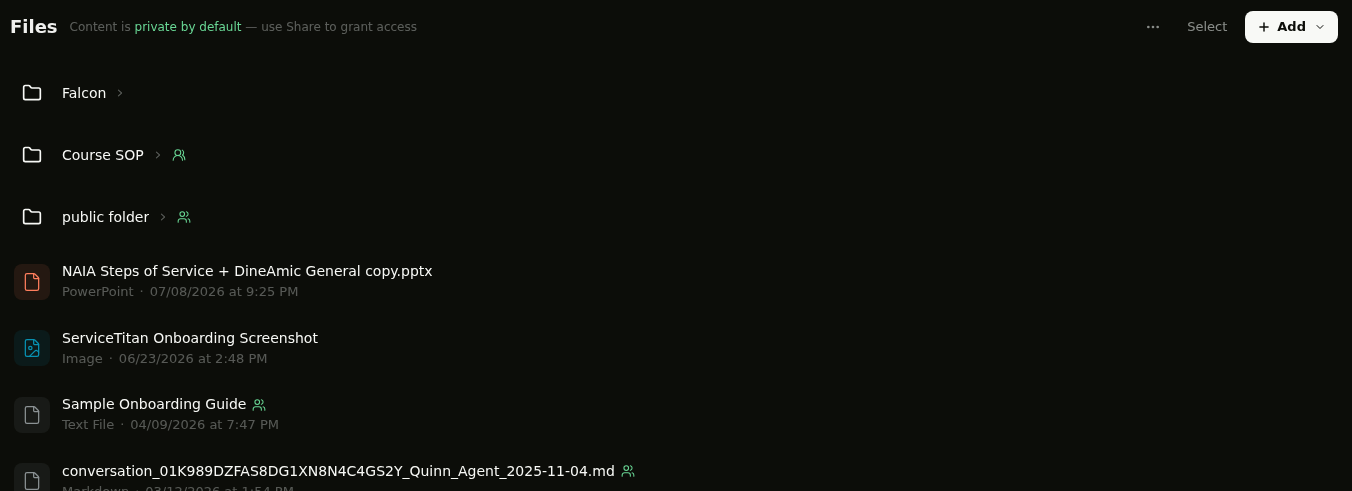
Step 1: Open the Knowledge Base
From the admin sidebar, open Knowledge Base. You'll see your files and folders, with an Add button in the top-right corner of the Files area. New content is private by default until you share it.
Step 2: Open the Add menu
Click Add to open the menu. Alongside New Folder, Add URL, and Upload Files, you'll find three capture options: Record video, Screenshare, and Voice recorder.
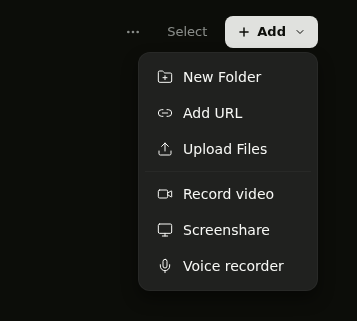
Pick a capture option — Record video, Screenshare, or Voice recorder. Grant camera, screen, or microphone permission if your browser asks, then record. When you stop, the recording is added to your Knowledge Base automatically — there's no separate upload step.
💡 Tip: Open a folder first if you want the recording to land inside it — new captures are added to the folder you're currently viewing.
Reuse Knowledge Base content in AI chats
Step 3: Open the + menu in a chat
In Ask Quinn (and in the course-creation and course-editor chats), click the + button in the message composer. Choose Add from knowledge base to browse your organization's files and folders.
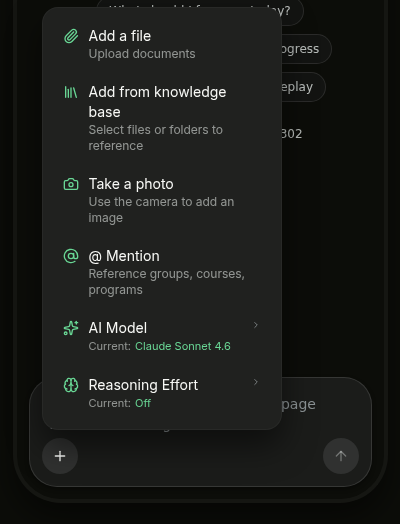
💡 Tip: The + menu also lets you Add a file, Take a photo, use @ Mention to reference groups or courses, and switch the AI Model or Reasoning Effort.
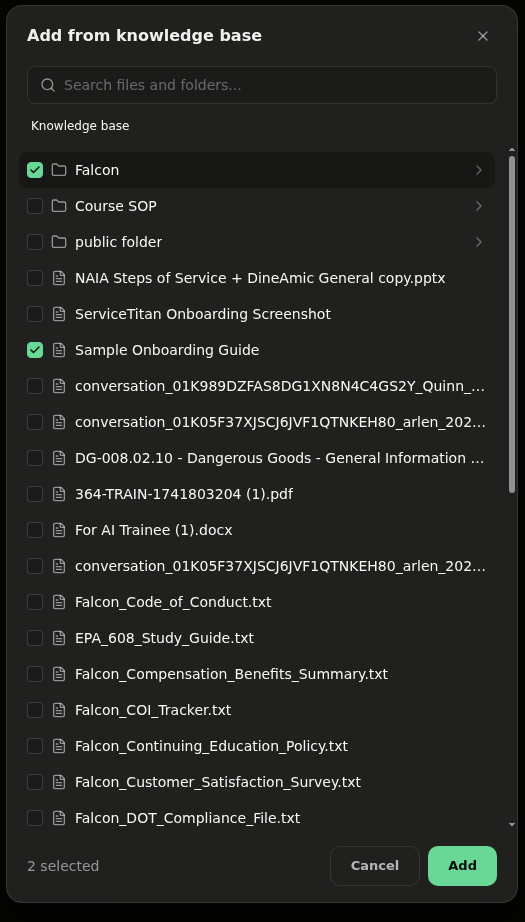
Step 4: Pick files from your Knowledge Base
In the Add from knowledge base picker, use Search files and folders... or browse the list, then tick the folders and files you want. A running count (for example, 2 selected) appears at the bottom. Click Add to attach them, then send your message — Quinn will read and scope its answer to exactly those items.