Learner Course Feedback and Admin Triage
📌 Overview
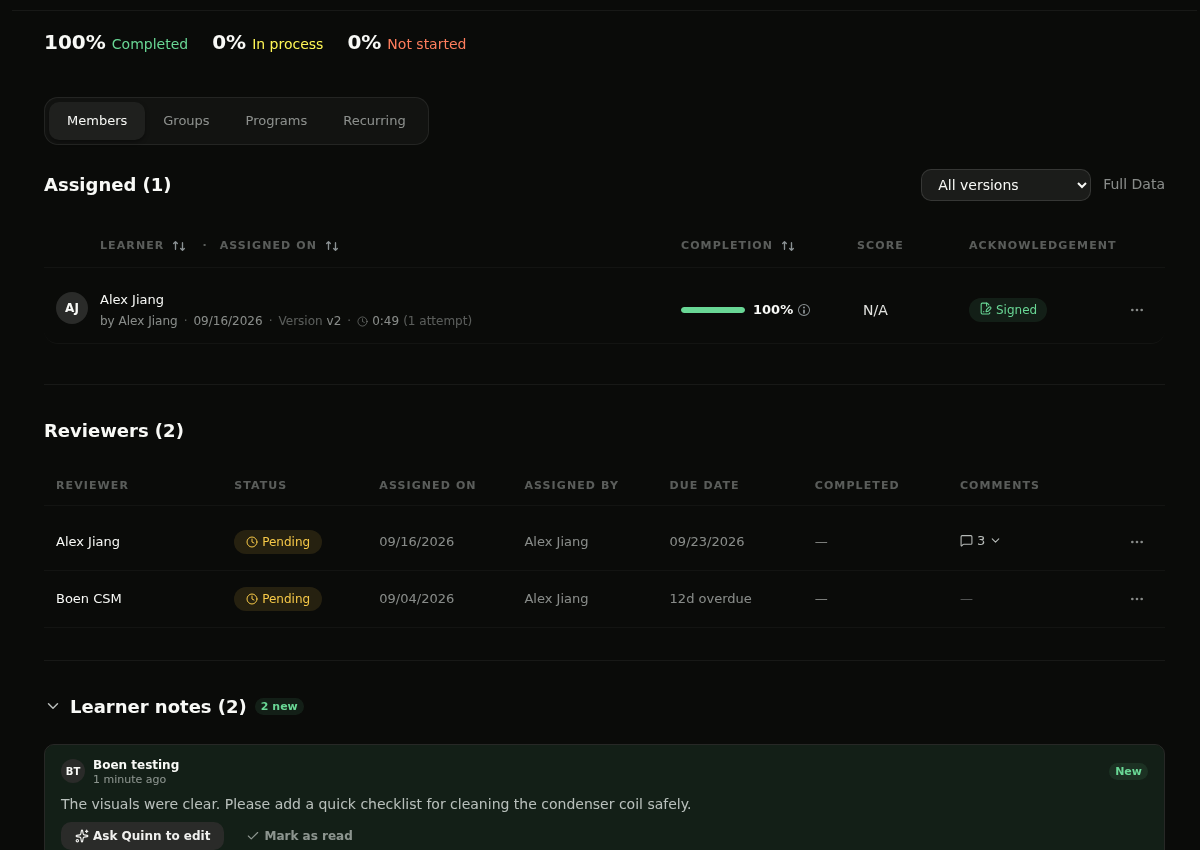
Learners can send course feedback as soon as they start a course, while admins can review every note from the course details page. Use learner notes to spot improvements, mark feedback as read, or hand a request directly to Quinn for editing.
Step 1: Open a Started Course
Open a course you have started or completed. Select Give Feedback beneath the course image.
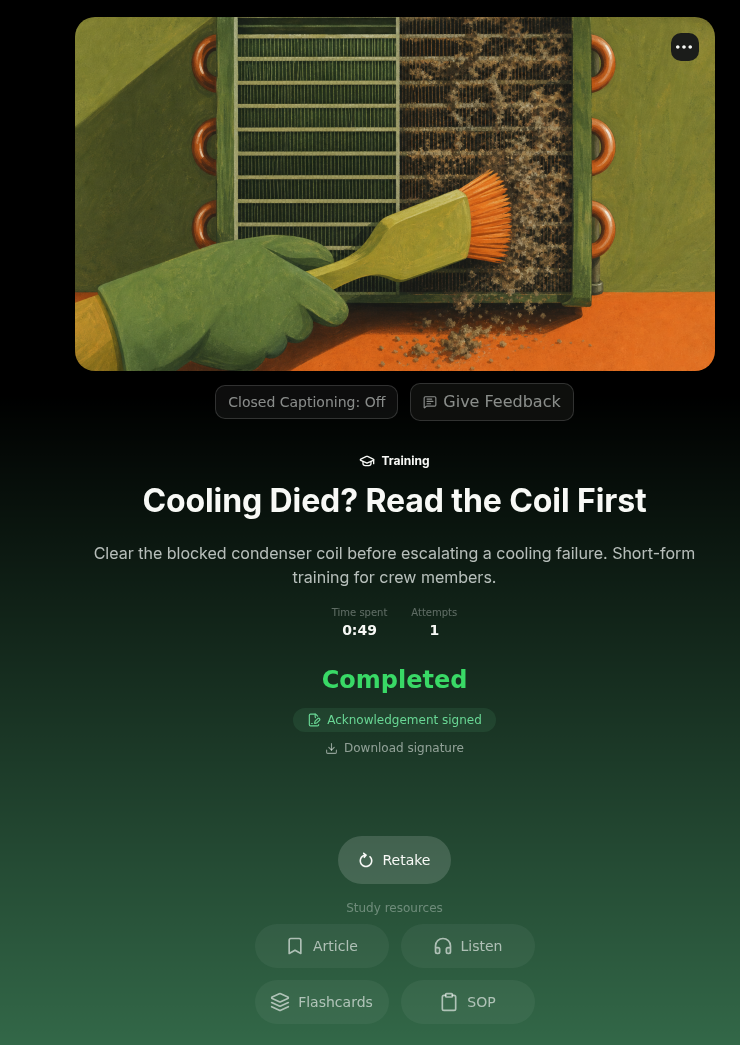
💡 Tip: Give Feedback becomes available after you start the course.
Step 2: Share Your Feedback
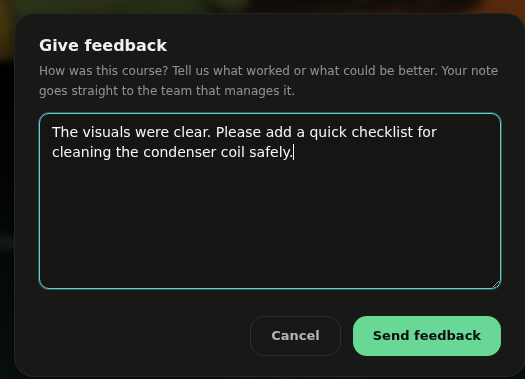
Describe what worked or what could be better in Give feedback, then select Send feedback. Your note goes to the team that manages the course.
Step 3: Confirm the Note
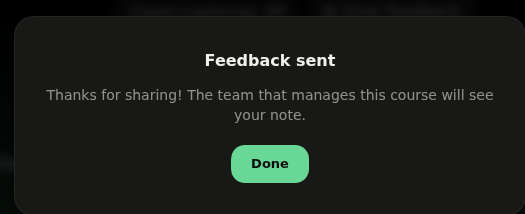
When Feedback sent appears, select Done. The learner can continue using the course normally.
Step 4: Find Learner Notes
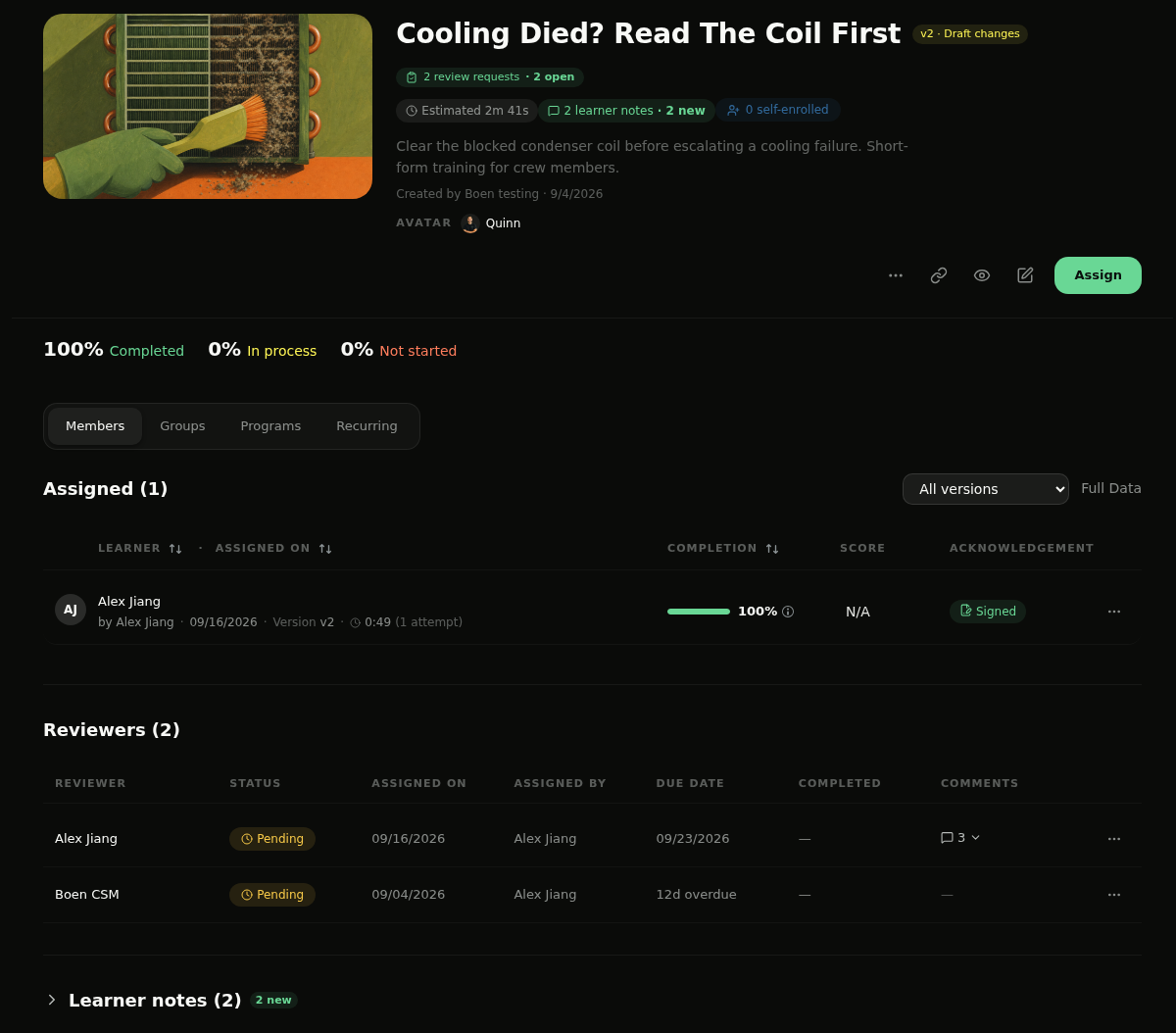
As an admin, open the course details page. The header shows the number of Learner notes and how many are new; expand Learner notes below the member and reviewer tables.
Step 5: Hand Off the Note
Review the learner's message. Select Mark as read when no change is needed, or select Ask Quinn to edit to open the course editor and hand the feedback to Quinn as an editing request.