Points & Prizes
📌 Overview
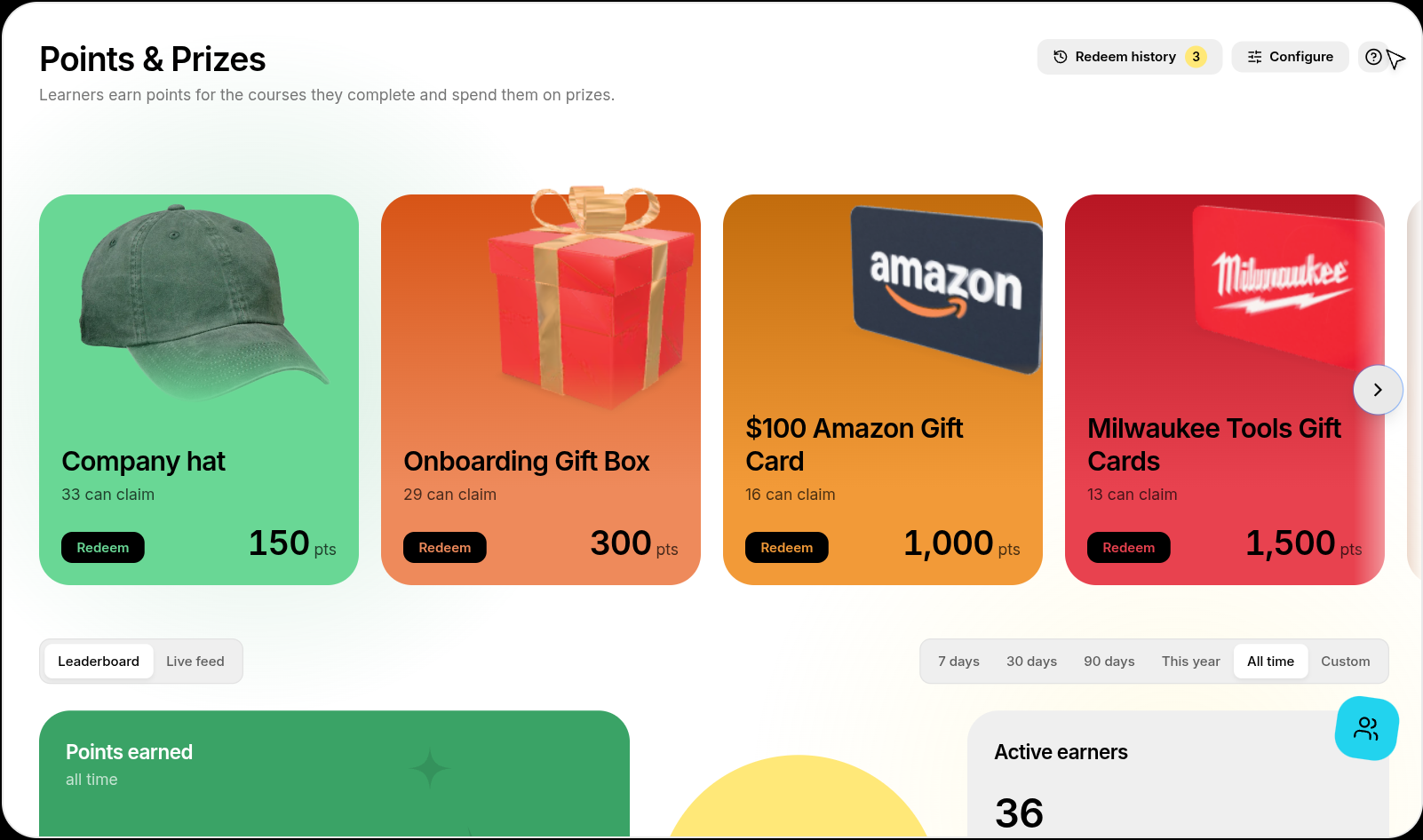
Points & Prizes rewards learners for finishing their training. Learners earn points for every course, program, training session, and sign-off they complete, climb a live leaderboard, and spend their points on prizes you choose — a company hat, a gift card, a day off. You stock the shelf, set the price in points, and redeem prizes for learners when they've earned enough.
Step 1: Stock Your Prize Shelf
Go to Points & Prizes in the admin sidebar. Click Add prize, give it a name, a price in points, and an image or color, and it appears on the shelf with how many learners can currently claim it. Use Configure to change how points are awarded.
Step 2: Learners Earn Points for Completed Learning
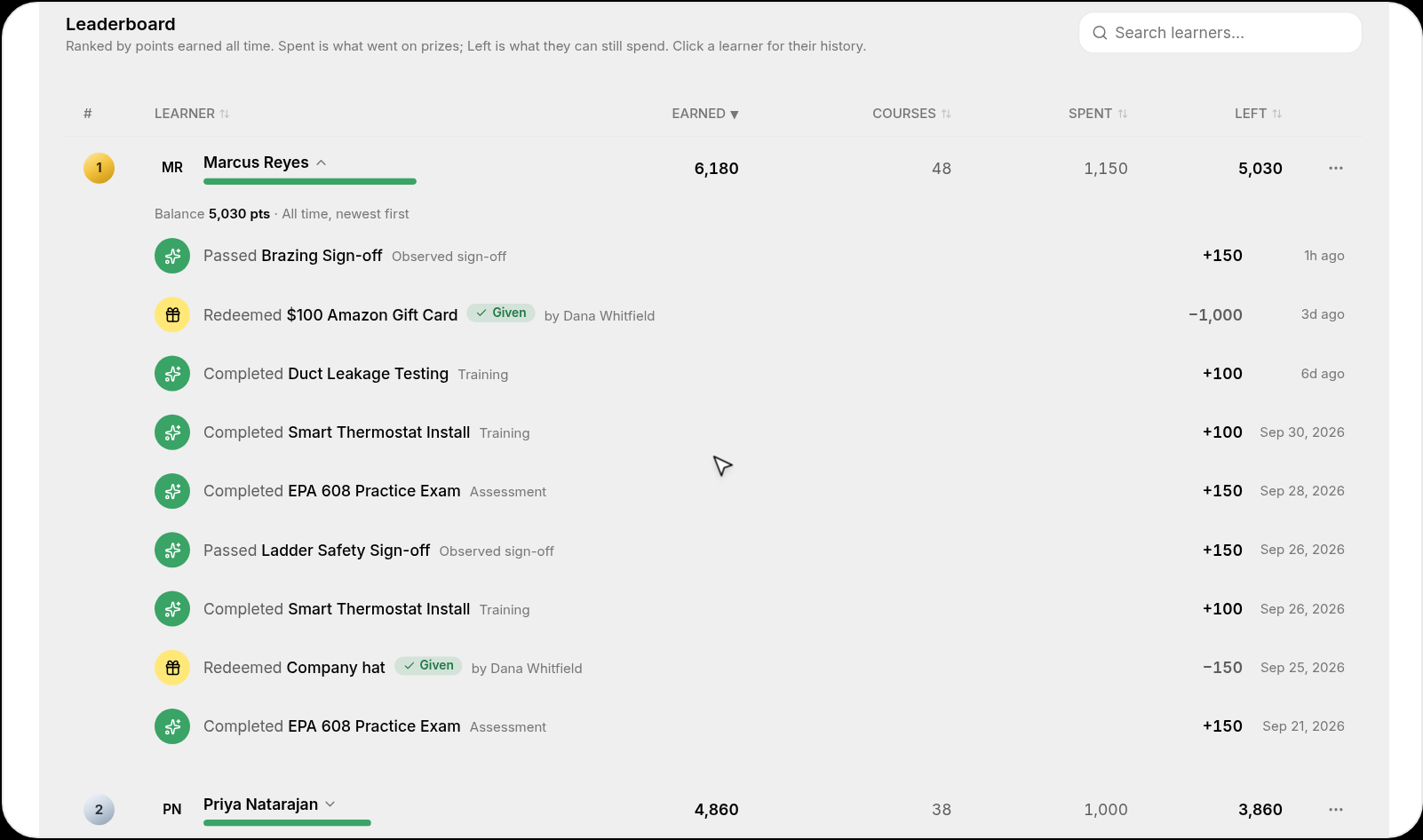
Learners earn points automatically when they finish learning — no setup needed. Open Leaderboard to see who has earned, spent, and still has the most points, and expand any learner to see each course, sign-off, or redemption that changed their balance.
💡 Tip: Here's what earns points by default:
- Courses pay out when the learner finishes the course.
- Programs pay 50 points when the whole program is complete — on top of any points for the courses inside it.
- Instructor-Led Training pays 10 points when the learner is marked Attended. No-shows and excused absences earn nothing.
- Sign-offs pay 15 points when the sign-off is approved.
Each activity pays once per learner, and points start accruing from the moment Points & Prizes is turned on for your organization.
Step 3: Watch Points Come In Live
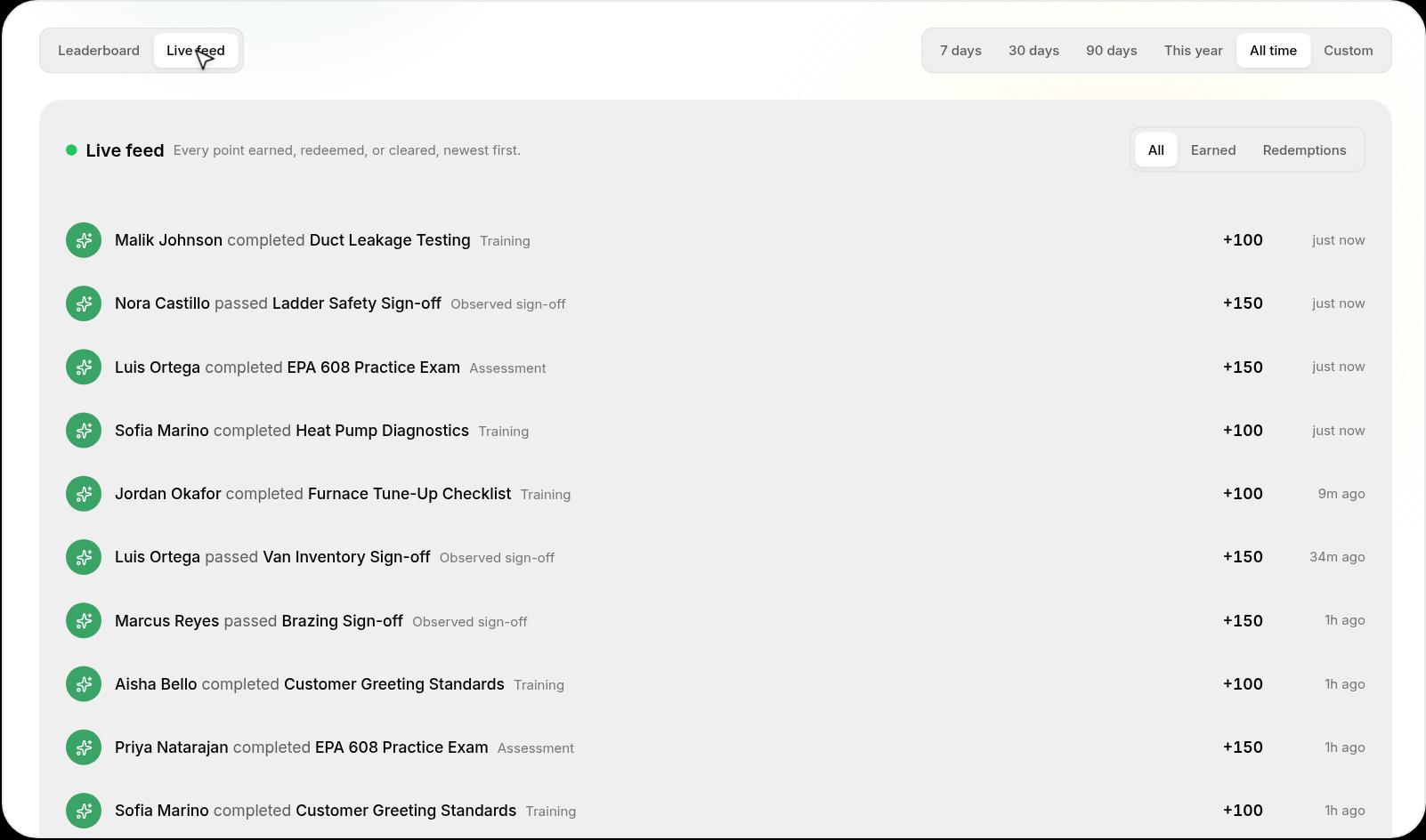
Switch to Live feed to see every point earned, redeemed, or cleared as it happens. Filter by Earned or Redemptions, and change the time range (7 days, 30 days, This year, All time, or Custom) to match your reporting period.
Step 4: Redeem a Prize for Learners
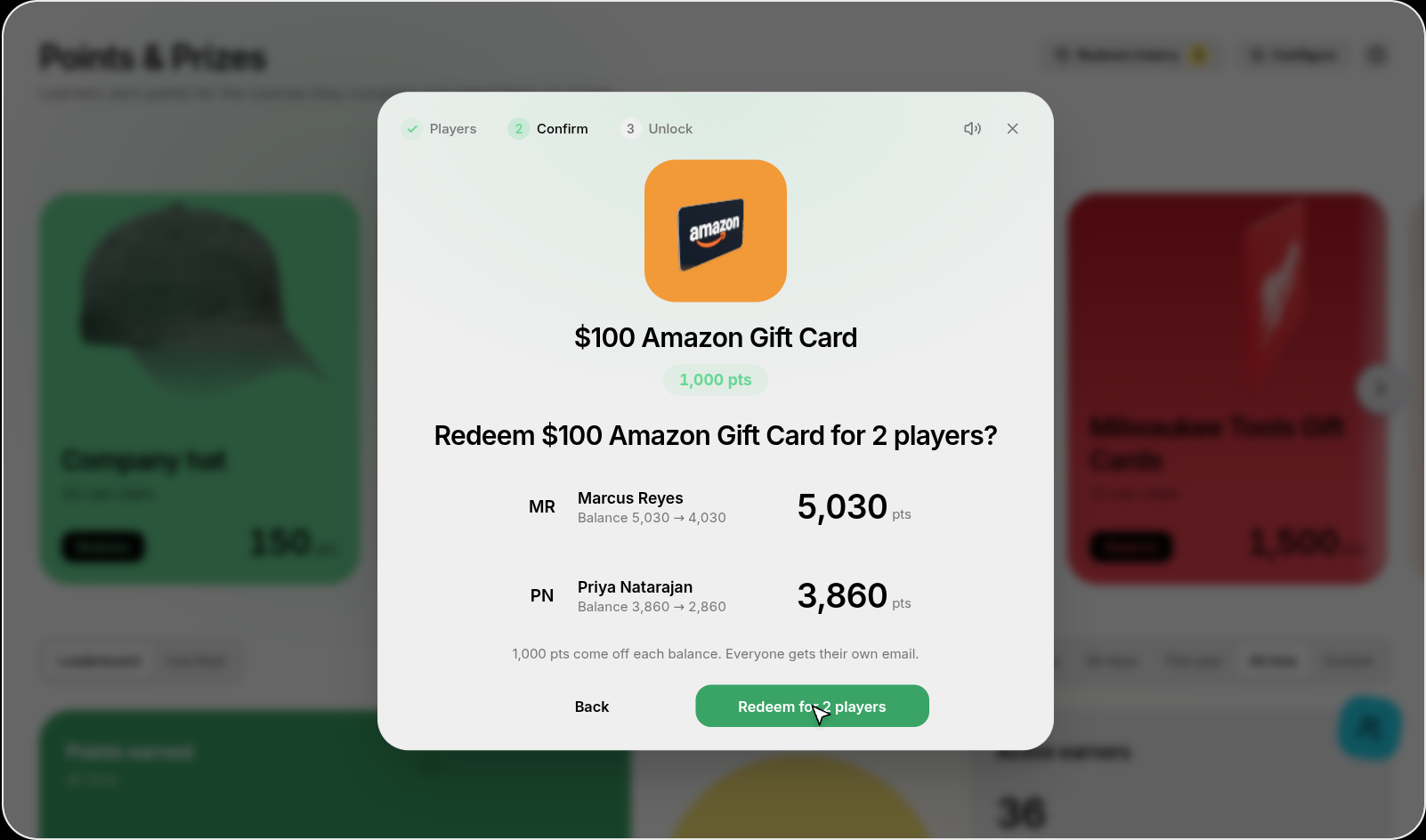
Click Redeem on a prize. Pick the learners who have enough points — Quinn shows each one's balance — then click Redeem for N players.
Step 5: Their Points Turn Into the Prize
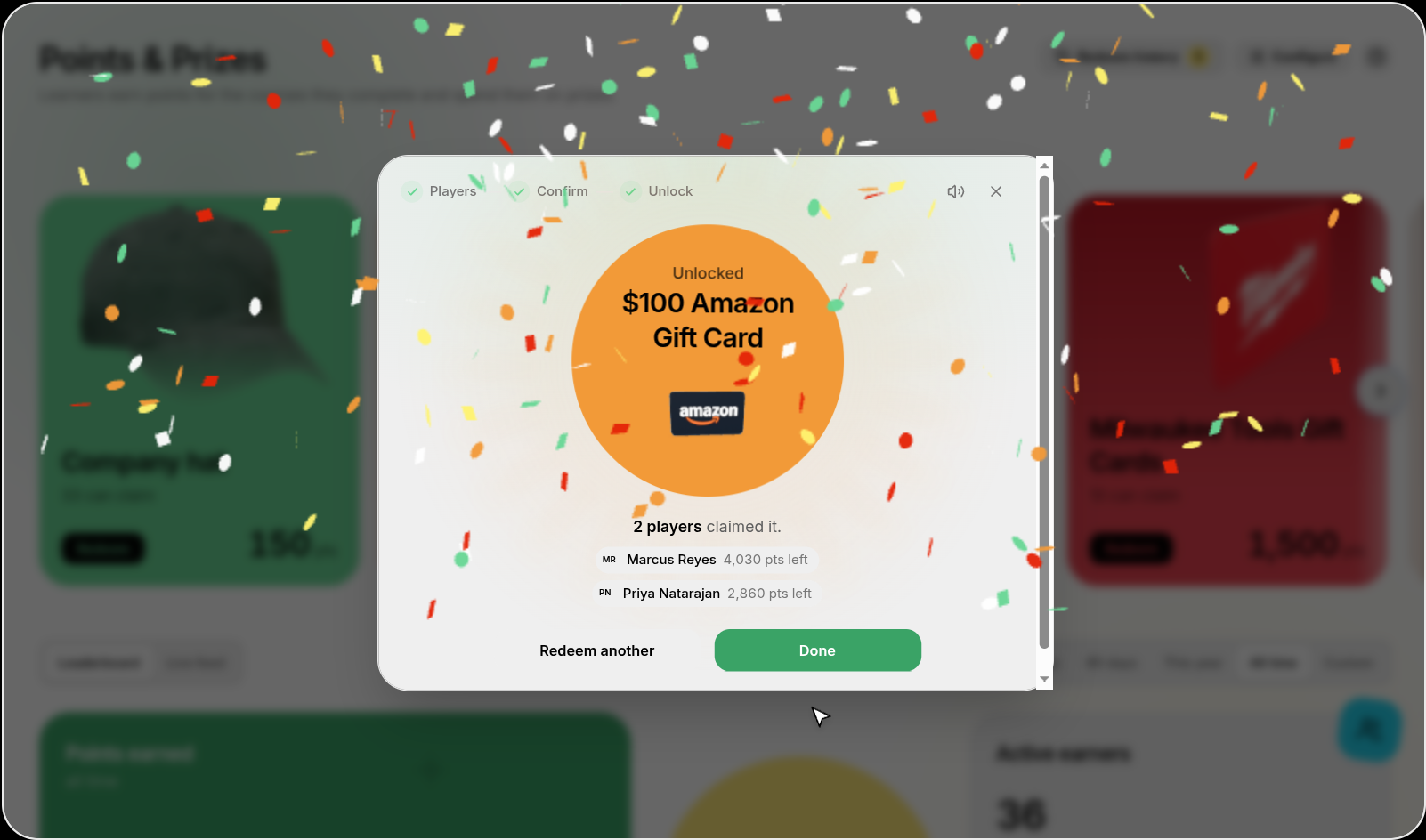
Confirm the redemption. The prize's cost comes off each learner's balance, the prize unlocks for each of them, and every learner gets their own email saying what they've earned.
Step 6: Hand It Over and Check It Off
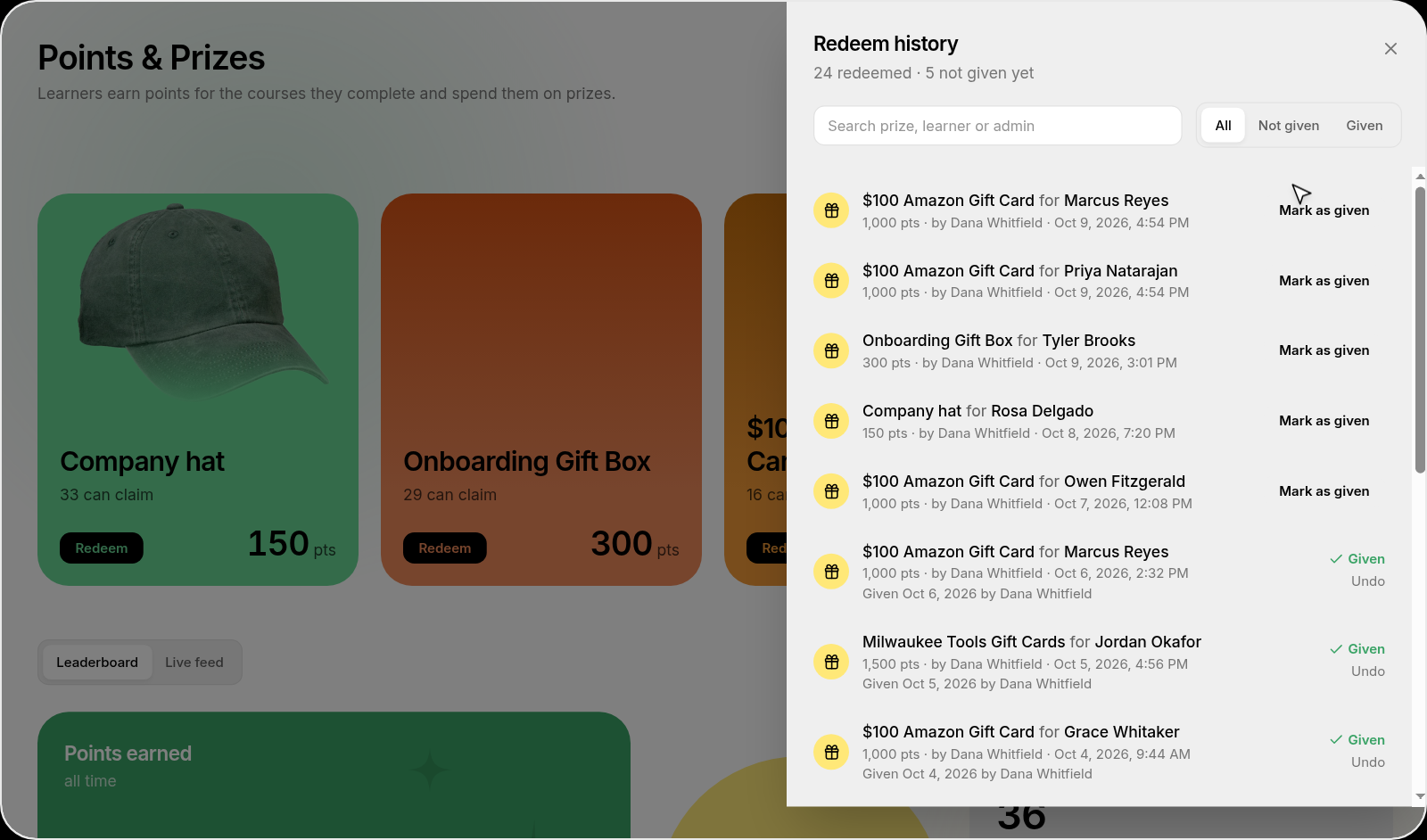
Quinn doesn't ship or deliver prizes — you buy the gift and give it to the learner yourself. Open Redeem history at the top of the page to see every redemption, and click Mark as given once the learner has it in hand. Filter by Not given to see what's still owed, or Undo if you marked one by mistake.
💡 Tips
- Points are awarded once per learner per activity. Retaking a course or being reassigned to it doesn't pay out again.
- Learners see their own balance and the leaderboard in their learner view, so prizes work as a visible goal for the whole team.
- Redeeming only moves points — it doesn't order anything. Keep an eye on Not given in Redeem history so no one waits on a prize they've already paid for.