Send Program Delivery Messages with Media and Courses
📌 Overview
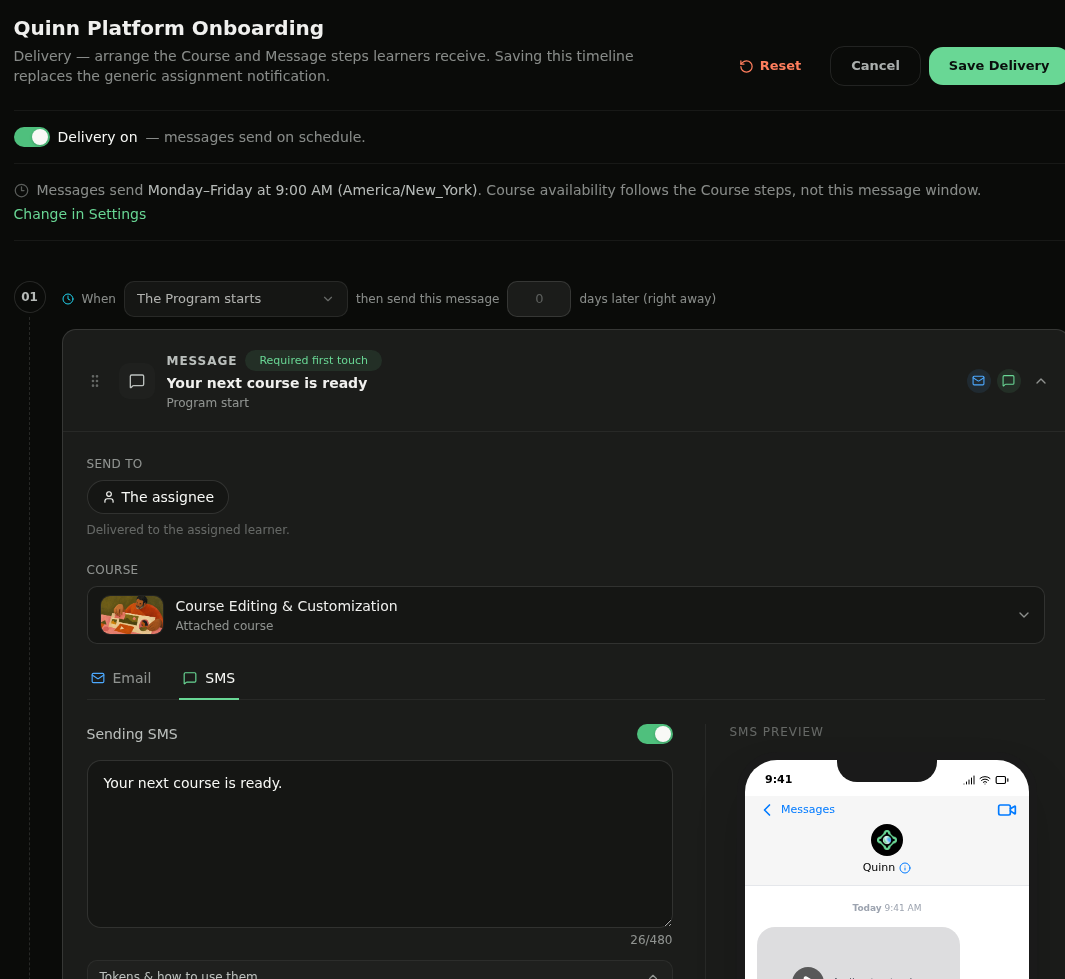
Program Delivery messages can guide each learner to the right course with a course card or link, plus an optional image, video, or audio clip. Configure email and SMS content on the program timeline, preview the learner experience, and save the delivery sequence when it is ready.
Step 1: Open Program Delivery
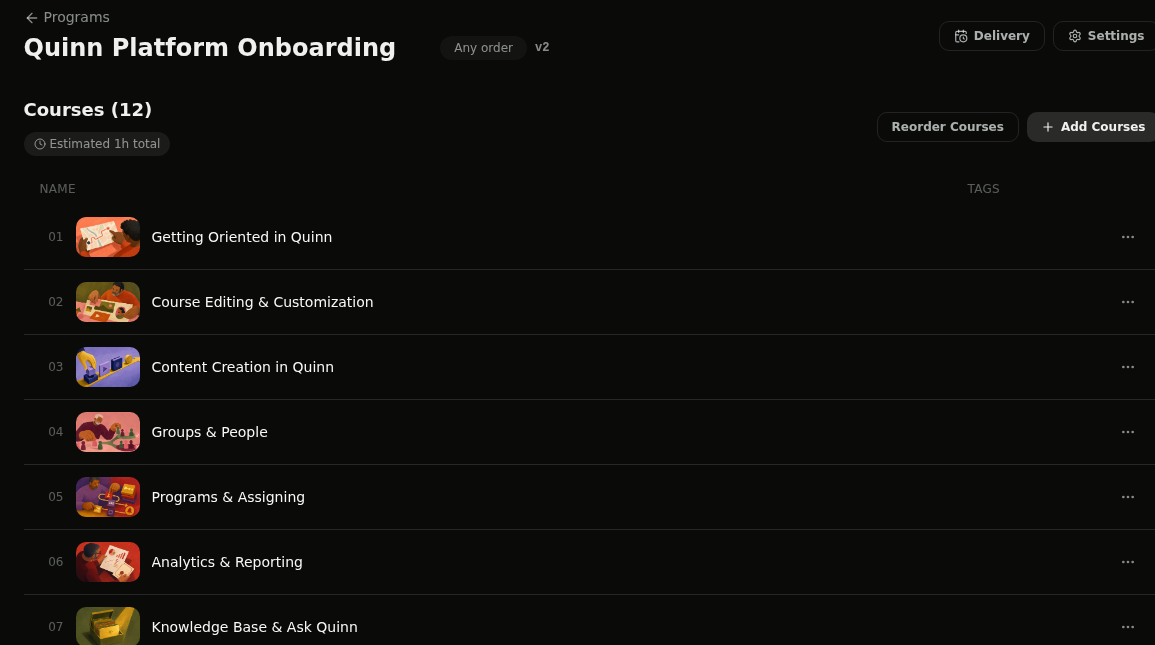
Open a program from Programs, then select Delivery in the top-right. The Delivery page contains the course and message steps learners receive.
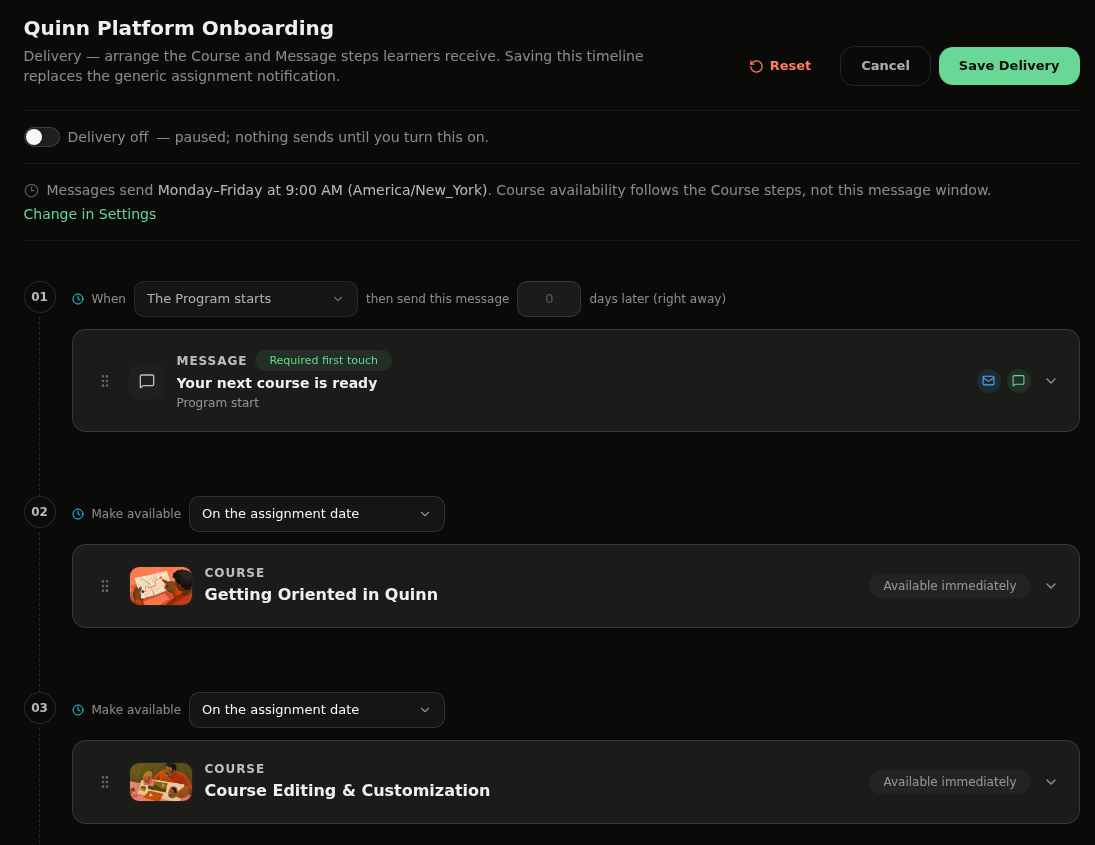
Step 2: Turn On Delivery
Enable Delivery on so messages send on schedule. Review the timeline and the message delivery window before editing the first Message step.
Step 3: Expand the Message
Expand a Message step to edit it. Confirm Send to shows the intended recipient, then use the Email and SMS tabs to choose which channels this step sends.
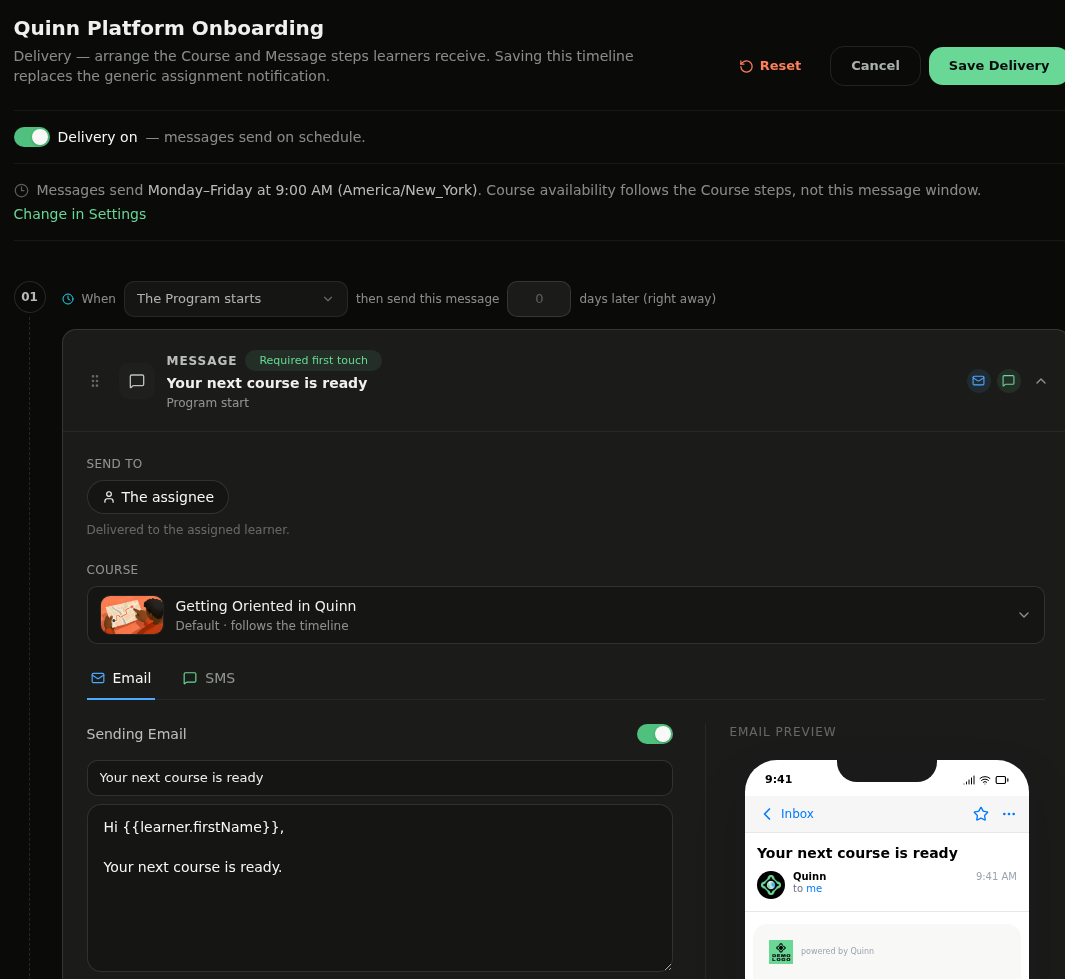
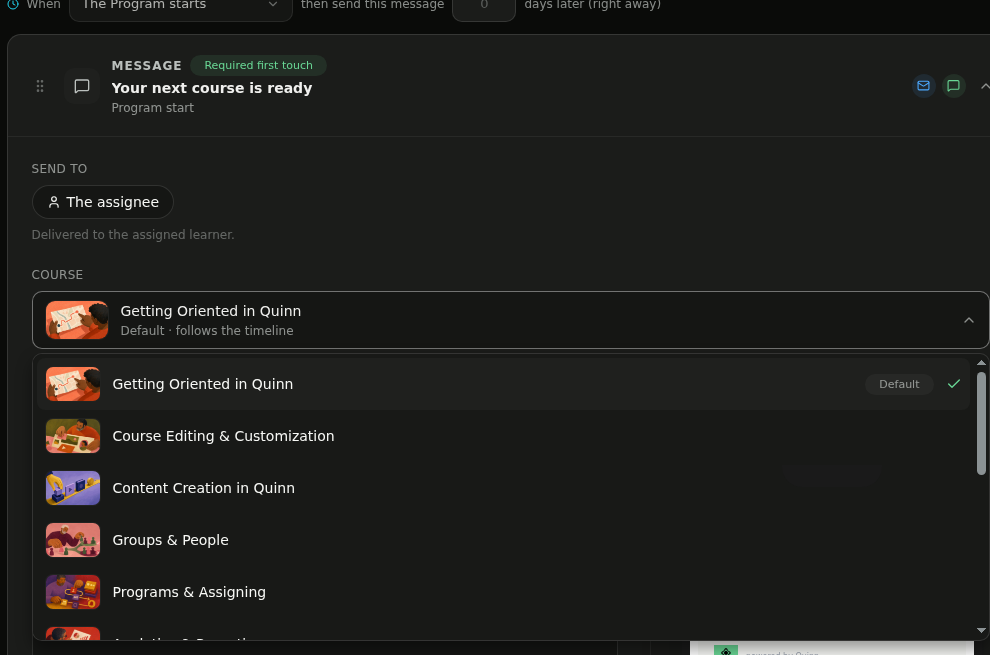
Step 4: Choose a Course
Open Course and select the course this message should promote. Choose the Default course to follow the timeline, another course to attach it directly, or No course to send without a course card or link.
Step 5: Write Each Channel
Under Email, write the subject and body and check the Email preview. Switch to SMS to write the text message; you can turn either channel off when the step should use only one.
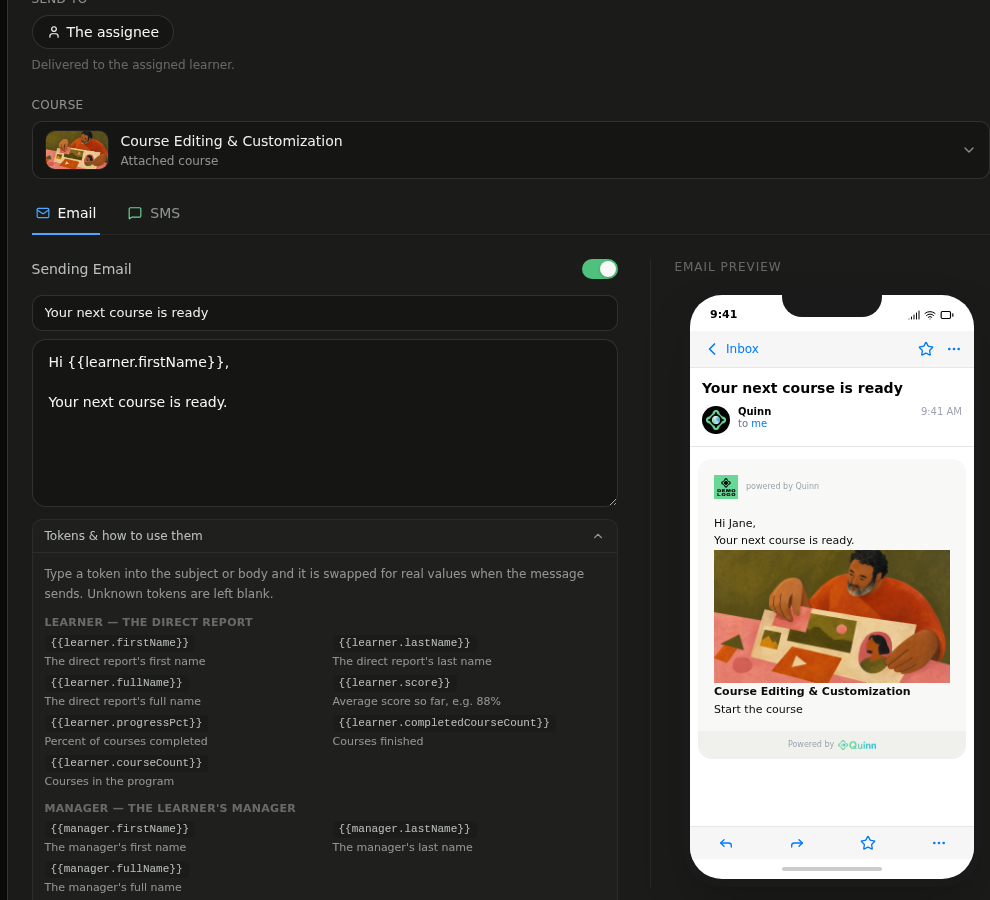
💡 Tip: Use the available learner, manager, program, and course tokens to personalize each message.
Step 6: Add Video or Audio
In Media, select Upload and choose a supported file. Images display inline, while video and audio clips send as a tap-to-play preview link; you can also add a recommended media description or select Send test.
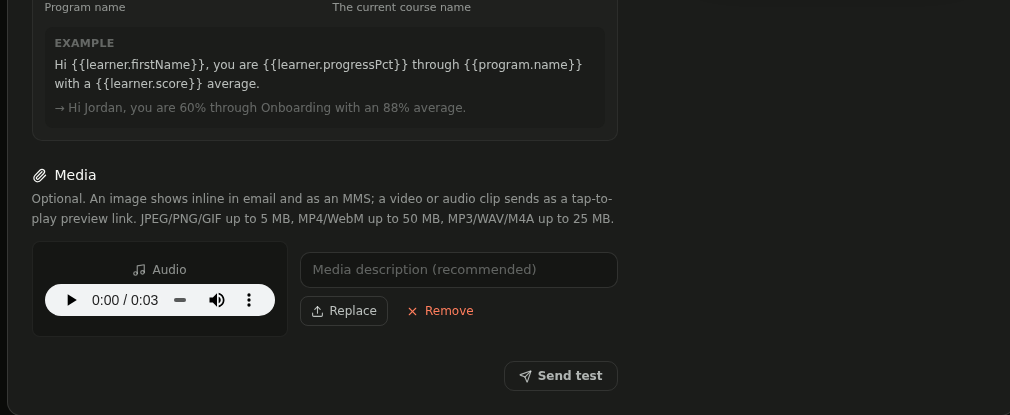
💡 Tip: Quinn supports JPEG, PNG, and GIF files up to 5 MB; MP4 and WebM videos up to 50 MB; and MP3, WAV, and M4A audio up to 25 MB.
Step 7: Save the Delivery
Review the course, email, SMS, and media settings, then select Save Delivery. Quinn sends the saved messages according to the timeline and delivery window.