Program Versioning and Version History
📌 Overview
When you change a published program's course order or eligible settings, Quinn saves the update as a new numbered version. You choose which learners move to the new version, while past completions stay recorded and the program's version history summarizes what changed.
Step 1: Open Your Programs
Select Programs from the admin navigation and choose the program you want to update.
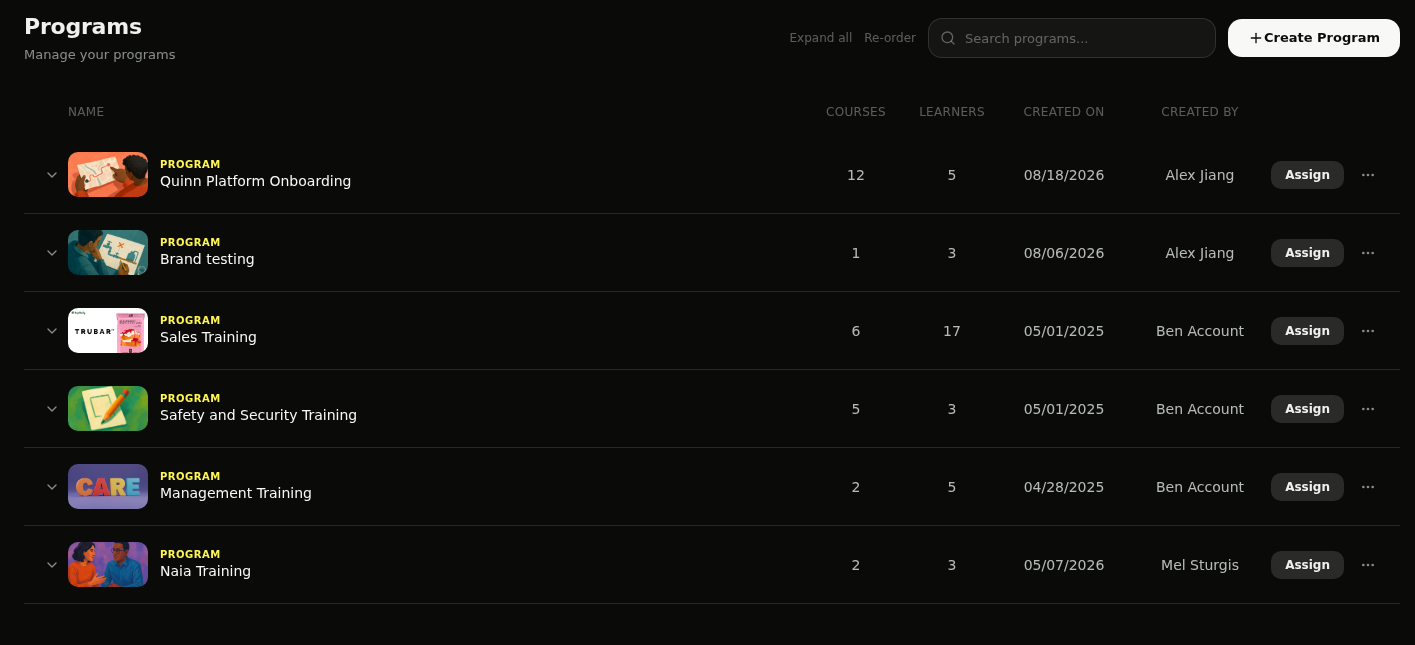
Step 2: Review Current Version
The program details page shows its current version beside the program name. Review the course outline and assigned learner count before making changes.
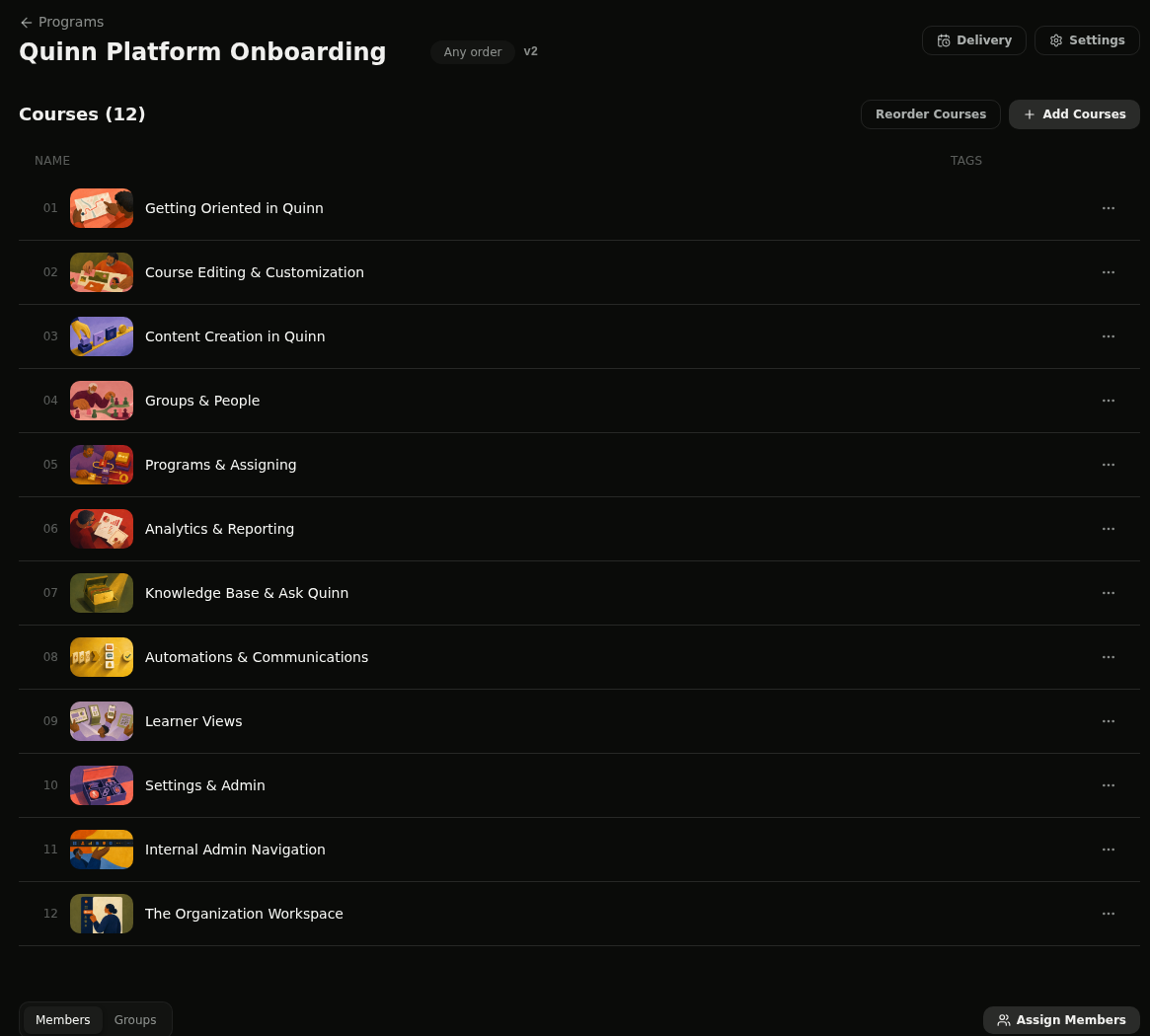
Step 3: Make Program Changes
Reorder the course outline or open Settings and change an eligible program setting. Click Save Course Order or Save Settings when your update is ready.
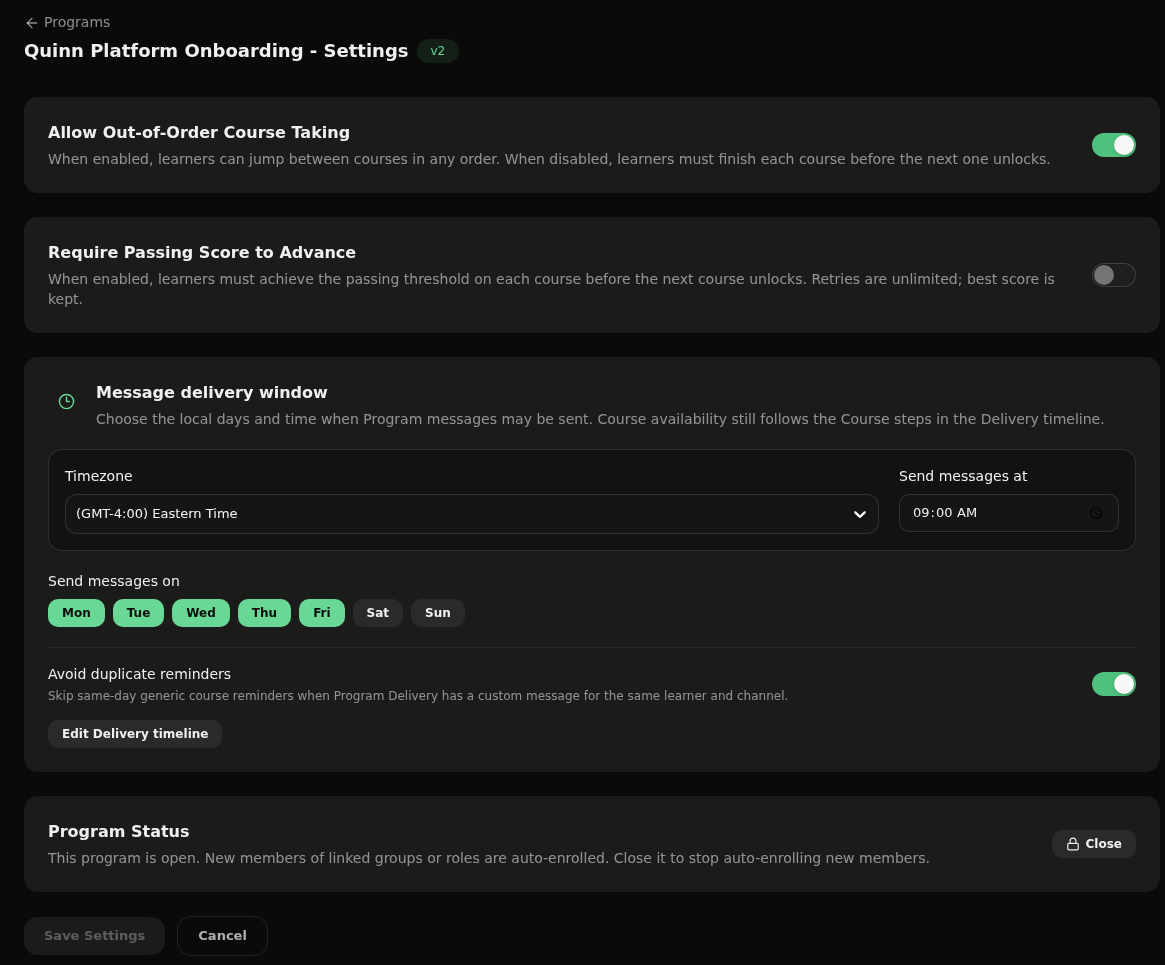
Step 4: Choose Who Moves
In Who should this change apply to?, choose Everyone still in progress, New learners only, or Everyone. Review the learner counts, then click Save changes to create the next version.
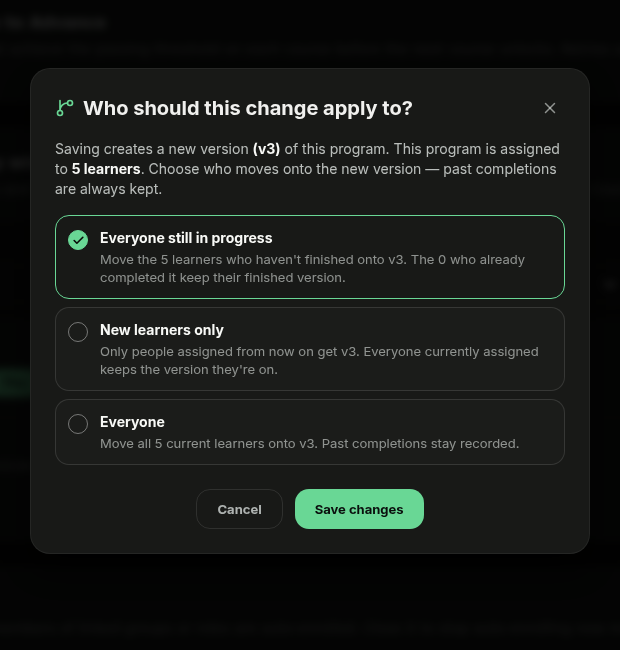
💡 Tip: Everyone still in progress moves learners who have not finished while keeping completed learners on their finished version. Past completions are preserved with every option.
Step 5: Review Version History
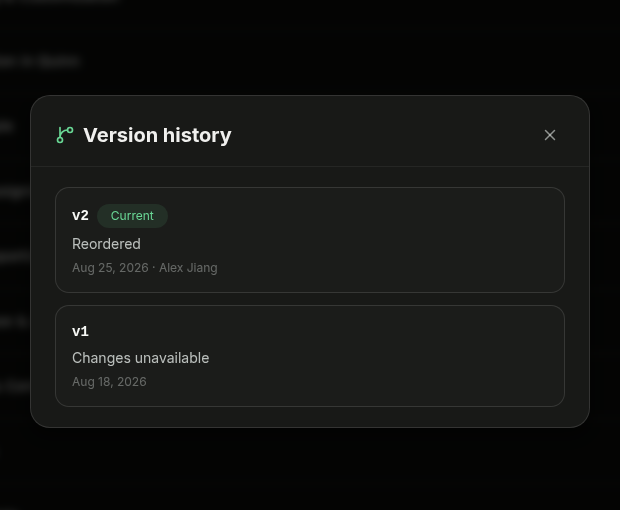
Click the version badge beside the program name to open Version history. Each entry shows its version number, date, author, and a generated summary of detected changes, such as Reordered.
Step 6: Move Learners Forward
In the program's Members table, use Move to latest for an individual learner or Move everyone to v2 to update everyone still on an earlier version. Review the member's version badge before moving them.
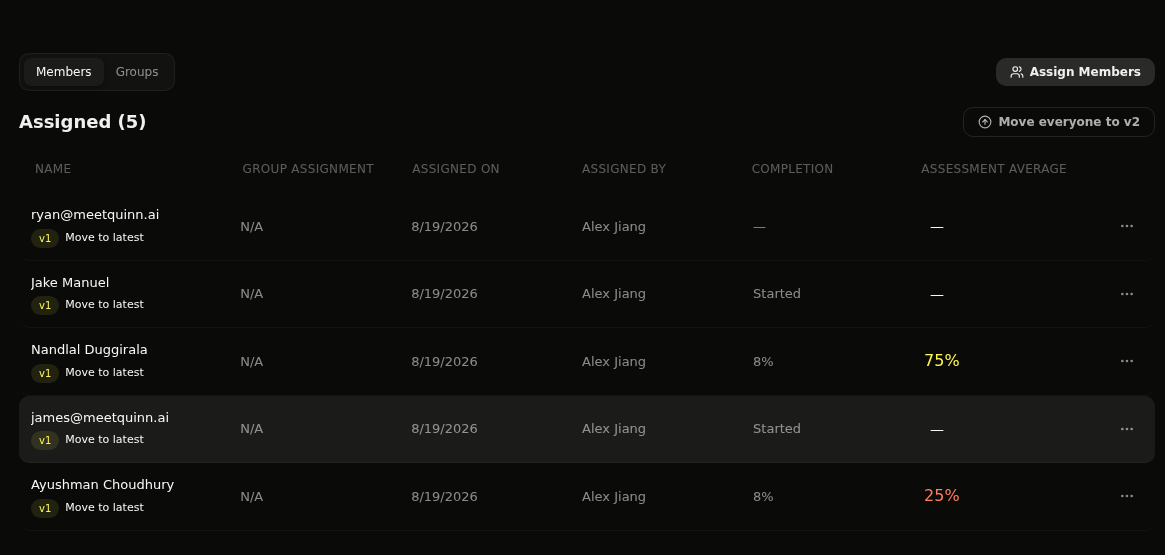
💡 Tip: The bulk action names the current version, so confirm the version number before moving multiple learners.