Quinn Memory
📌 Overview
As your team works in Quinn, it learns what makes your organization tick — your products, your terminology, and the way you talk. Quinn Memory turns those insights into a living profile it draws on every time it generates content, so the output sounds like your company, not a generic template.
You stay in control the whole way through: review what Quinn has learned, and toggle, pause, edit, or remove any memory at any time. The more your team works in Quinn, the smarter it gets.
Watch the tutorial video above
Step 1: Open Quinn Memory
Click the Settings menu in the bottom-left corner and select Quinn Memory. You'll see everything Quinn currently applies across your team's work, grouped into memories like Brand voice, Products & programs, and What we call our team.
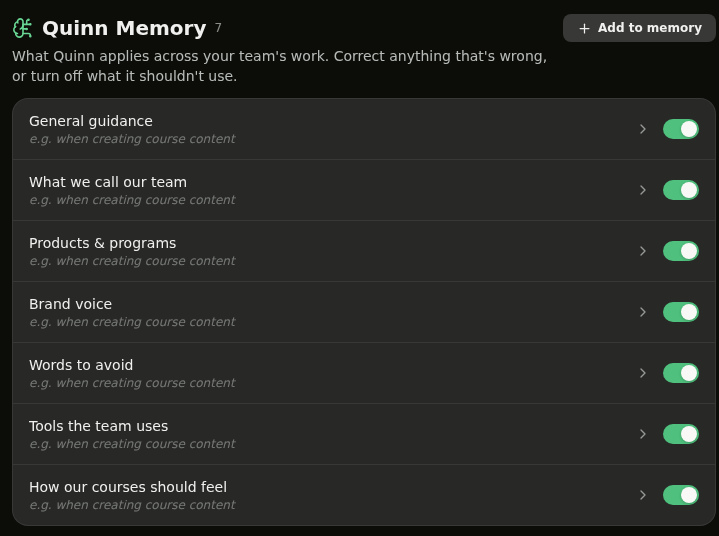
Step 2: Review What Quinn Remembers
Click any memory to open it and see exactly what Quinn is applying and when it uses it. This is the living profile Quinn builds from your team's activity and the facts you've accepted.
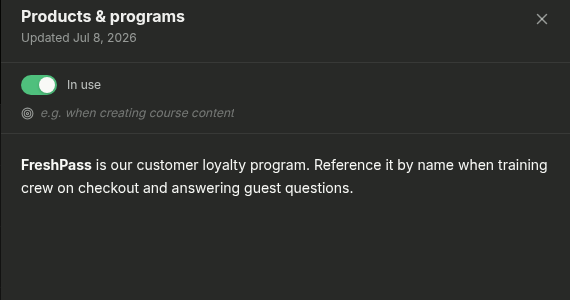
💡 Tip: The "when to use this" line tells Quinn the moment to apply a memory — for example, when creating course content.
Step 3: Correct or Refine a Memory
If something isn't quite right, click Edit. You can update the Title, adjust When Quinn should use this, and rewrite the Details so the memory reflects your organization accurately. Click Save to apply your changes.
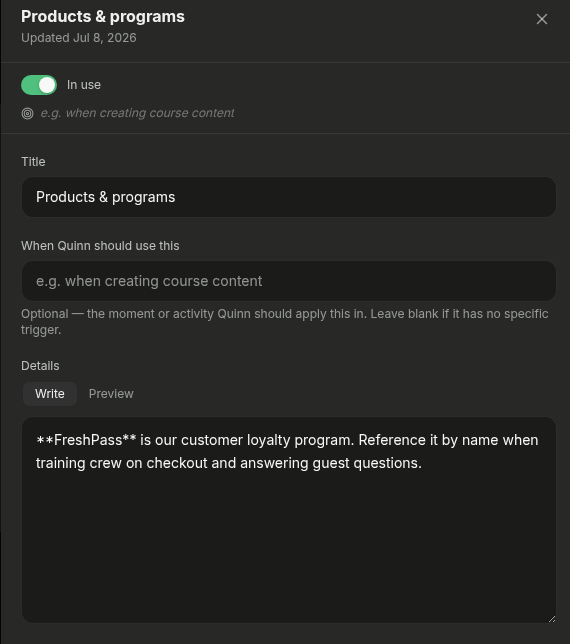
Step 4: Pause or Turn Off a Memory
Every memory has a toggle. Switch it off to stop Quinn from using that memory, or pause it from the detail panel. Nothing is deleted — you can turn it back on whenever you're ready.
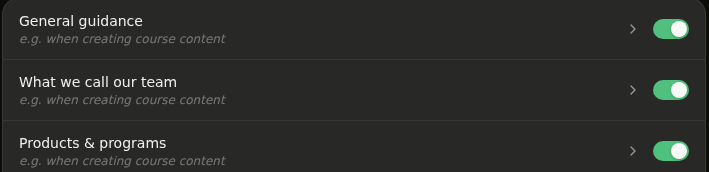
Step 5: Add Your Own Memory
Want Quinn to remember something specific? Click Add to memory, give it a Title, describe When Quinn should use this, and write the Details. Click Create and Quinn will apply it going forward.
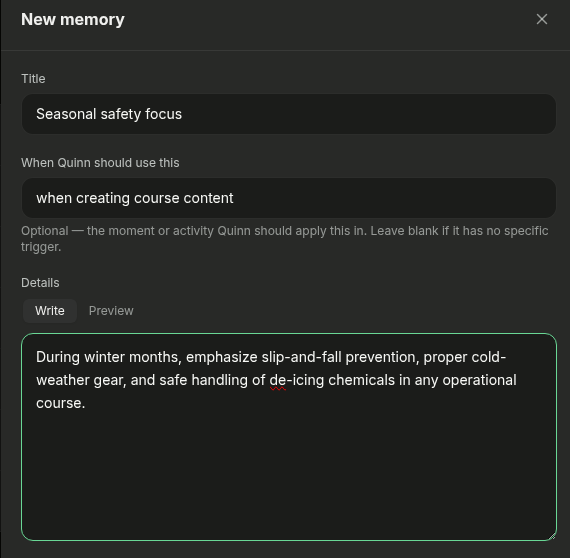
💡 Tip: Use custom memories for things Quinn can't infer on its own — a seasonal safety focus, a new product launch, or a phrase your team should always (or never) use.