Require Admin Approval for Review Comments
📌 Overview
Organization admins can require new review comments to be approved by named customer admins before Quinn applies any suggested changes. Reviewers and AI can still prepare recommendations, but pending work stays off live course slides until an approver accepts it.
Step 1: Open Approval Settings
Open Organization Settings, scroll to Learning Experience, and find Review comments require admin approval. Select Edit.
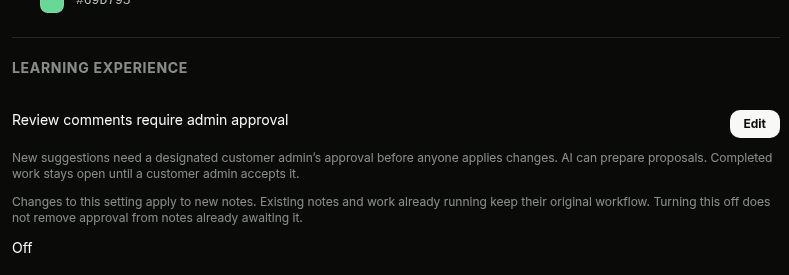
Step 2: Turn On Approval
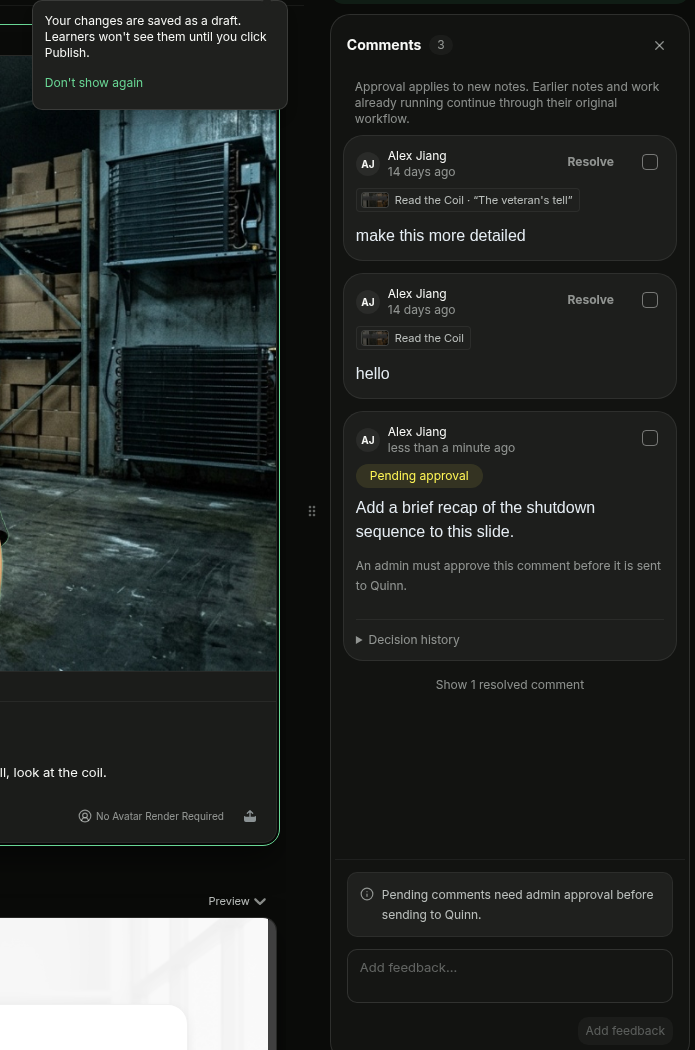
Enable Require approval for new comments. The setting applies to new review notes; existing notes and work already in progress keep their original workflow.
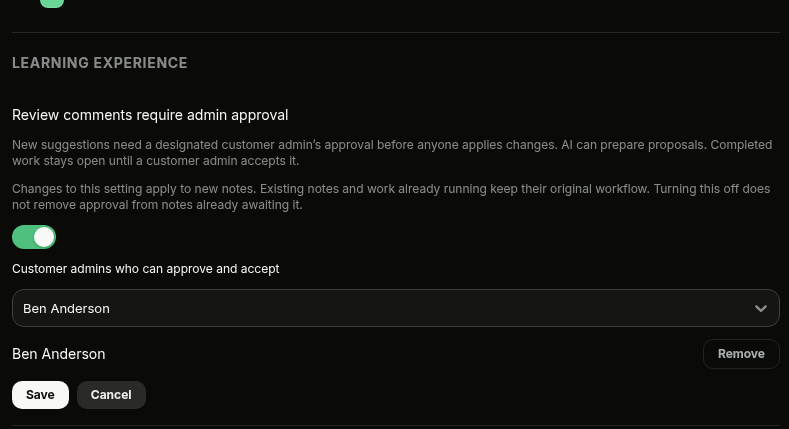
Step 3: Add Named Approvers
Open Add a customer admin… and select the customer admins who can approve and accept comments. Add each approver your organization needs, then select Save.
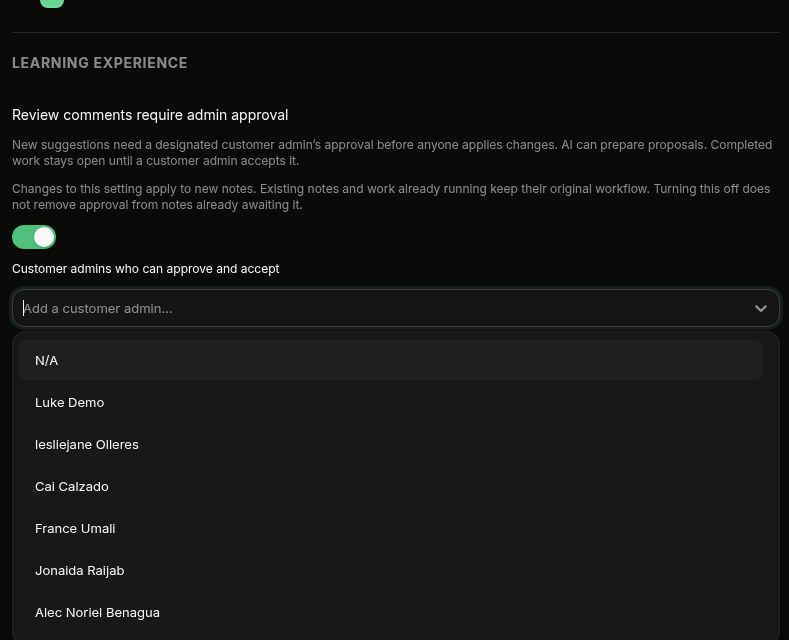
Step 4: Confirm the Setting
Confirm the setting shows Enabled and lists the named approvers. New reviewer and AI suggestions now enter the approval workflow.
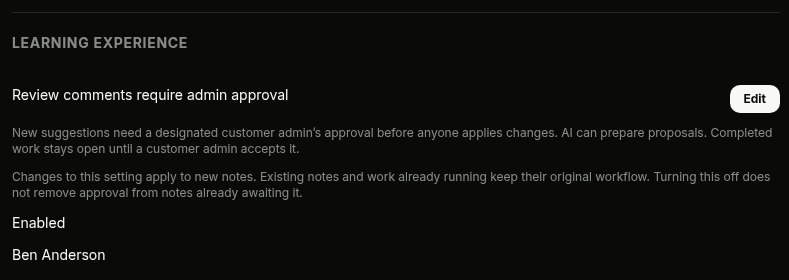
Step 5: Decide Pending Comments
Open a review comment marked Pending approval. A named approver can select Approve to accept it, Edit Comment to revise it before approval, or Reject to decline it. If Quinn prepared changes, use Preview AI proposal and Expand preview to inspect them before deciding.
💡 Tip: Pending suggestions stay off live slides until approval. Turning the organization setting off does not remove approval from comments already waiting for a decision.