Roleplay Results Dashboard
📌 Overview
The Roleplay results dashboard gives organization admins a roll-up of learner performance across roleplay conversations. Use it to review pass and completion rates, compare slides, identify commonly missed objectives, and open detailed coaching feedback for individual learners.
The screenshots in this guide use illustrative sample data from Quinn's official dashboard. Your dashboard will show results from your organization.
Step 1: Open Roleplay Results
Open Reports from the admin navigation and select Roleplay Results. The dashboard summarizes objective pass rate, completion rate, roleplay slides, learners, and attempts.

Step 2: Filter the Results
Choose Latest attempt or All attempts, select a time range, and narrow the dashboard by course or learner. Every section updates to match the selected filters.
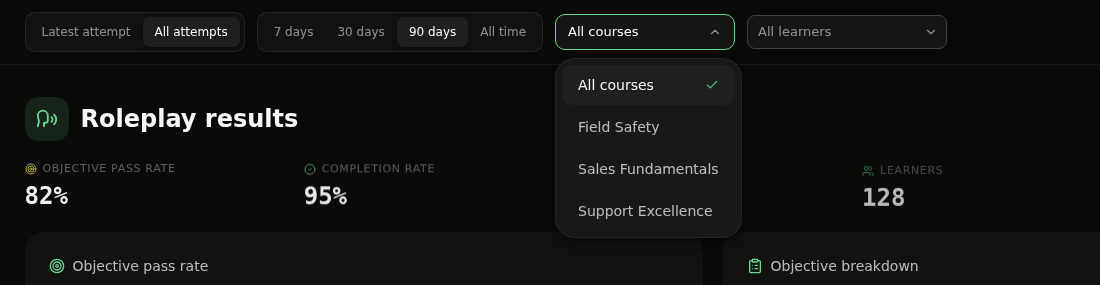
💡 Tip: Use Latest attempt to focus on each learner's current performance, or All attempts to review practice activity over time.
Step 3: Review Objective Health
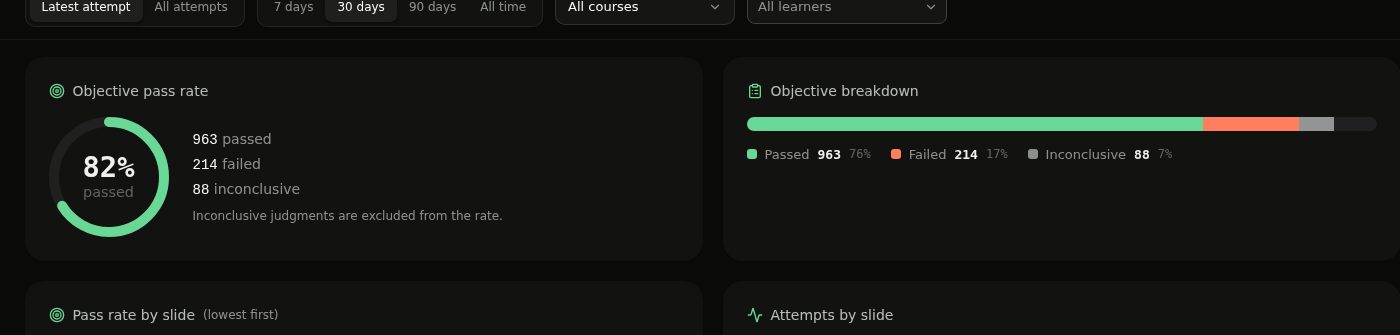
Use Objective pass rate to see the overall percentage and counts of passed, failed, and inconclusive judgments. Objective breakdown shows the same results as a proportional bar.
Step 4: Compare Roleplay Slides
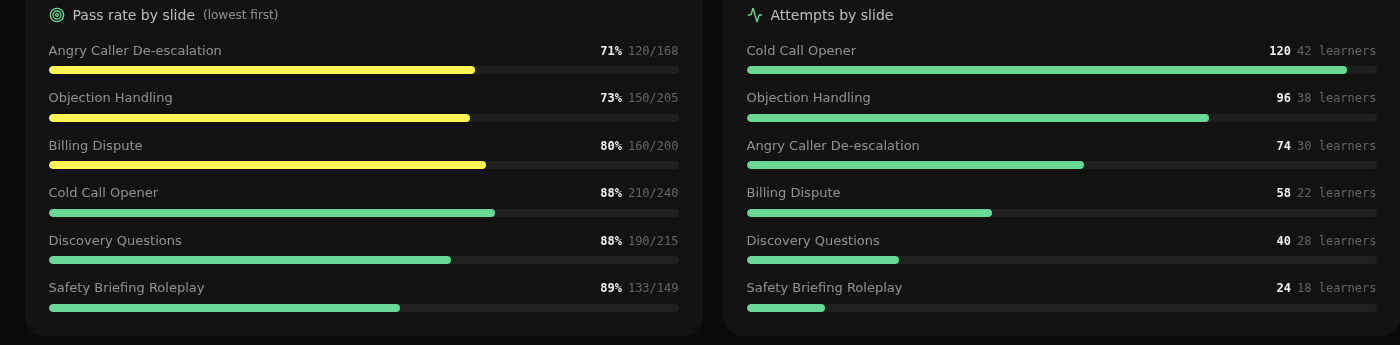
Review Pass rate by slide to find the strongest and weakest roleplays. Compare it with Attempts by slide to understand how many learners and attempts contribute to each result.
Step 5: Find Missed Objectives
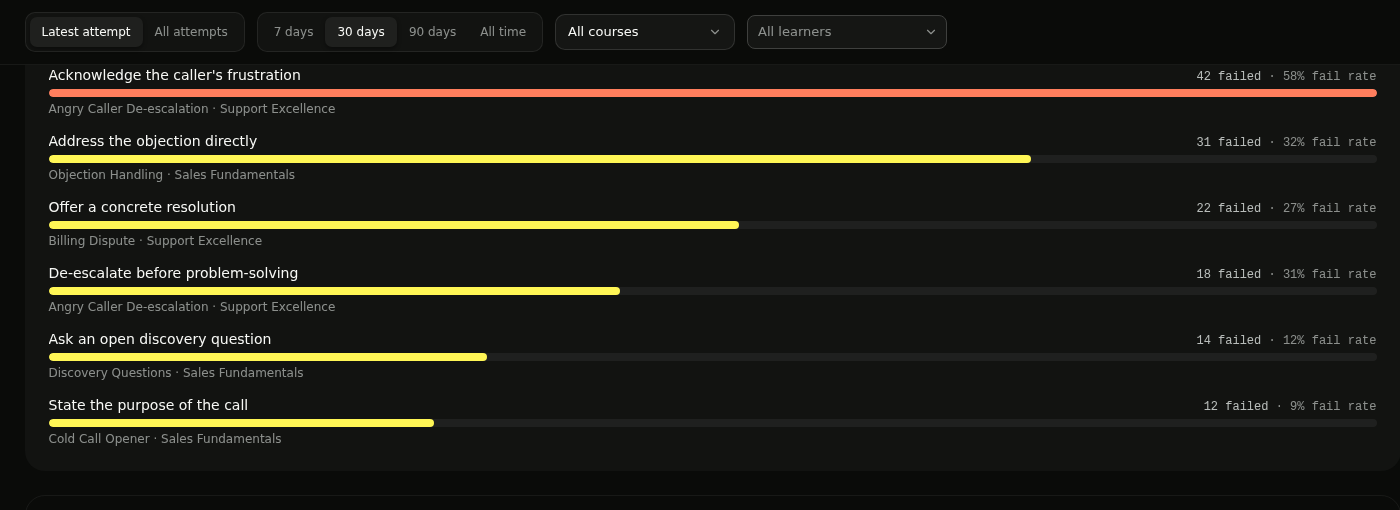
Check Most commonly missed objectives to see where learners fail most often. Each row identifies the objective, roleplay slide, course, failed count, and fail rate.
Step 6: Review Slide Details
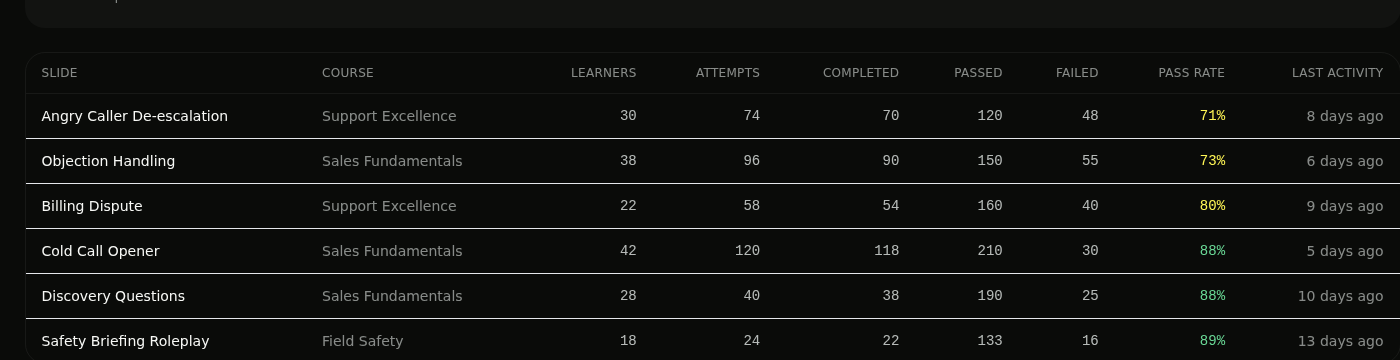
Use the slide table to compare learners, attempts, completions, passed and failed objectives, pass rate, and last activity for each roleplay.
Step 7: Open Learner Feedback
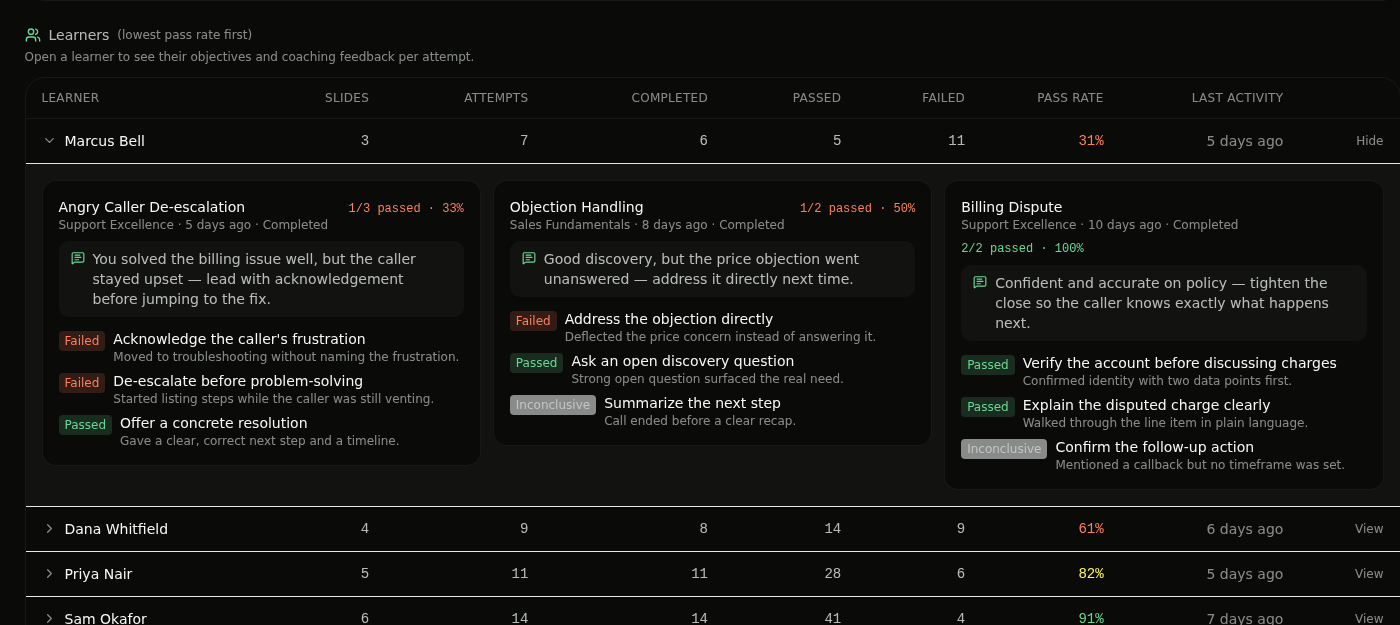
In Learners, open a learner to review results by roleplay slide. Each card shows coaching feedback and the objectives marked Passed, Failed, or Inconclusive for that learner's attempt.