Score-Gated Course Progression
📌 Overview
Want to make sure learners actually master each course before moving on? With score-gated progression, you can require learners to achieve a passing score on each course in a program before the next one unlocks. Set a default threshold for the whole program or customize it per course — learners get unlimited retries, and their best score counts.
Step 1: Open Your Program
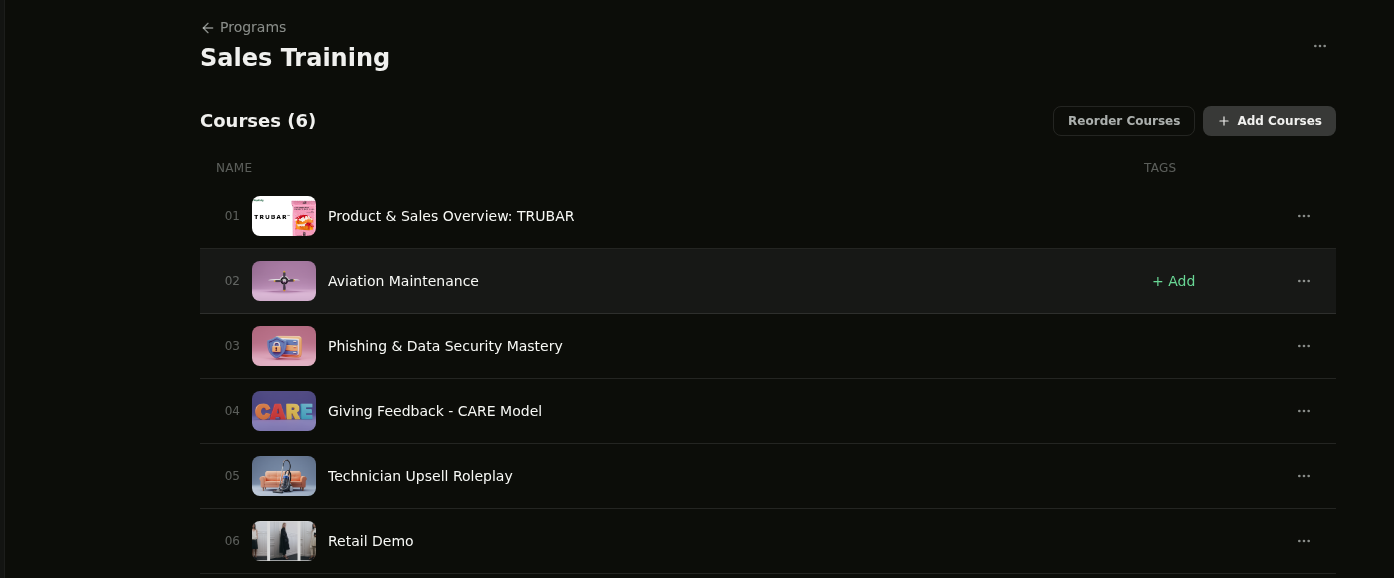
Navigate to Programs from the sidebar and select the program you want to configure. You'll see the list of courses in the program with their order numbers.
Step 2: Open Program Settings
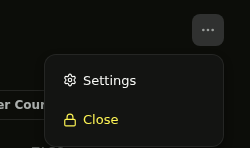
Click the ⋯ (more options) button in the top-right corner of the program header. Select Settings from the dropdown menu.
Step 3: Enable Passing Score Requirement
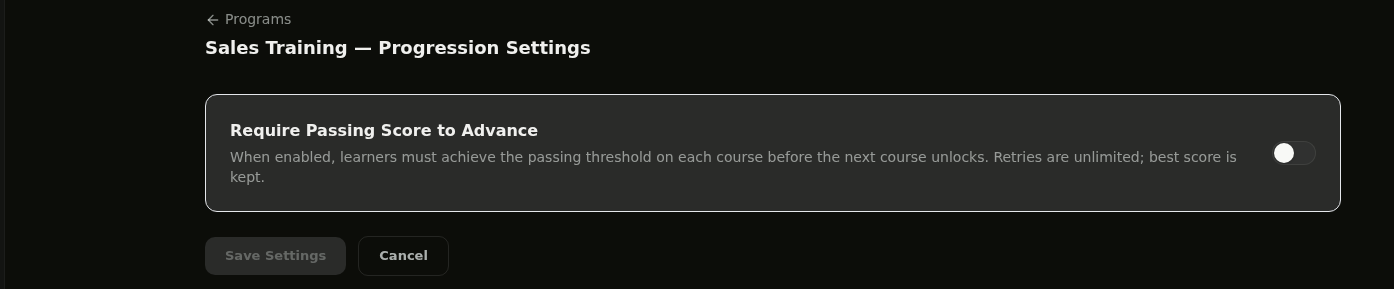
On the Progression Settings page, you'll see the Require Passing Score to Advance toggle. When disabled, learners can move through courses in any order just by completing them. Toggle it on to require a passing score before the next course unlocks.
Step 4: Set Score Thresholds
Once enabled, two new sections appear. Set the Program Default Threshold (e.g. 80%) — all courses inherit this value automatically. To customize individual courses, adjust the threshold in the Per-Course Thresholds list. Click Save Settings when done.
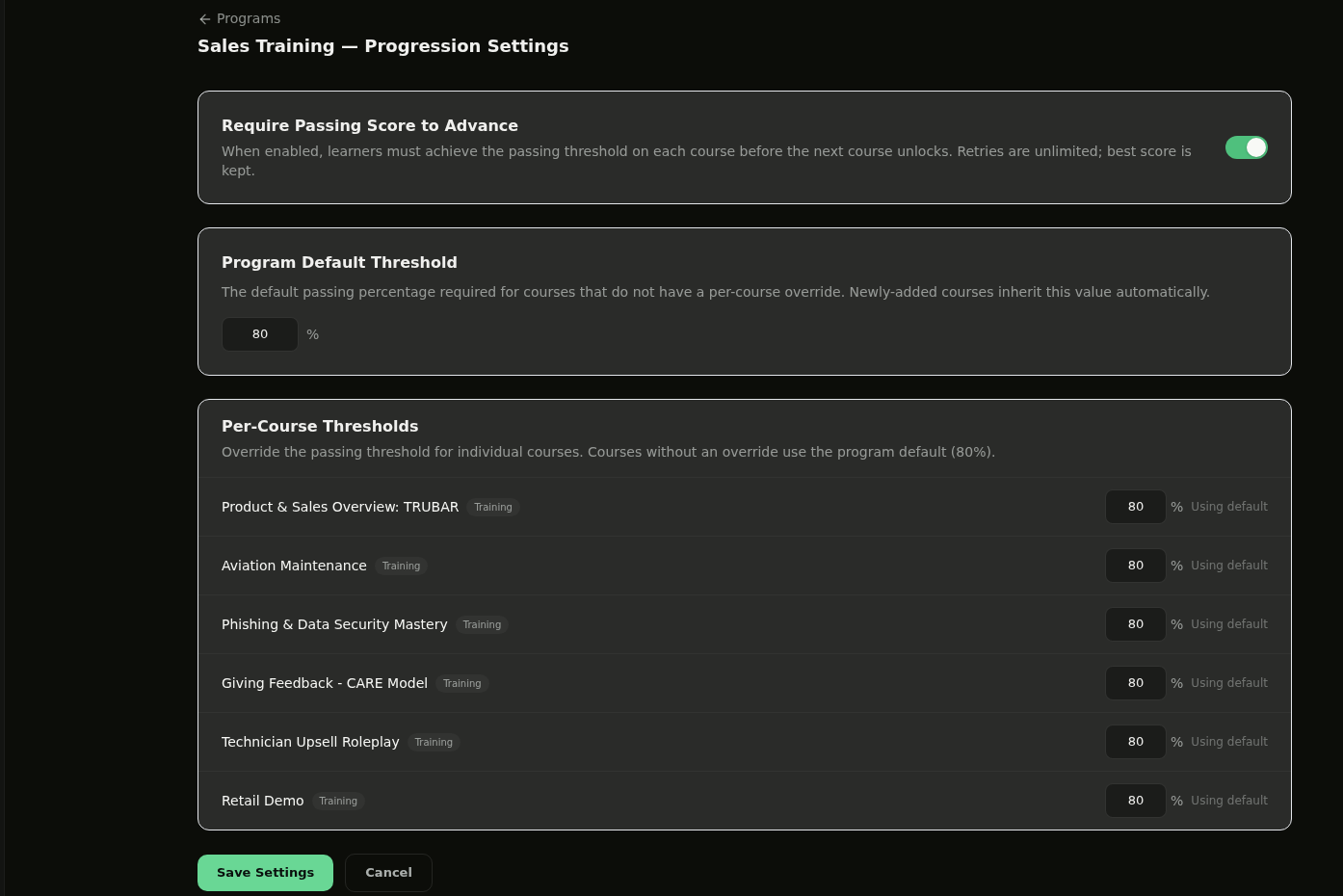
💡 Tip: Learners get unlimited retries, and their best score is kept. You can adjust individual course thresholds without affecting the program default.
💡 Tips
Newly added courses automatically inherit the program default threshold — no need to configure each one individually.
Retries are unlimited, so learners won't get locked out. Their highest score across all attempts is the one that counts toward progression.
You can change thresholds at any time. Existing learner progress is preserved — only future unlock checks use the updated values.