Site Lobby — Shared-Device Kiosk Mode
📌 Overview
Site Lobby lets multiple learners use a single shared device — like a lobby iPad or break room tablet — to access their training without individual logins. An admin turns it on, bookmarks the lobby URL on the device, and learners simply tap their name from a roster to start a session. An automatic inactivity timer and logout confirmation keep the device secure between users.
Step 1: Find the Site Lobby Setting
From the admin sidebar, click Settings at the bottom, then select Organization Settings. Scroll down to the Site Lobby section. You'll see the Enable Site Lobby toggle with the description: "Allow shared-device kiosk mode. Learners select their name from a roster to start a session."

Step 2: Enable Site Lobby and Copy the URL
Turn on the Enable Site Lobby toggle. A Lobby URL field appears below with a unique link for your organization. Click Copy Link to copy it to your clipboard, then open that URL on your shared device's browser and bookmark it.
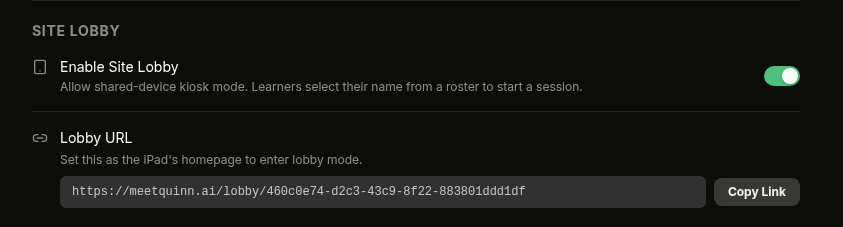
💡 Tip: Set this URL as the device's browser homepage so it opens automatically whenever someone picks up the tablet.
Step 3: Learners Select Their Name
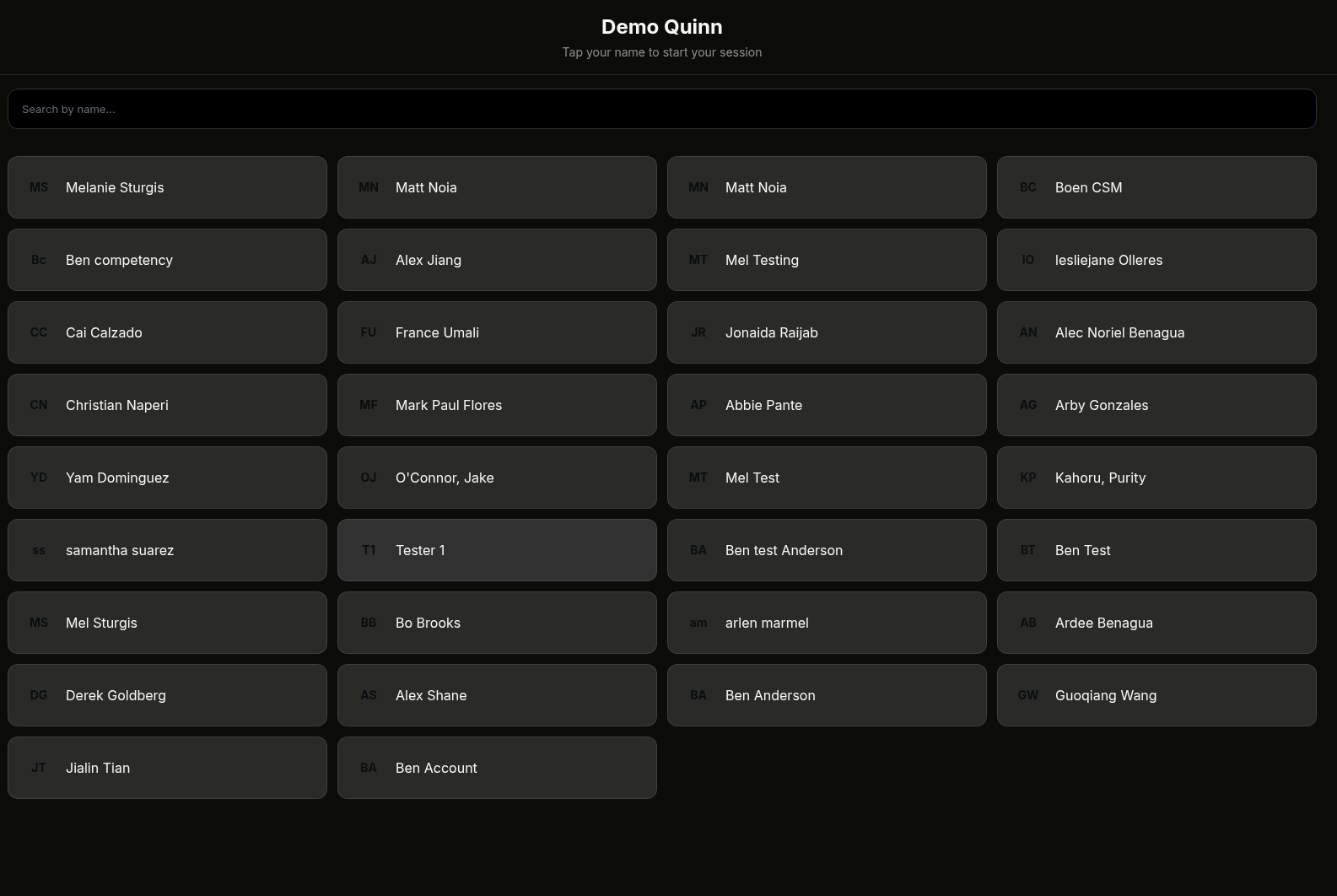
When a learner opens the lobby URL, they see a full-screen roster grid with every member of the organization. Each card shows the learner's initials and full name. A Search by name bar at the top lets them quickly find themselves.
The learner taps their name card to start their session.
Step 4: Training in a Shared-Device Session
After tapping their name, the learner is logged in and sees their normal dashboard — assigned training, announcements, and any pending document requests. A yellow banner at the top reminds them: "Shared device session. Log out before handing this device to the next learner." The Done — Log Out button is always visible in the top-right corner.
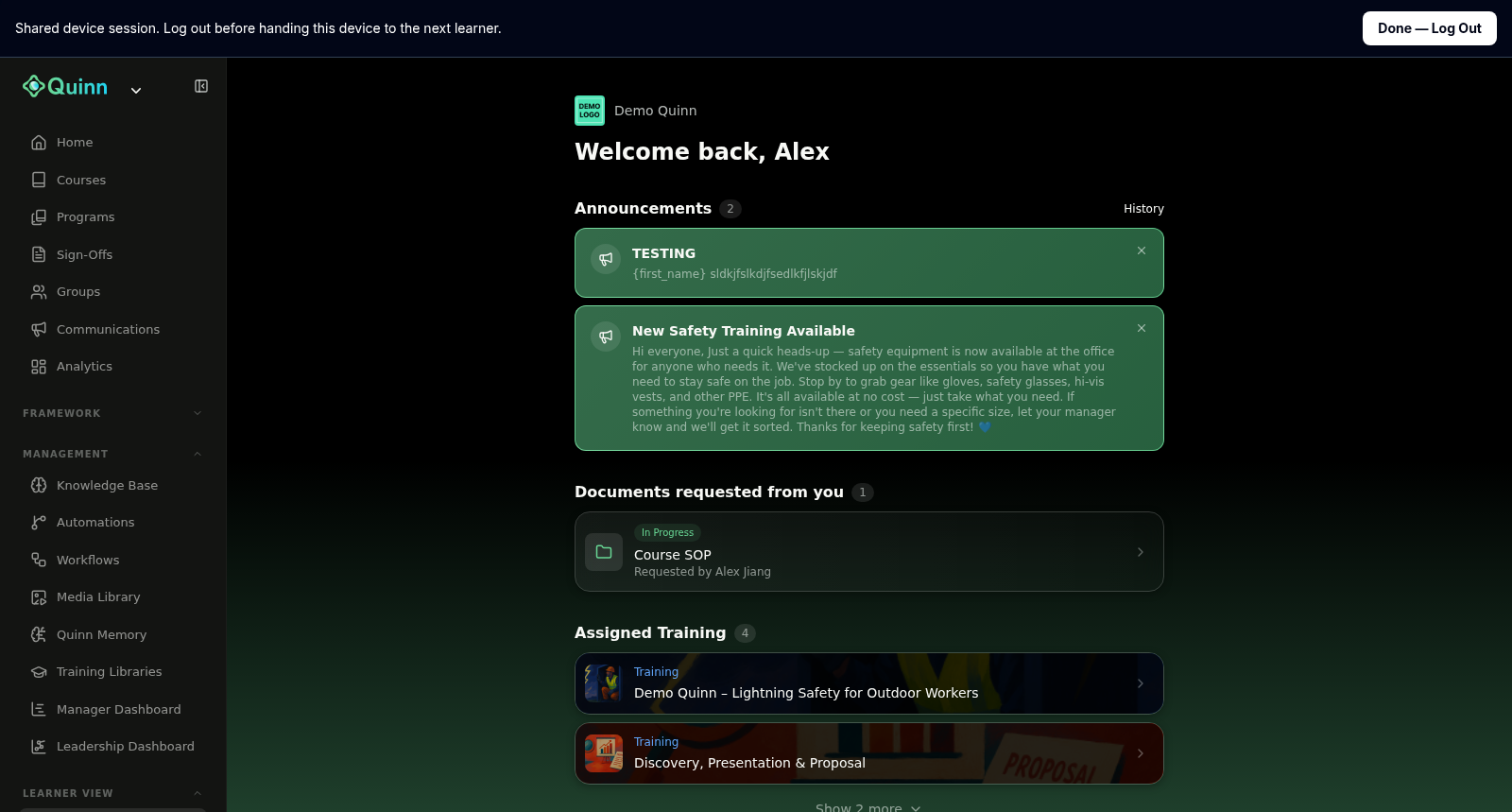
💡 Tip: If the learner is inactive for 15 minutes, the session ends automatically and the device returns to the roster screen.
Step 5: Log Out and Return to the Roster
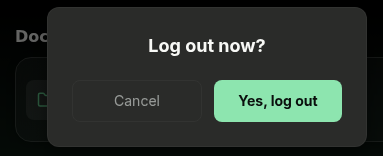
When the learner is finished, they tap Done — Log Out in the top-right corner. A confirmation dialog asks "Log out now?" with two options: Cancel or Yes, log out. Tapping Yes, log out ends their session and returns the device to the roster screen for the next person.