SOPs
📌 Overview
SOPs give your team one place to write, review, and publish standard operating procedures — with Quinn doing the drafting. Explain a process out loud in an Interview, Record your screen while you do the task, describe it in a prompt, or import a file, and Quinn writes the SOP. Your team comments on the text, Quinn flags vague steps, and every version is kept. When it's ready, Publish it so staff can read it in Shared Files and Ask Quinn can answer from it.
Step 1: Open SOPs
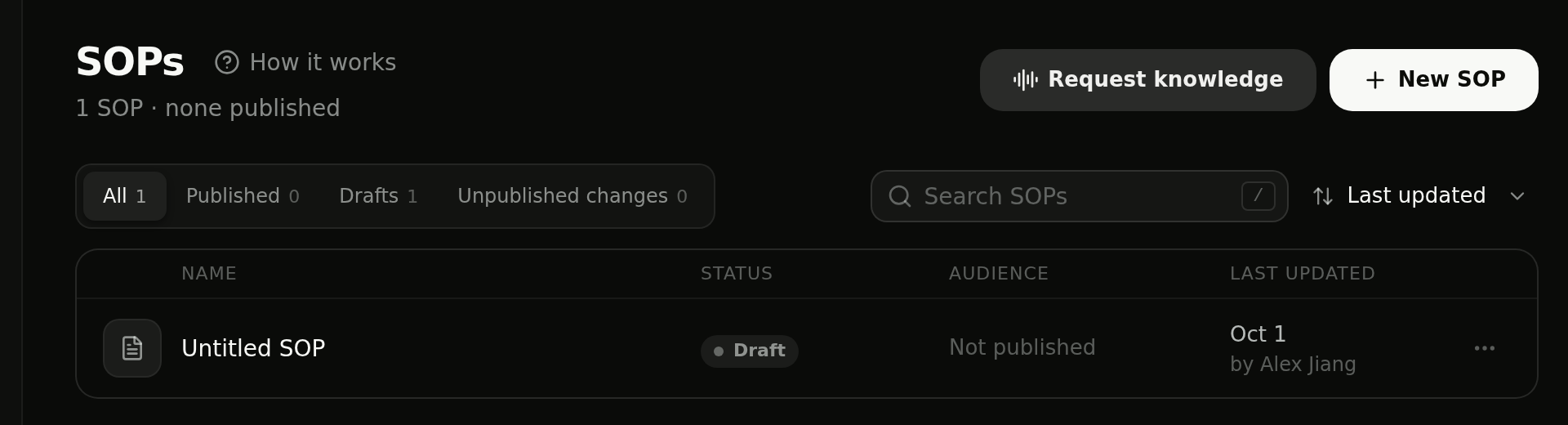
Click SOPs in the admin sidebar. The list shows every SOP with its Status (Draft or Published), Audience, and Last updated. Use the All, Published, Drafts, and Unpublished changes filters or Search SOPs to find one, and the ⋯ menu on a row to open, duplicate, publish, or delete it.
Step 2: Start a New SOP
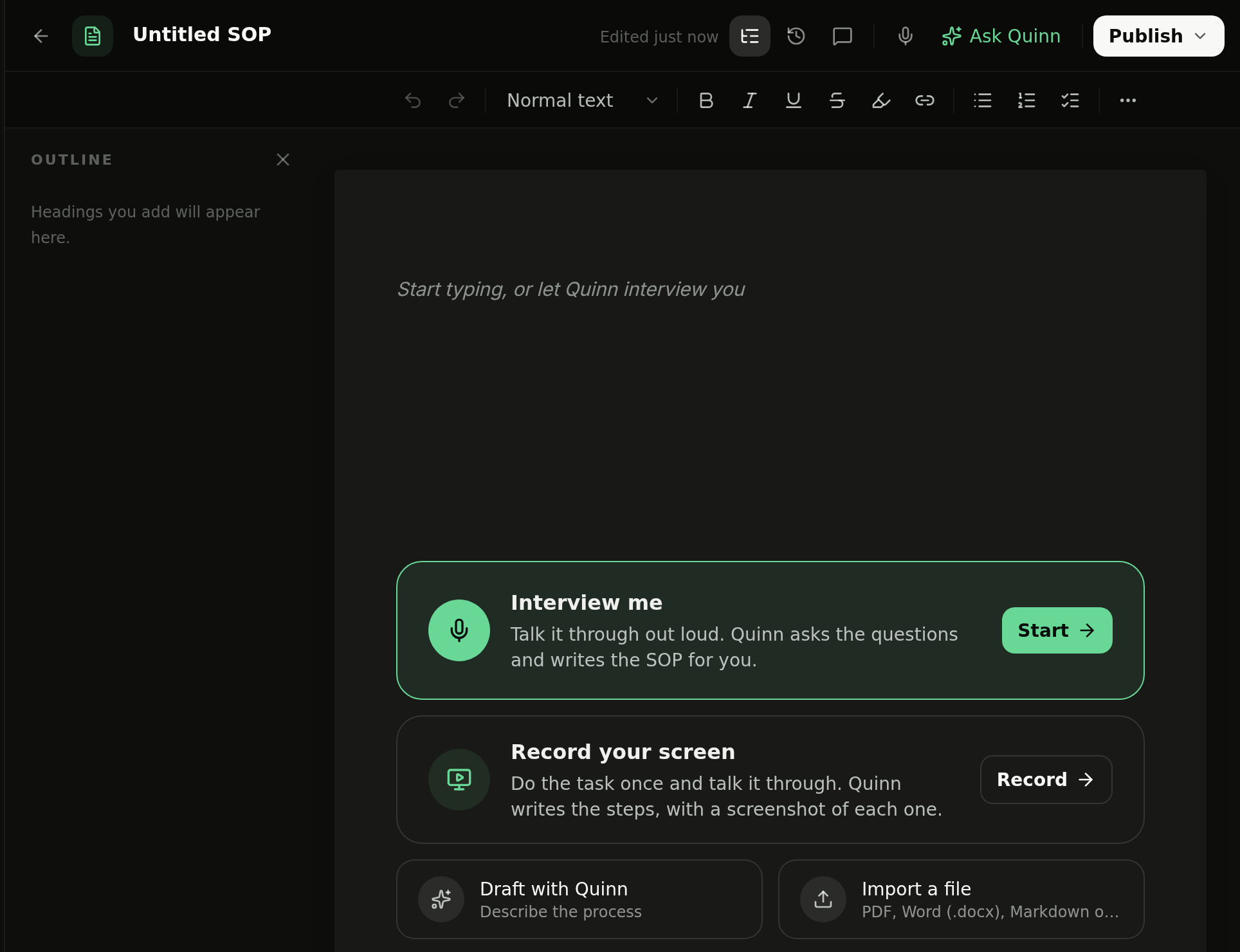
Click New SOP. The editor opens with four ways to begin: Interview me (talk it through and Quinn asks the questions), Record your screen (do the task once while narrating), Draft with Quinn (describe the process), or Import a file (PDF, Word, Markdown, or text). You can also just start typing.
Step 3: Let Quinn Interview You
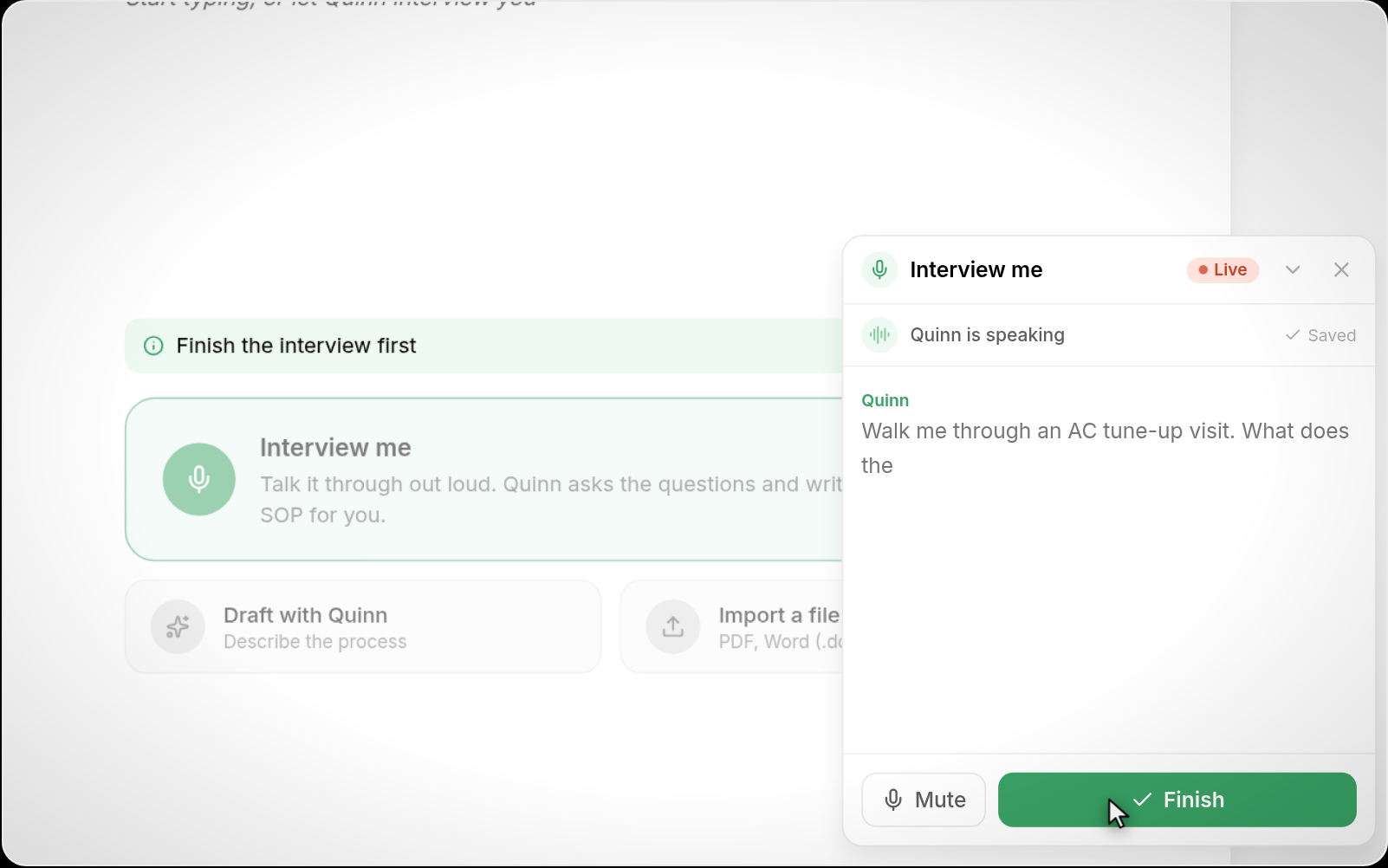
Click Start next to Interview me. Quinn asks questions out loud — for example, "Walk me through an AC tune-up visit" — and you answer the way you'd show a new hire. Click Finish when you've covered everything.
Step 4: Accept the Draft
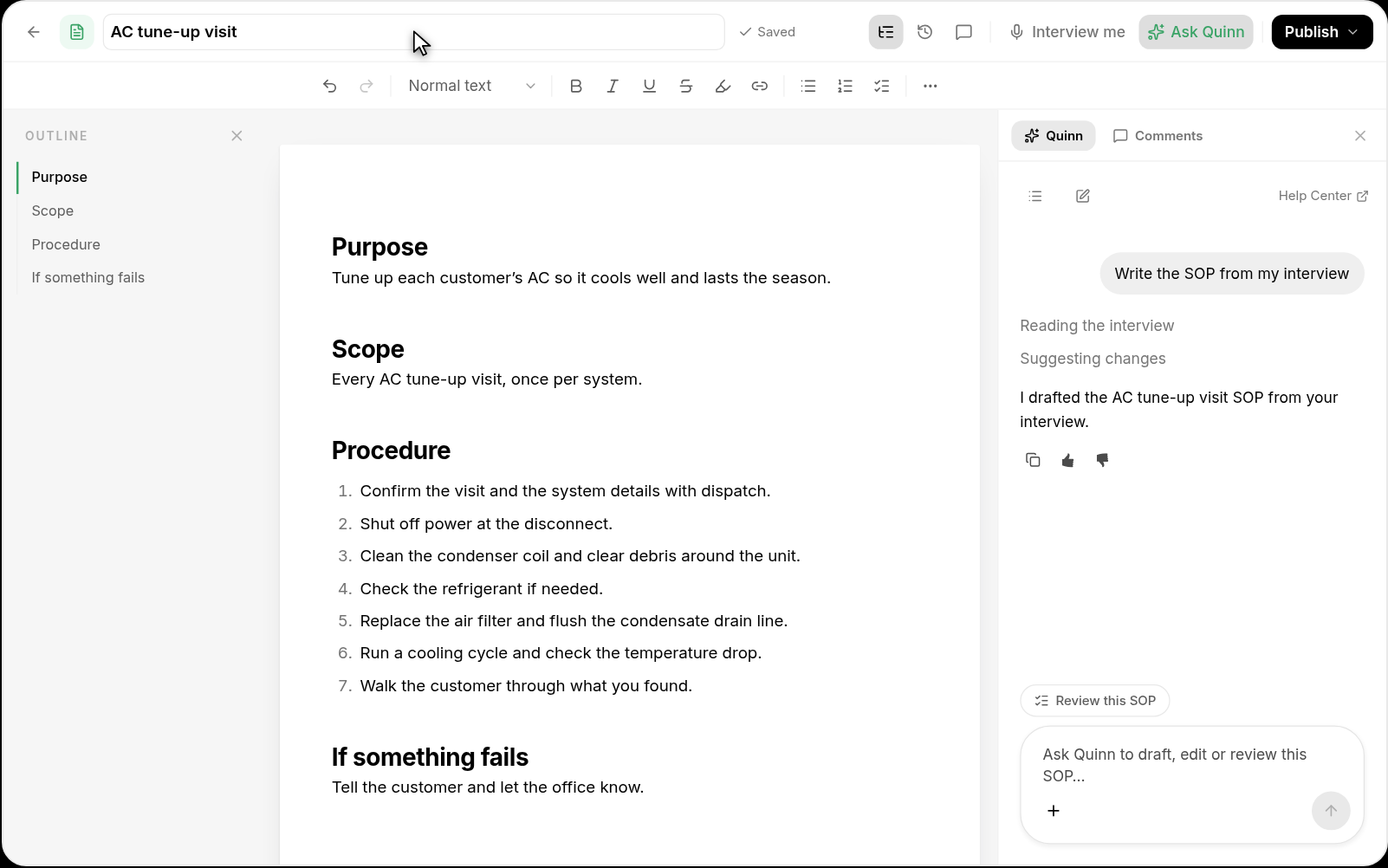
Quinn writes the SOP from your interview — Purpose, Scope, Procedure, and If something fails — and shows it as a suggested change. Review it, then click Accept all (or Reject all / Try again) and give the SOP a name.
💡 Tip: Select any line and ask Quinn to rewrite it — for example, "Make this a clear step." Quinn suggests the edit and you accept or reject it.
Step 5: Run a Review and Comment with Your Team
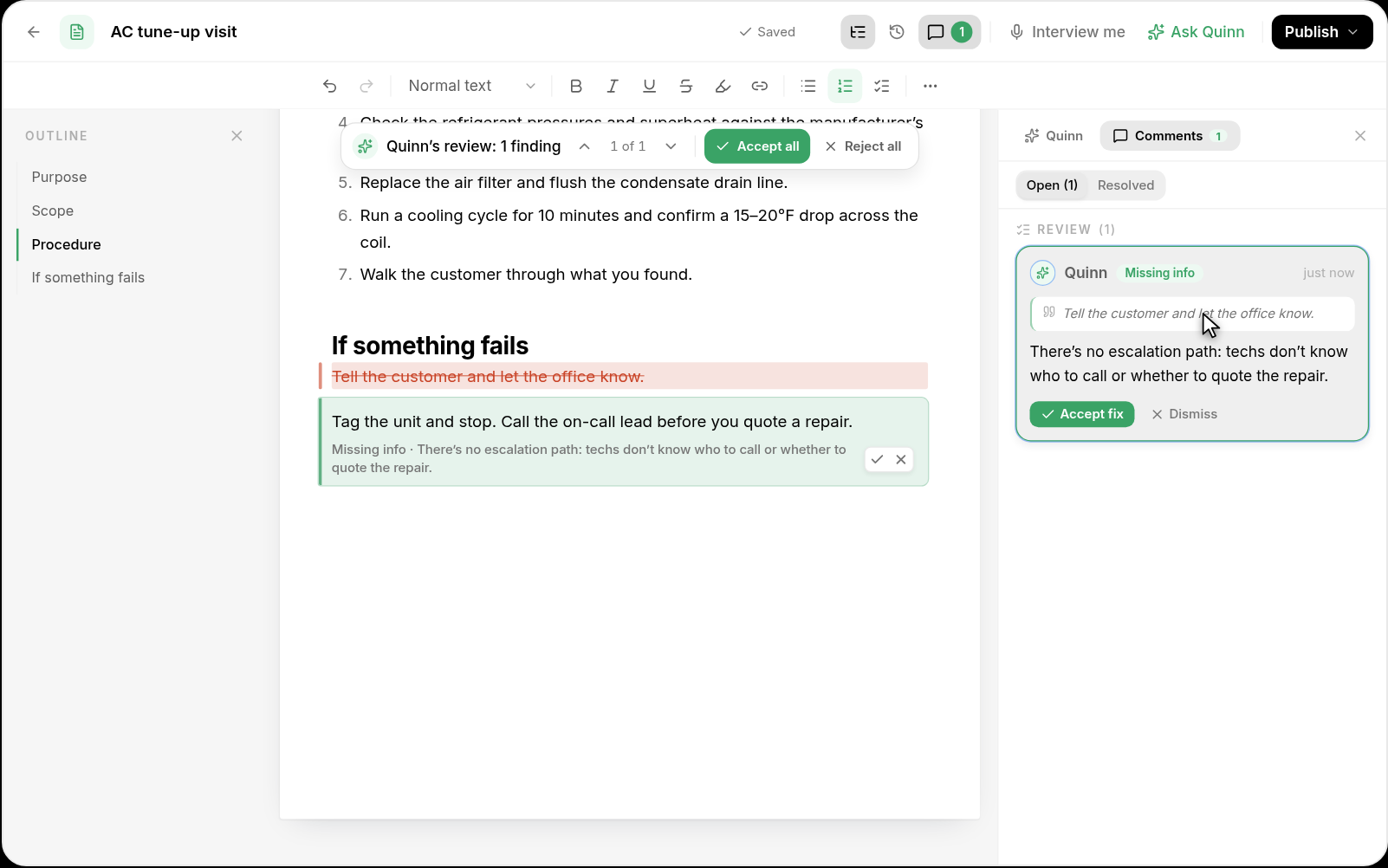
Click Ask Quinn and choose Review this SOP. Quinn flags vague steps and missing information with a fix for each — click Accept fix or Dismiss. Teammates can leave Comments on any line, and mentioning @Quinn in a thread makes it suggest the edit. The version before each change is kept in Version history, so you can restore an earlier one in a click.
Step 6: Read It Through
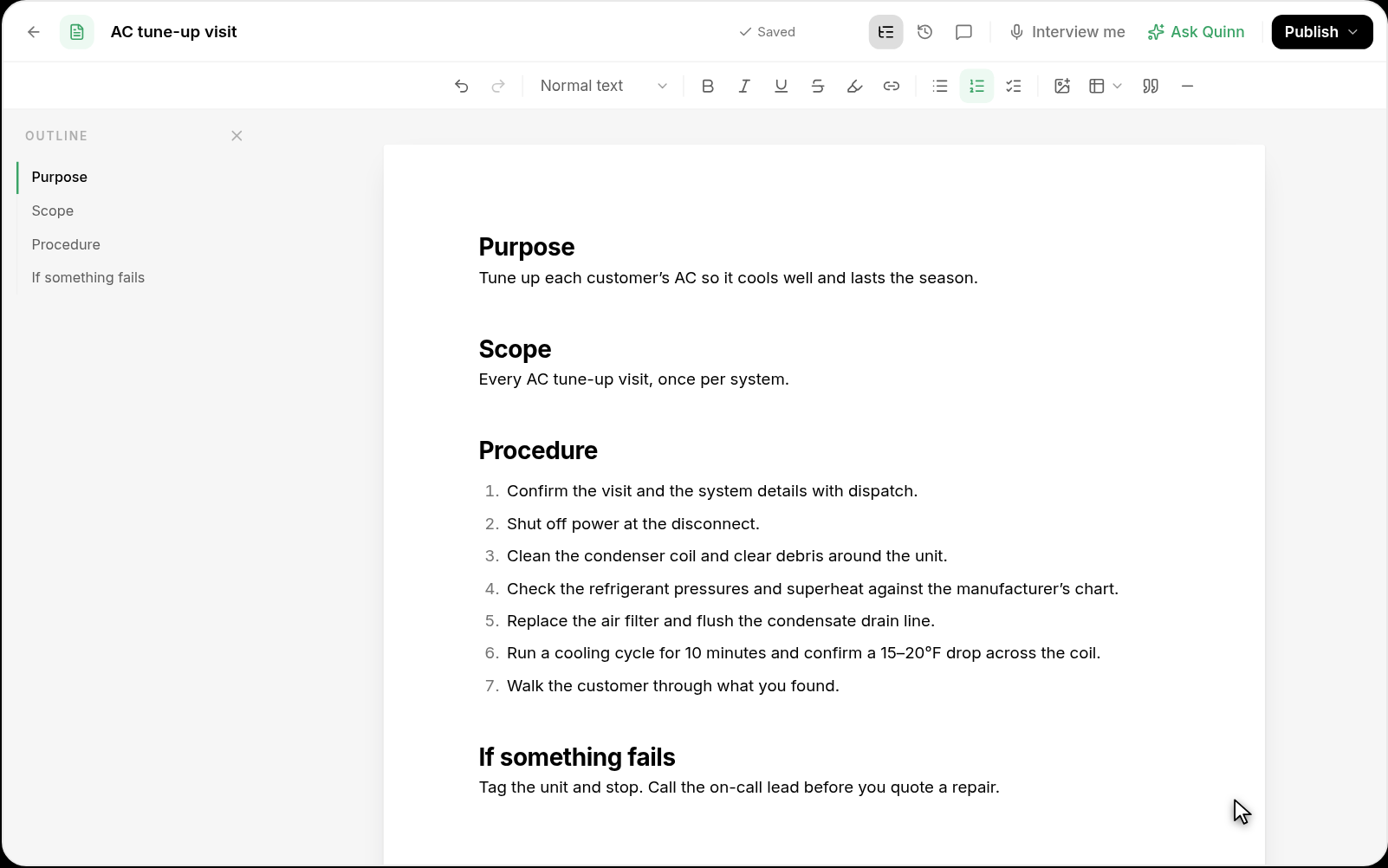
The finished SOP is a clean document with an Outline on the left for jumping between headings. It stays a Draft — visible only to admins — until you publish it.
Step 7: Record Your Screen Instead
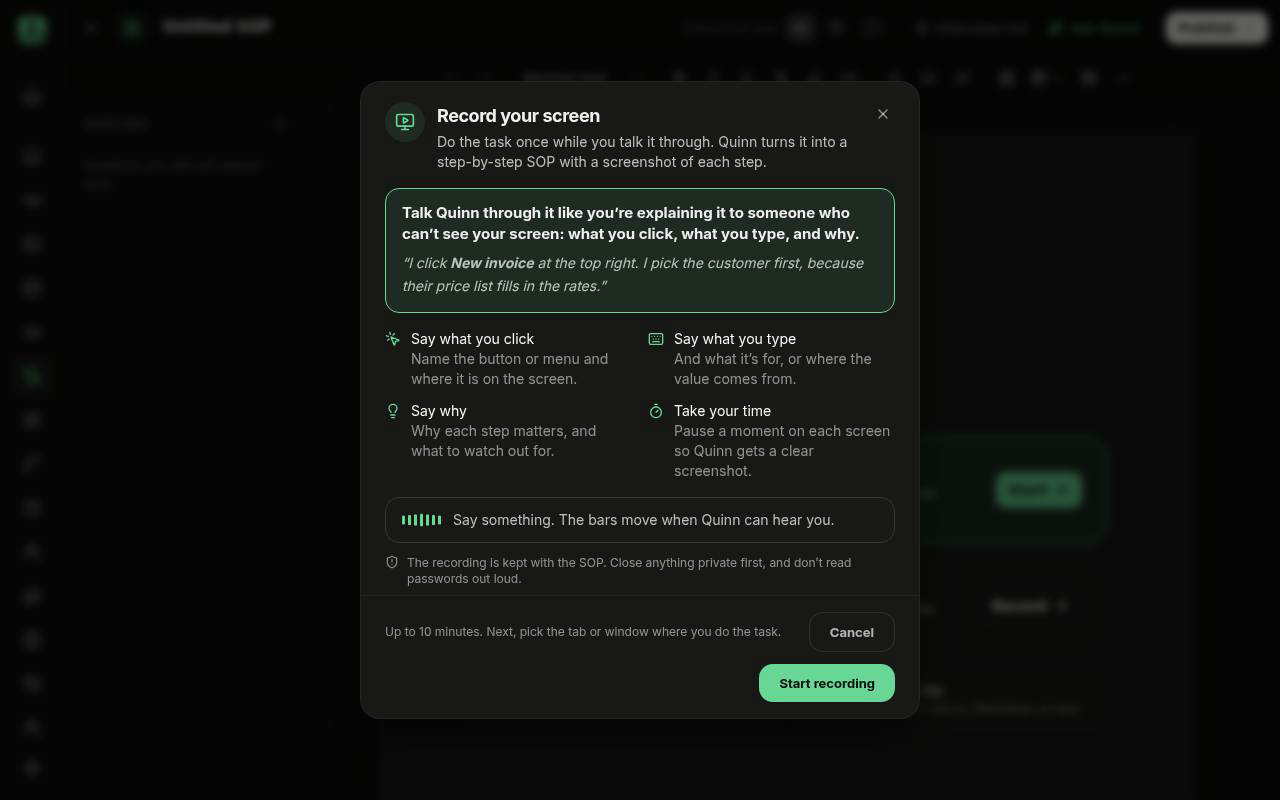
For software processes, click Record next to Record your screen. Quinn explains what to say — name what you click, what you type, and why — and waits until it can hear your microphone. Click Start recording, pick the tab or window where you'll do the task, then do it once while talking it through: say what you click, what you type, and why.
Here's the whole flow, from Start recording to the finished SOP (the recording and writing parts are sped up — in real life you'd be talking the whole time):
Watch the tutorial video above
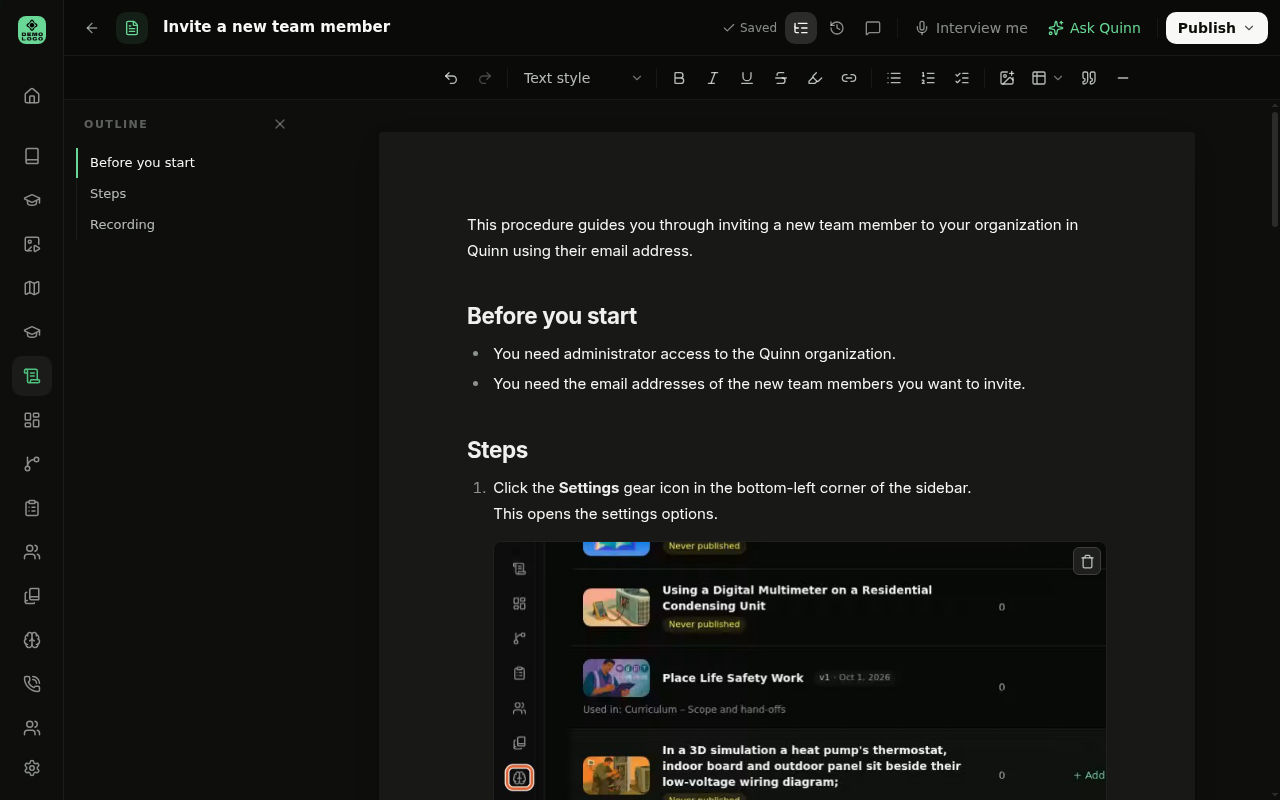
When you're done, click Stop and write SOP. Quinn uploads the recording, watches it, and writes the SOP — usually in 1–3 minutes. You get a named SOP with Before you start, numbered Steps (each with a screenshot of your screen and the thing you clicked highlighted), and a Recording section that keeps the original video. Check each step before you publish.
💡 Tip: Screen recording works in Chrome or Edge on a computer and needs a microphone. Close anything private first and don't read passwords out loud — recordings are kept with the SOP.
Step 8: Publish the SOP
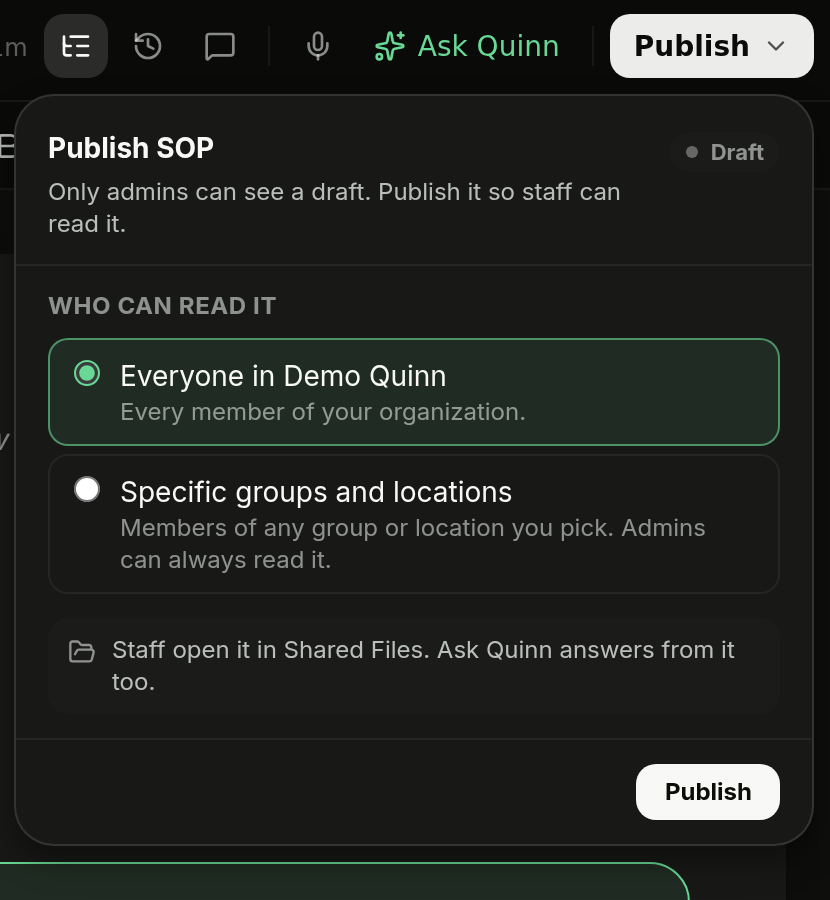
Click Publish in the top-right. Under Who can read it, choose Everyone in [your organization] or Specific groups and locations, then click Publish. Staff open it in Shared Files, and Ask Quinn answers questions from it too. Edits after publishing are saved as unpublished changes until you publish again.
Step 9: Request Knowledge from a Colleague
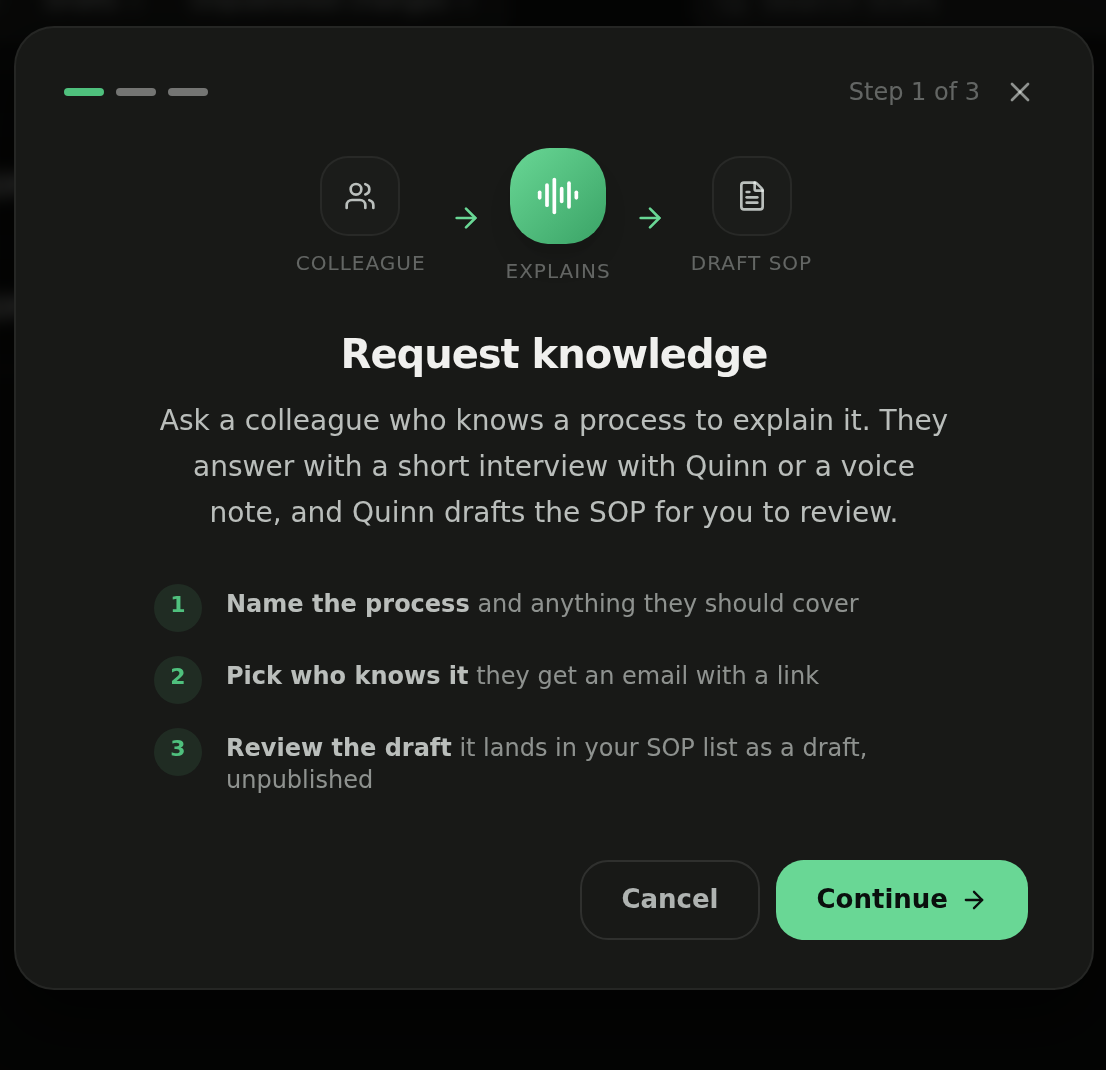
Don't know the process yourself? Click Request knowledge on the SOPs list. Name the process and anything it should cover, then pick who knows it — they get an email with a link, answer with a short interview with Quinn or a voice note, and the draft lands in your SOP list for you to review.
💡 Tips
- Use the ⋯ menu on an SOP to Create training from it — the Course Creator opens with the SOP attached as source material. You can also Convert to SOP from a Knowledge Base document.
- Only admins can see drafts. If staff can't find an SOP, check that it's Published and that they're in the audience you picked.