Video Answers over SMS
📌 Overview
When a learner texts a question to Ask Quinn and the answer comes from a training video, Quinn now includes a tappable clip link right in the SMS reply. The link opens a standalone video clip viewer — no login needed — that jumps straight to the relevant moment. If multiple moments are relevant, jump-to chips let the learner skip between them instantly.
Step 1: Find Your Organization's Quinn Phone Number
Your organization's Ask Quinn SMS number is shown on the Ask Quinn page and the Knowledge Base page. You can find it labeled "Ask Quinn by phone" followed by the phone number.
Learners text their question to this number just like a regular text message.
💡 Tip: Save the Quinn phone number as a contact on your phone so it's always easy to find.
Step 2: Text a Question to Quinn
Open your phone's messaging app and send a question to your Quinn SMS number. Ask anything related to your training. Quinn processes your question and texts back an answer within seconds.
Step 3: Tap the Video Clip Link
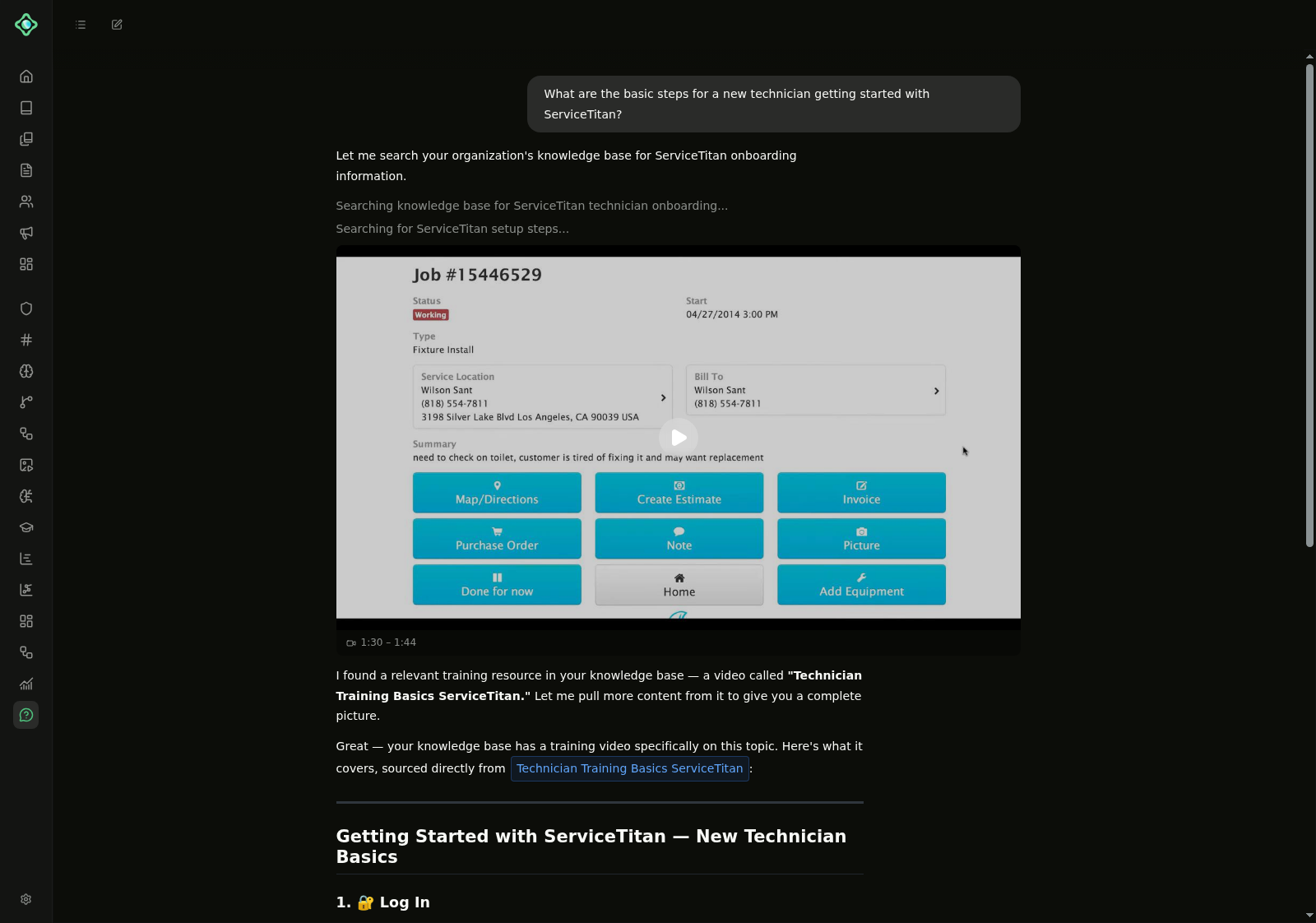
If the user's question can be answered by a video clip in your knowledge base, Quinn will send out the video clip. The SMS reply includes a tappable video clip link at the end of the message. Tap the link to open the clip viewer in your phone's browser.
💡 Tip: Clip links stay active for 7 days, so you can revisit the video anytime during that window.
Step 4: Watch the Relevant Moment
The clip viewer opens in a standalone page — no login required. The video auto-plays from the exact moment that answers your question. If multiple moments in the video are relevant, jump-to chips appear below the player so you can skip between key sections instantly.
💡 Tip: The clip viewer works on any device with a browser — phones, tablets, and desktops all supported.