Course Publishing and Versions
📌 Overview
Courses in Quinn have a published version and a working draft. When you edit a course that's already live, your changes are saved as Draft changes — learners keep taking the version you last published, so nothing shifts under them mid-course.
When the edits are ready, Publish freezes them as a new numbered version and every learner from then on gets it. Because each version is kept, you can always see which version a learner actually took.
Step 1: Check publish status at a glance
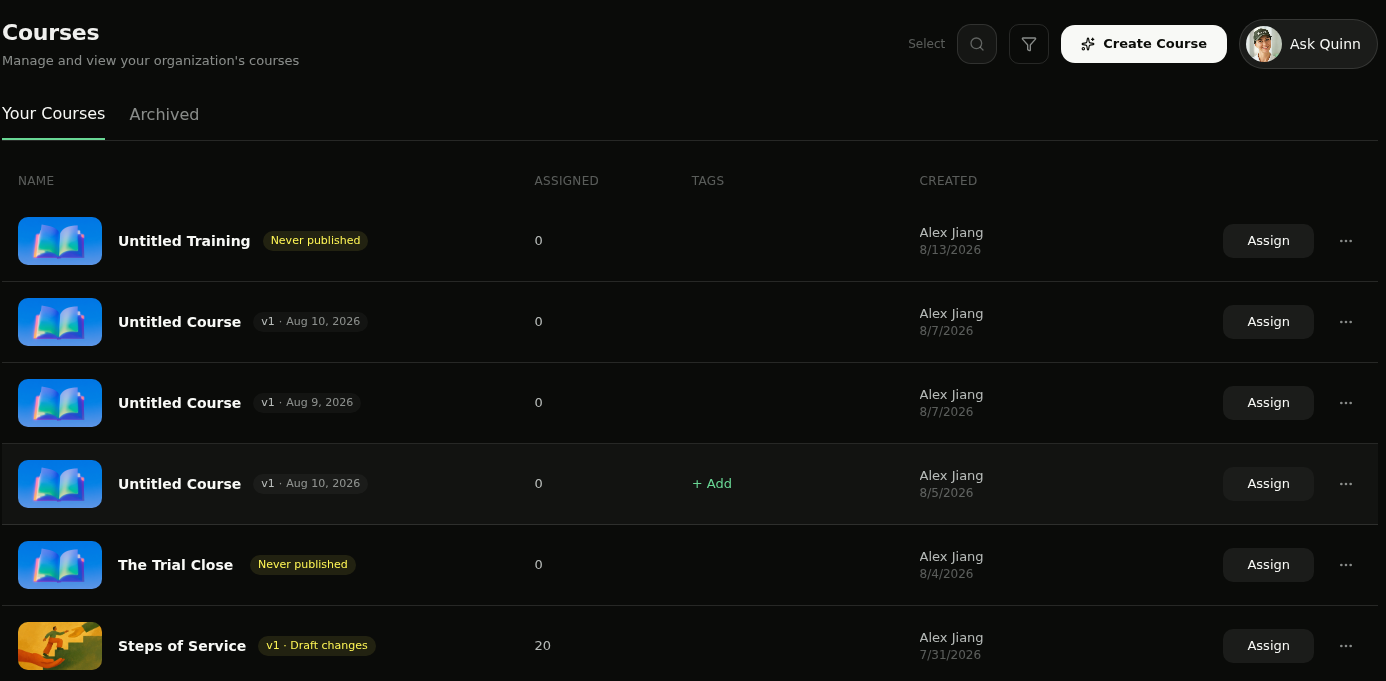
Open Courses in the admin sidebar. Each course carries its publish status next to its name: Never published for a course learners can't see yet, v1 · Aug 10, 2026 for a published course, and v1 · Draft changes when there are unpublished edits waiting.
Step 2: Open the course you want to change
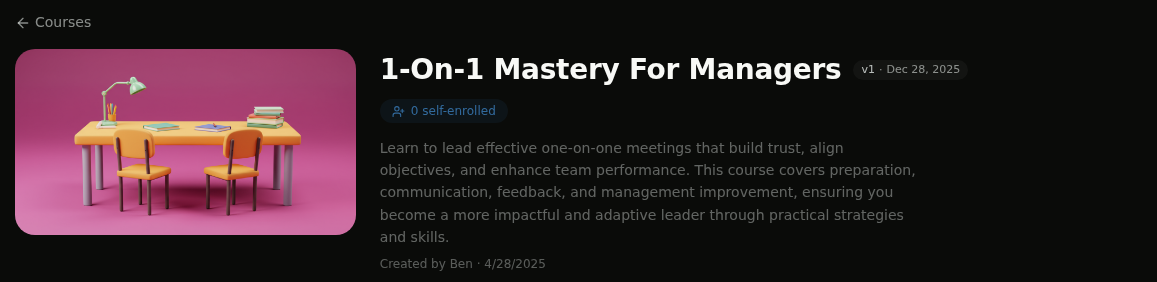
Click the course to open it. The version badge sits next to the title, so you always know what learners are being served before you start editing.
Step 3: Edit and save as a draft
Click the pencil Edit icon to open the course editor. As soon as you change something, the badge in the editor header switches to Draft changes and Quinn reminds you that your changes are saved as a draft — learners won't see them until you click Publish.

💡 Tip: Use Preview to walk through your draft exactly as a learner would before you publish it.
Step 4: Publish a new version
When the draft is ready, click Publish. Quinn freezes the draft as the next numbered version and serves it to learners from that moment on — anyone already partway through finishes on the version they started.
Step 5: Review the version history
Click the version badge to open Version History. Every published version is listed with its publish date, and the one learners are currently taking is marked Live.
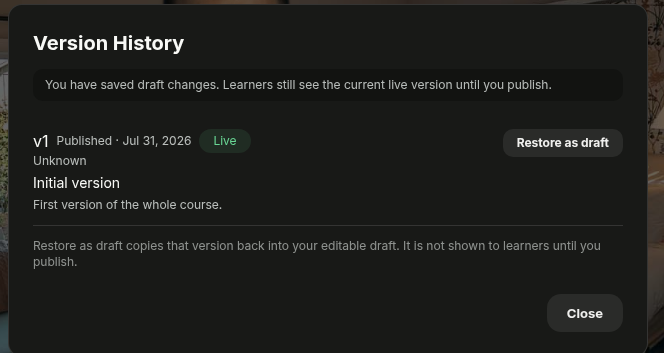
💡 Tip: Restore as draft copies an older version back into your editable draft. It doesn't change what learners see until you publish again — a safe way to undo a round of edits.
Step 6: See which version each learner took
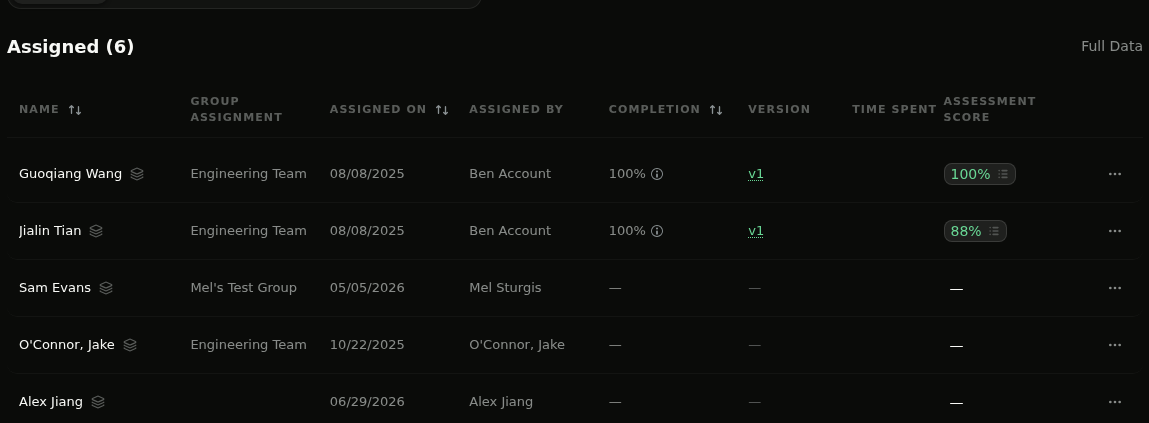
Back on the course, the Members tab lists everyone assigned along with a Version column, so completions and Assessment Score results are always tied to the exact version that learner worked through.
💡 Tips
- A course stays Never published until you publish it the first time, so you can build it in the open without learners stumbling onto it.
- Draft changes are safe to leave sitting — edit over several days and publish once when the whole update is ready.
- Version numbers make reporting defensible: if an audit asks what a learner was taught, the Version column answers it.
- Want a second pair of eyes before publishing? Send the course through Review Mode first — see Assign for Review.