Dark Mode & Theme Settings
📌 Overview
Quinn's learning experience now ships in dark mode by default, and every learner can choose the look that suits them. Pick Dark, Light, or System in your account settings, and Quinn remembers your choice across your courses, dashboard, and profile.
Step 1: Open Your Account Settings
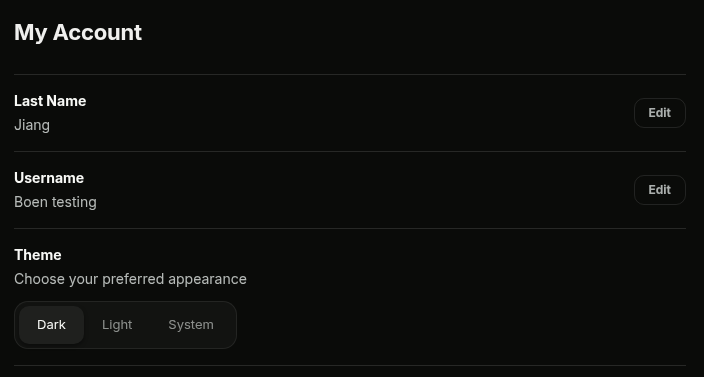
From the learner experience, open Settings → My Account (or click the gear icon on your learner profile). Scroll to the Theme section at the bottom of the page.
Step 2: Choose Your Appearance
Under Choose your preferred appearance, select Dark, Light, or System. System follows your device's appearance setting, so Quinn switches automatically when your phone or computer does.
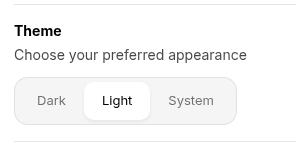
💡 Tip: Your choice saves instantly — there's no Save button to click.
Step 3: See It Applied Everywhere
Head back to your learning home. The new appearance applies across the whole learner experience, including your dashboard, announcements, courses, and certificates.
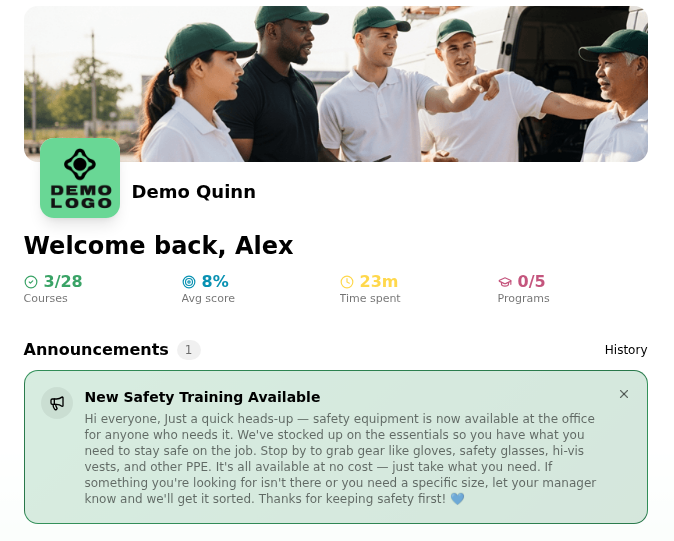
💡 Tip: Dark is Quinn's default appearance. If you prefer the previous look, choose Light — and you can switch back to System at any time.