Edit Assignment Due Dates
📌 Overview
Deadlines move. When they do, you don't have to unassign and reassign a course to change when it's due — you can edit the due date on an assignment that's already out there, for one learner or for everyone assigned through a group.
You can also let Quinn tell learners about the change: tick one checkbox and everyone affected gets an email with the new deadline. The same controls work on course assignments and on Programs.
Step 1: Open the assignment list
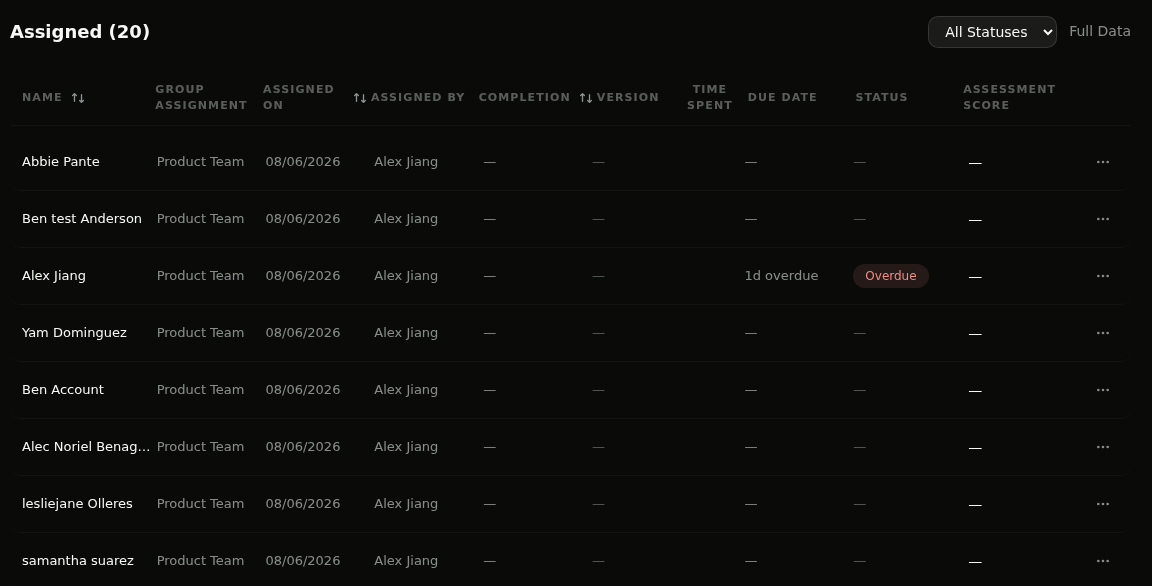
Open the course from Courses and scroll to the assignment table under Members. Each row shows the learner's Due Date and Status, so overdue and unscheduled assignments are easy to spot.
Step 2: Open the member actions menu
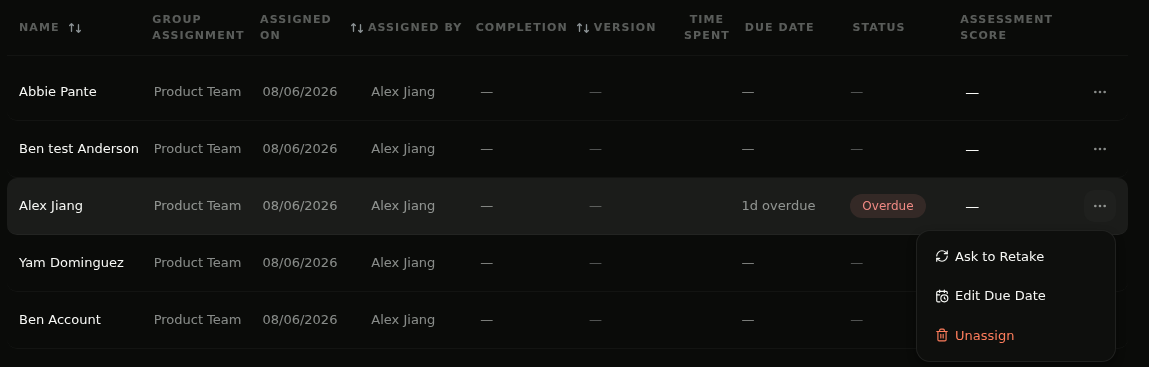
On the learner's row, click the … button at the far right and choose Edit Due Date.
Step 3: Set or clear the due date
The Edit Due Date dialog names the learner it applies to. Tick Set due date to give the assignment a deadline, or untick it to remove the deadline entirely. The timezone under the date field is the one the deadline is measured in, and Quinn shows you what that works out to in your own timezone.
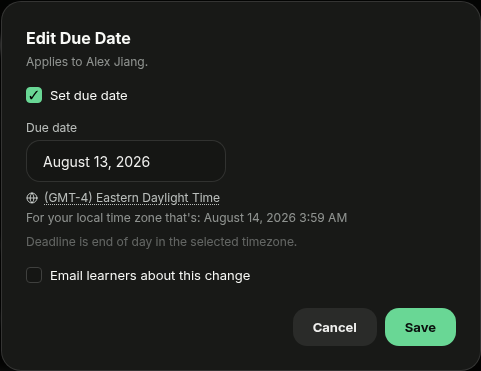
💡 Tip: The deadline is end of day in the selected timezone — so a date of August 13 means 11:59 PM on the 13th where your learners are, not where you are.
Step 4: Pick the new date
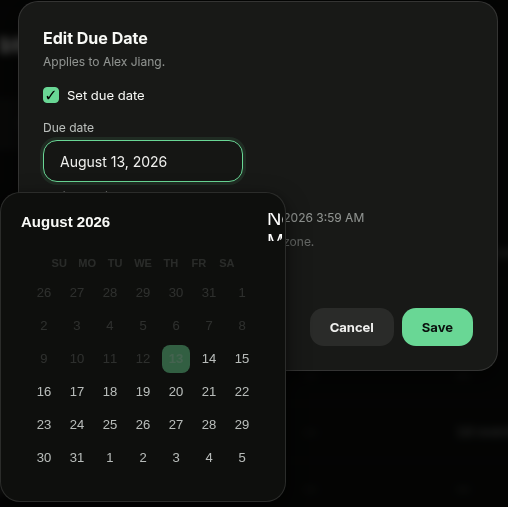
Click the Due date field to open the calendar and choose the new day. The current due date is highlighted.
Step 5: Notify learners and save
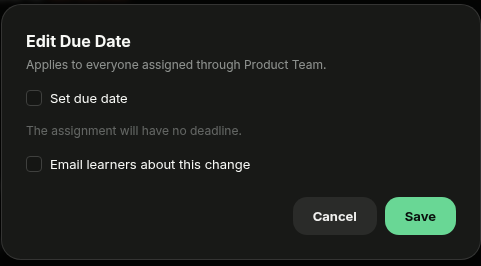
Tick Email learners about this change if the people affected should hear about it, then click Save. Leave it unticked for quiet corrections — the date still changes, the inbox stays quiet.
Step 6: Change a whole group's due date
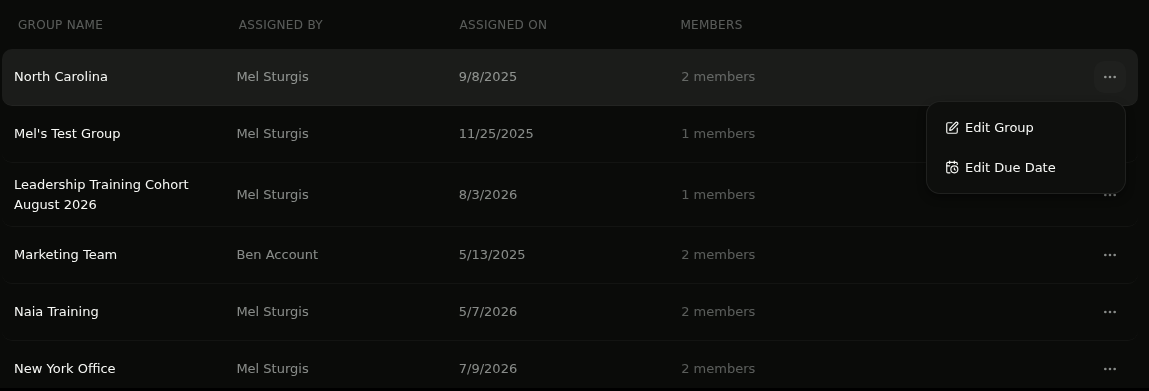
Switch to the Groups tab, open the … menu on a group and choose Edit Due Date. The dialog confirms it applies to everyone assigned through that group, and unticking Set due date tells you the assignment will have no deadline.
Step 7: Do the same on a program
Programs work the same way. Open the program, switch its assignment list to Groups, and use Edit Due Date in the group's … menu to move the deadline for that whole cohort.
💡 Tips
- Editing a due date never resets progress — learners keep whatever they've already completed.
- Removing a due date is the fastest way to take the pressure off an assignment you don't want to unassign.
- A group edit covers everyone added to that group later too, so new joiners inherit the deadline you set.
- Want to nudge people instead of moving the date? See Send Course Reminder.