Send a Course Reminder
📌 Overview
Course reminders let you nudge learners who haven't yet completed an assigned course. Quinn automatically sends the reminder to every member the course is assigned to who still has incomplete progress — so you don't have to track down each person manually. You can send reminders via Email or SMS and optionally include a personal note.
Step 1: Open the Course Details Page
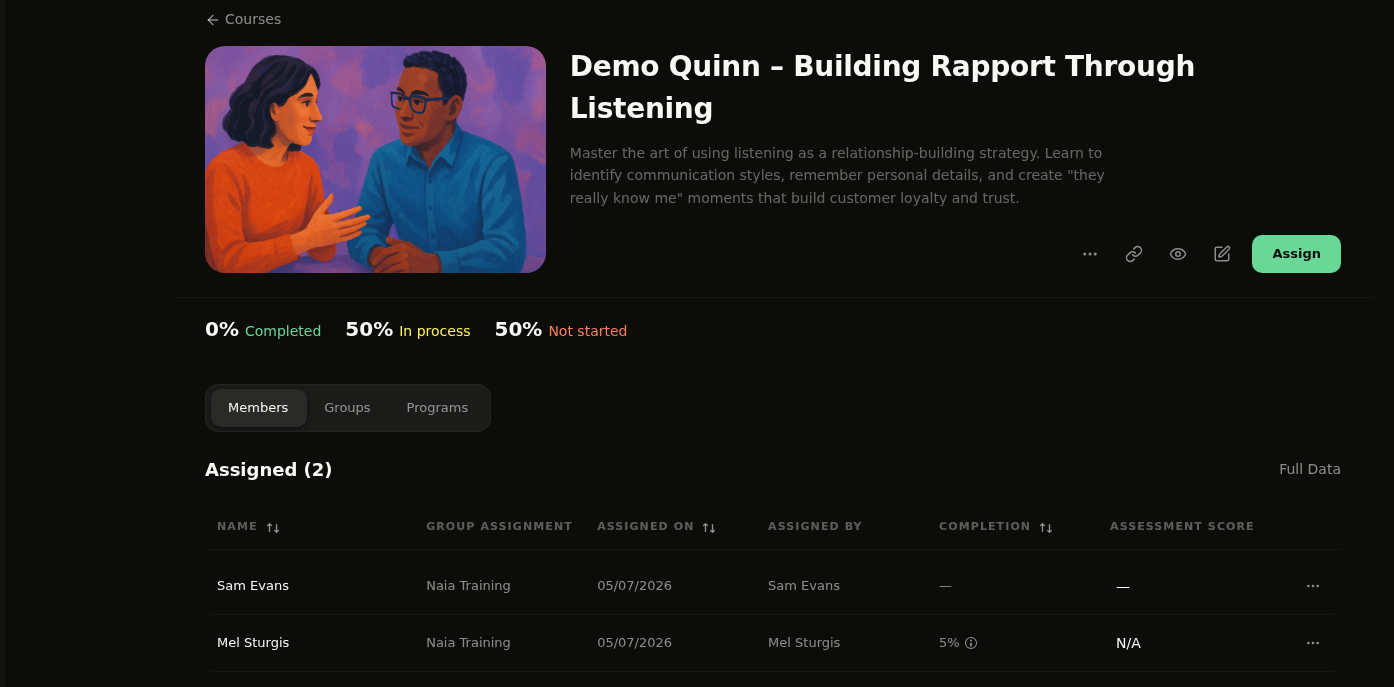
Navigate to Courses from the sidebar and select the course you want to send a reminder for. You'll see the course details page showing all assigned members, their completion status, and group assignments.
Step 2: Open the More Options Menu
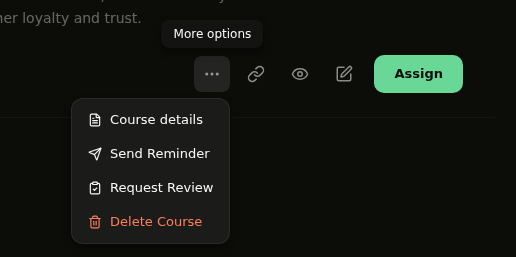
Click the ... (more options) button in the top-right area of the course header. A dropdown menu will appear with several actions — select Send Reminder.
Step 3: Compose Your Reminder
A modal will open where you can choose to send via Email or SMS, preview the default message, and see the list of Recipients — all assigned members who haven't completed the course. You can also type a personal note in the text field to add context like a deadline or encouragement.
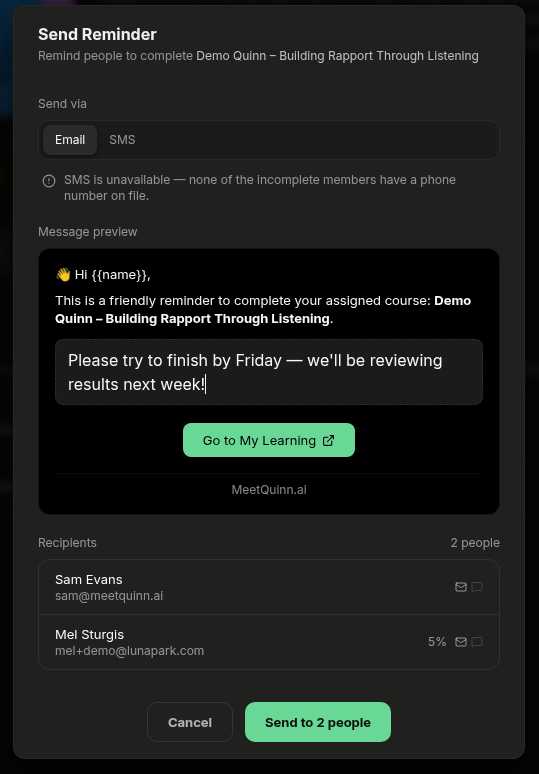
💡 Tip: SMS will only be available if recipients have a phone number on file. If no phone numbers are found, Quinn will display a notice and you can use Email instead.
Step 4: Send the Reminder
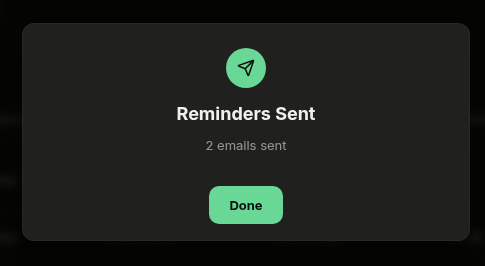
Click Send to [X] people to deliver the reminder. Quinn will confirm how many emails were sent with a Reminders Sent success message.
💡 Tips
Reminders are automatically sent to all assigned members who have not yet completed the course — you don't need to select individual recipients.
Use a personal note to add context, such as a deadline or encouragement, to make the reminder more effective.
You can send reminders as many times as needed — there's no limit on how often you can remind learners.
To automate reminders on a schedule, check out Automations to set up recurring reminder workflows.