Group Admin Role
📌 Overview
Not everyone who helps run training needs to see the whole organization. Group Admin is a privilege that hands someone the keys to specific groups only: they manage the members of those groups and the courses assigned to them, and they see reporting for those people — and nothing else.
It's the natural fit for a shop manager, a regional lead, or a department head who should look after their own team's training without touching anyone else's. You choose the person, you choose their groups, and you can change either at any time.
Step 1: Find the member to promote
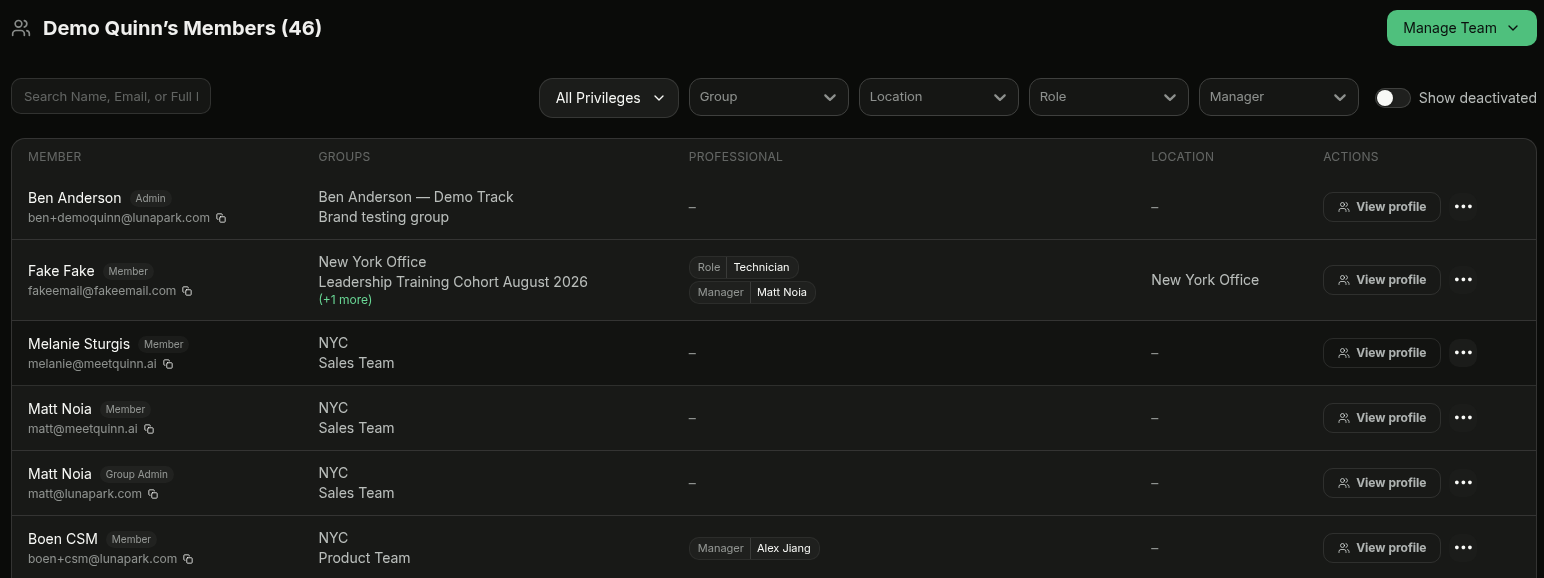
Open Members from your account menu. Every row carries the member's current privilege next to their name — Member, Group Admin, Content Creator, Admin, or Owner — and the Groups column shows the teams they already belong to.
Step 2: Open Change Privilege
On that member's row, click the … button and choose Change Privilege.
Step 3: Pick Group Admin and their groups
Select Group Admin, then use Groups … administers to choose which groups they look after. At least one group is required. Click Save when you're done.
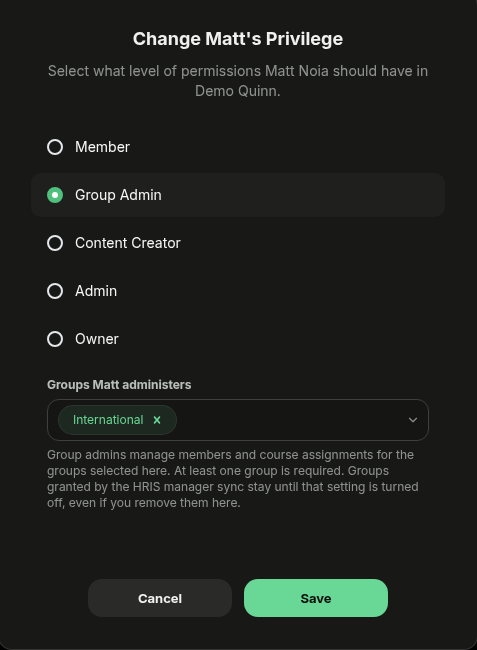
💡 Tip: A group admin can be an admin of several groups at once — add every team they're responsible for in this one field.
Step 4: Check the group's admin list
Open the group from Groups and scroll to Admins. Your new group admin is listed with the date they were added and how they got the role, and Add Admins lets you attach more people to this group directly from here.

Step 5: Review who has the role
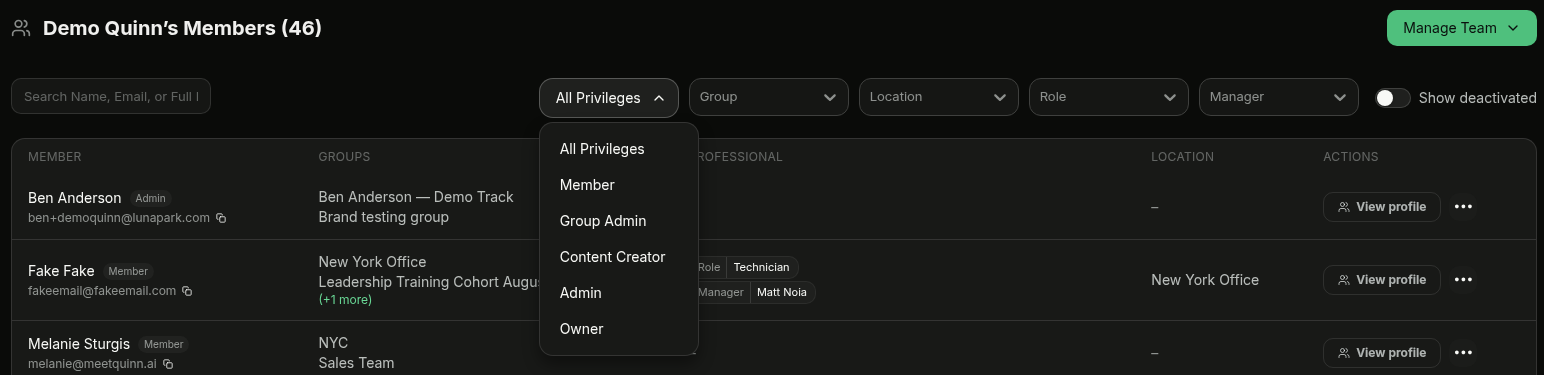
Back on Members, use the privilege dropdown and pick Group Admin to list everyone holding the role — a quick way to audit delegated access as teams change.
💡 Tips
- Group admins see their own groups only. Courses, learners, and reports outside those groups stay hidden from them, so you can delegate without opening up the whole organization.
- Removing a group from the Groups … administers field takes that access away immediately; switching the person back to Member removes all of it.
- If you sync groups from your HR system, turn on Make managers group admins of their generated groups in your HRIS settings and each manager automatically becomes the admin of the group containing their direct reports. Access granted that way stays until you turn the setting off, even if you remove the group by hand — see Connect HRIS.
- Group admins pair well with rule-based groups: the group keeps itself up to date and the right person is always looking after it. See Rule-Based Groups.
- Need someone to build courses instead of manage people? Content Creator is the privilege for that.