Rule-Based Groups
📌 Overview
Instead of adding people to a group one by one, you can define rules — by location, role, manager, or membership in another group — and Quinn keeps the group's membership in sync automatically. People who match are added, and people who stop matching are removed, so the group always stays up to date as your organization changes.
Step 1: Create a Group
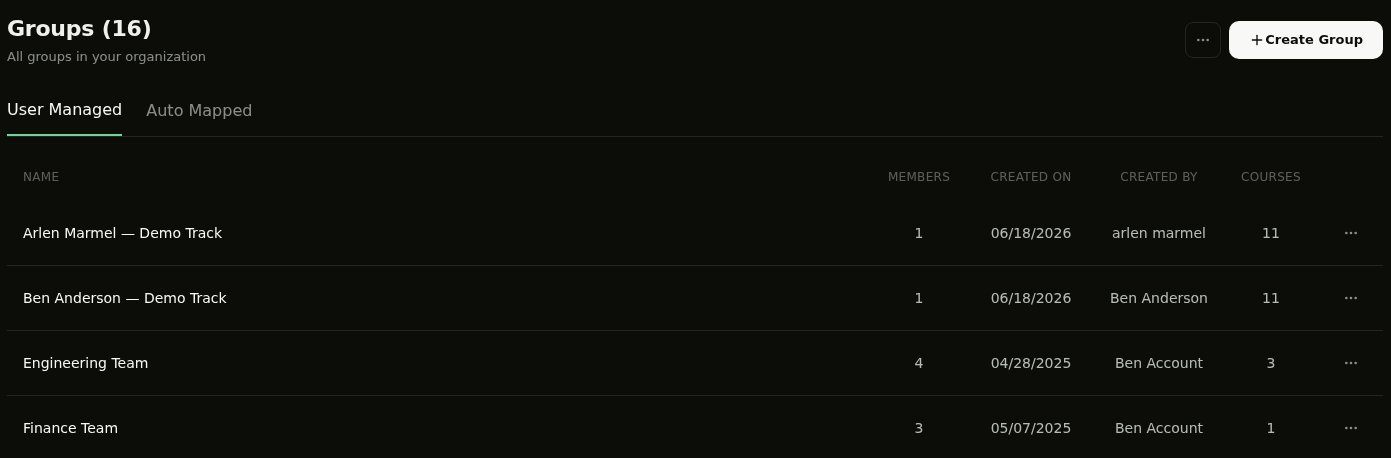
Go to the Groups page and click Create Group. Give the group a name in the Group Name field.
Step 2: Switch to Build with Rules
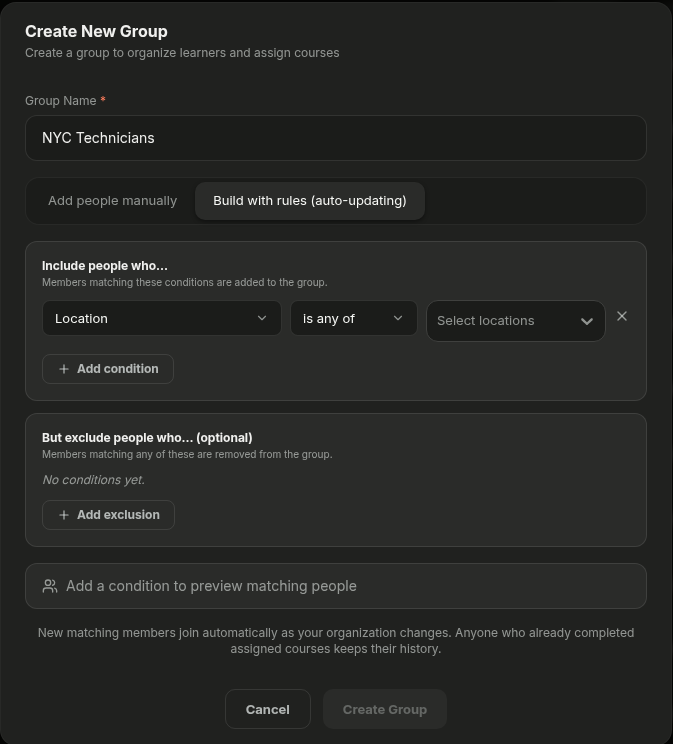
At the top of the Create New Group dialog, switch from Add people manually to Build with rules (auto-updating).
Step 3: Add Your Conditions
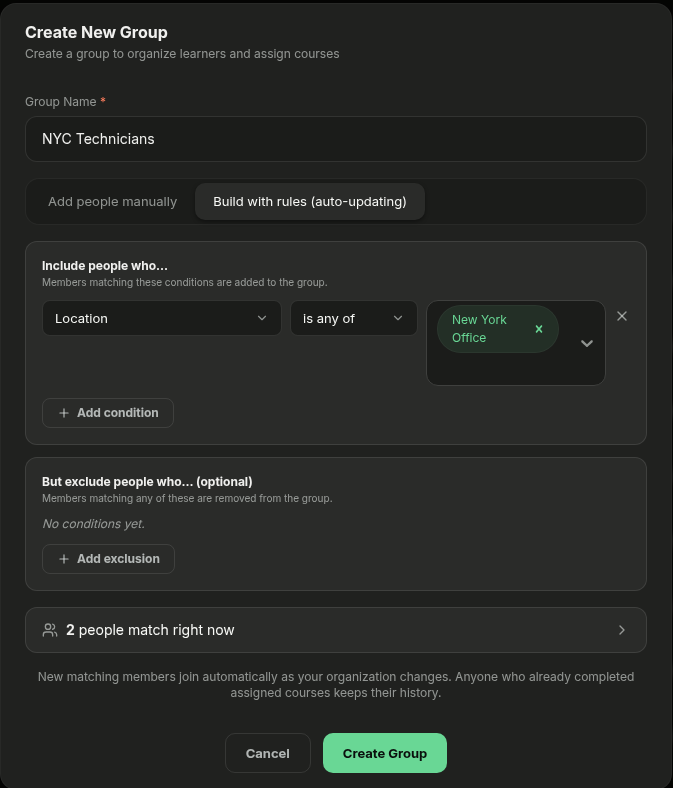
Under Include people who…, add one or more conditions. For each condition, pick an attribute — such as Location, Role, or Manager — an operator like is any of, and the values. If you add more than one condition, use the toggle to choose Match ALL or Match ANY.
💡 Tip: Use But exclude people who… (optional) to remove specific people even if they match your include rules — for example, everyone in a location except contractors.
Step 4: Preview and Save
As you build your rules, Quinn shows a live count of how many people match right now — click it to see exactly who will be included. When it looks right, click Create Group.
💡 Tip: Membership on a rule-based group can't be hand-edited while rules are active. Anyone who already completed assigned courses keeps their completion history even if they're later removed.
💡 Tips
Use rule-based groups for role- or location-based training so new hires are enrolled automatically as soon as they match.
Combine rule-based groups with recurring assignments to keep compliance training flowing to the right people over time.
To add members by hand instead, see Setting Up Groups.