Instructor-Led Training
📌 Overview
Instructor-Led Training (ILT) lets you run live, in-person or virtual sessions inside Quinn. You create a reusable Training once — with the materials learners get before and after — then schedule as many sessions as you need. Assign the Training directly, through a group, or as part of a program, and learners either get a date from you or book the session that suits them. Attendance, not booking, is what completes the requirement.
Step 1: Create a Training
Go to Instructor-Led Training in the admin sidebar and click New Training. Give it a Title and Description, pick the Default modality (In person or Virtual), choose the Default facilitator, and optionally set a follow-up course that's assigned once a learner attends. Click Create.
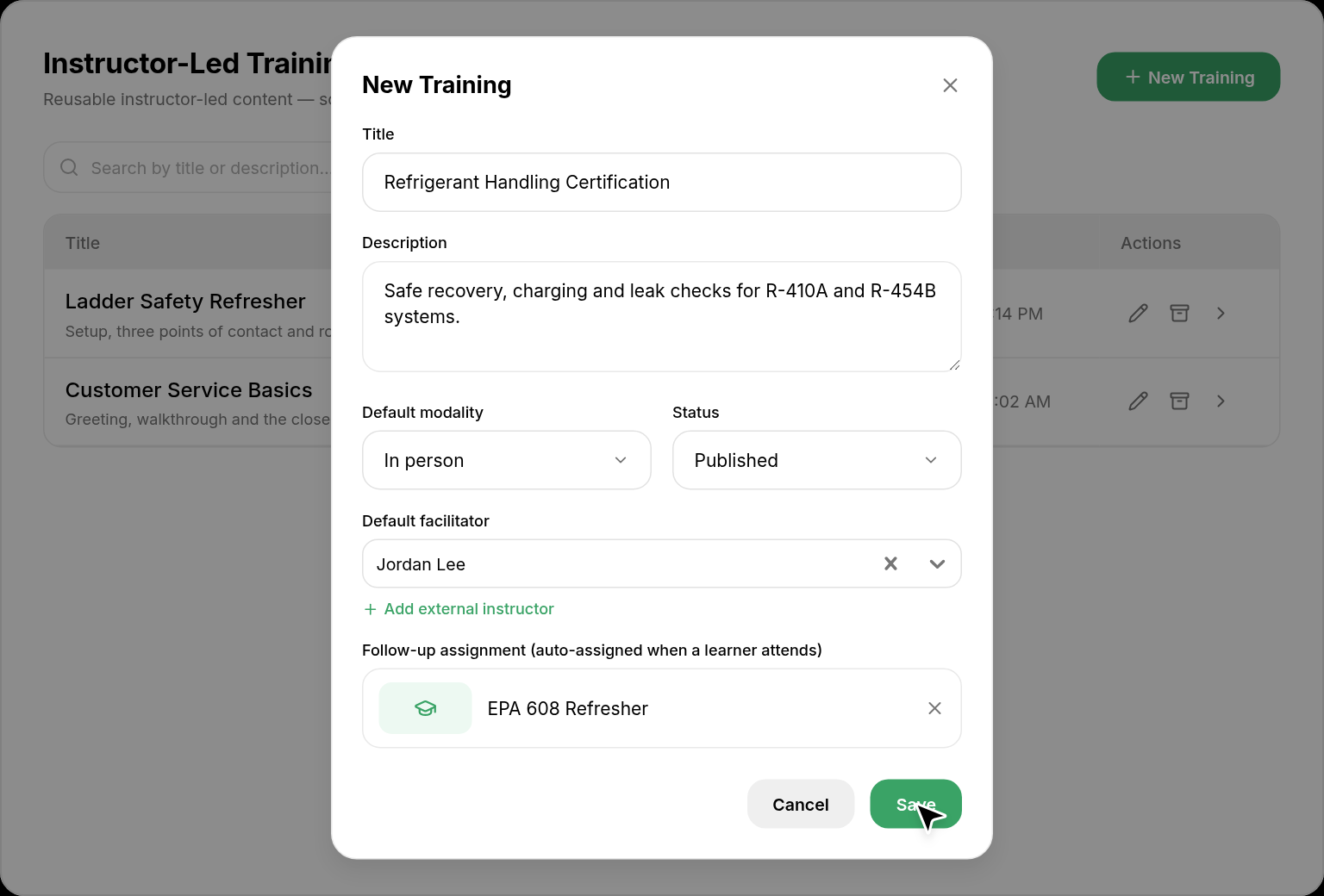
💡 Tip: A Training is reusable — set it up once and every session you schedule from it shares the same materials, follow-ups, and completion rules.
Step 2: Add Materials
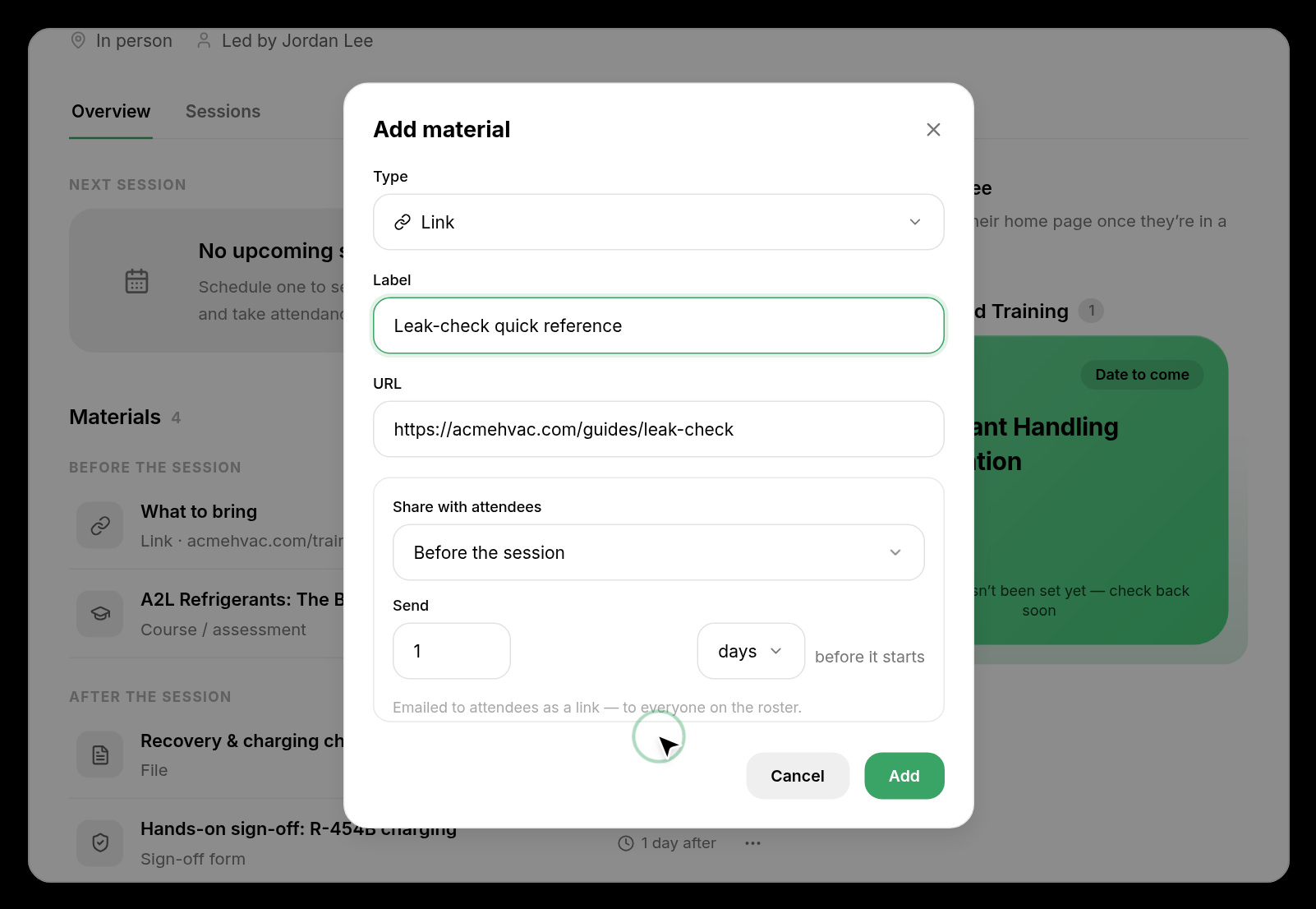
On the Training's Overview tab, click Add material. Choose the Type (a link, file, or course), give it a Label, and pick when learners get it — Before the session or After the session — along with how many days before or after it should go out. Click Add.
Step 3: Schedule a Session
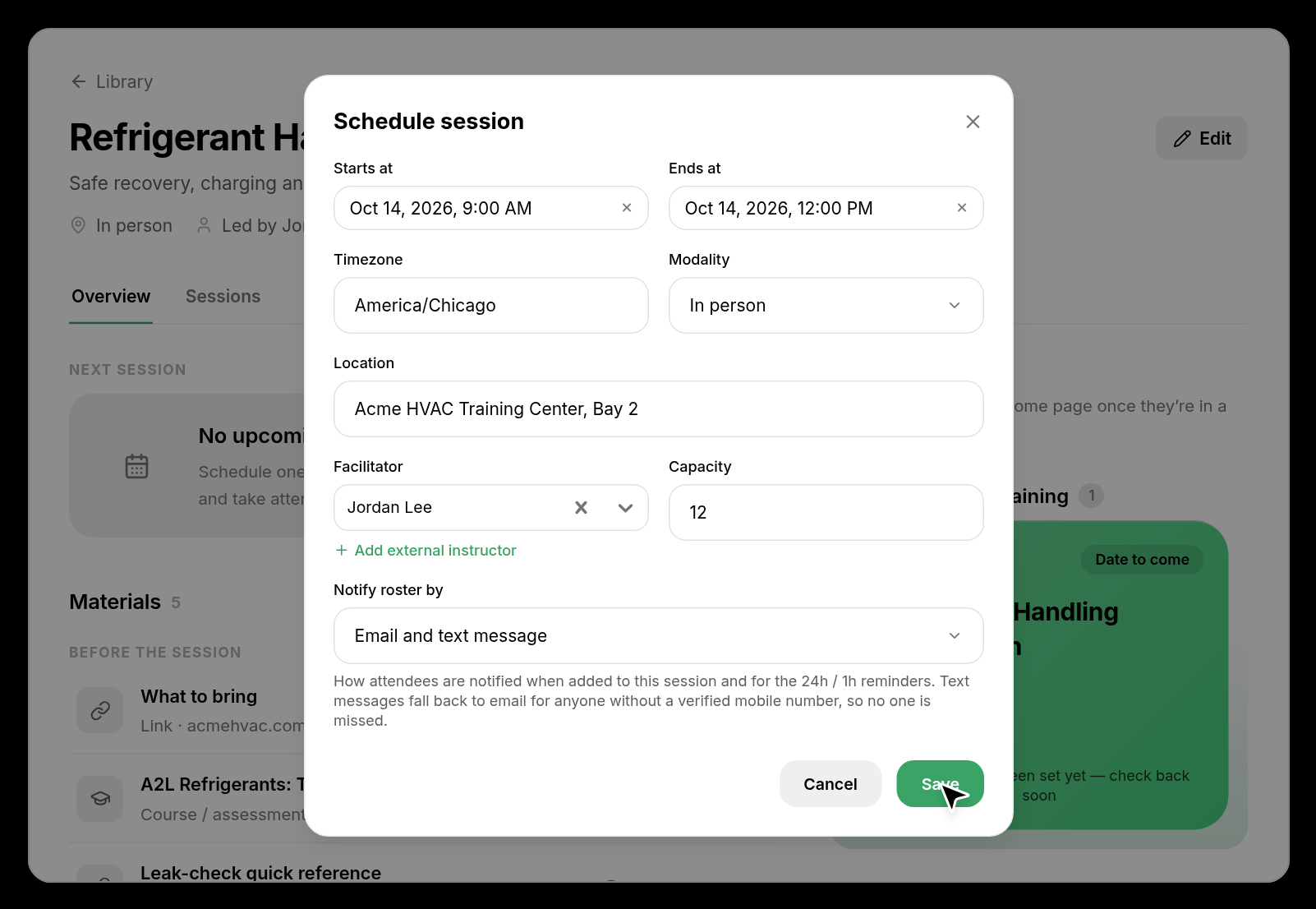
Click Schedule session. Set the Starts at and Ends at times, the Timezone, Modality, Location, Facilitator, and Capacity. Under Notify roster by, choose email, text message, or both. Click Save. The next session appears on the Training's Overview and in the learner's Upcoming view.
Step 4: Add Your Roster
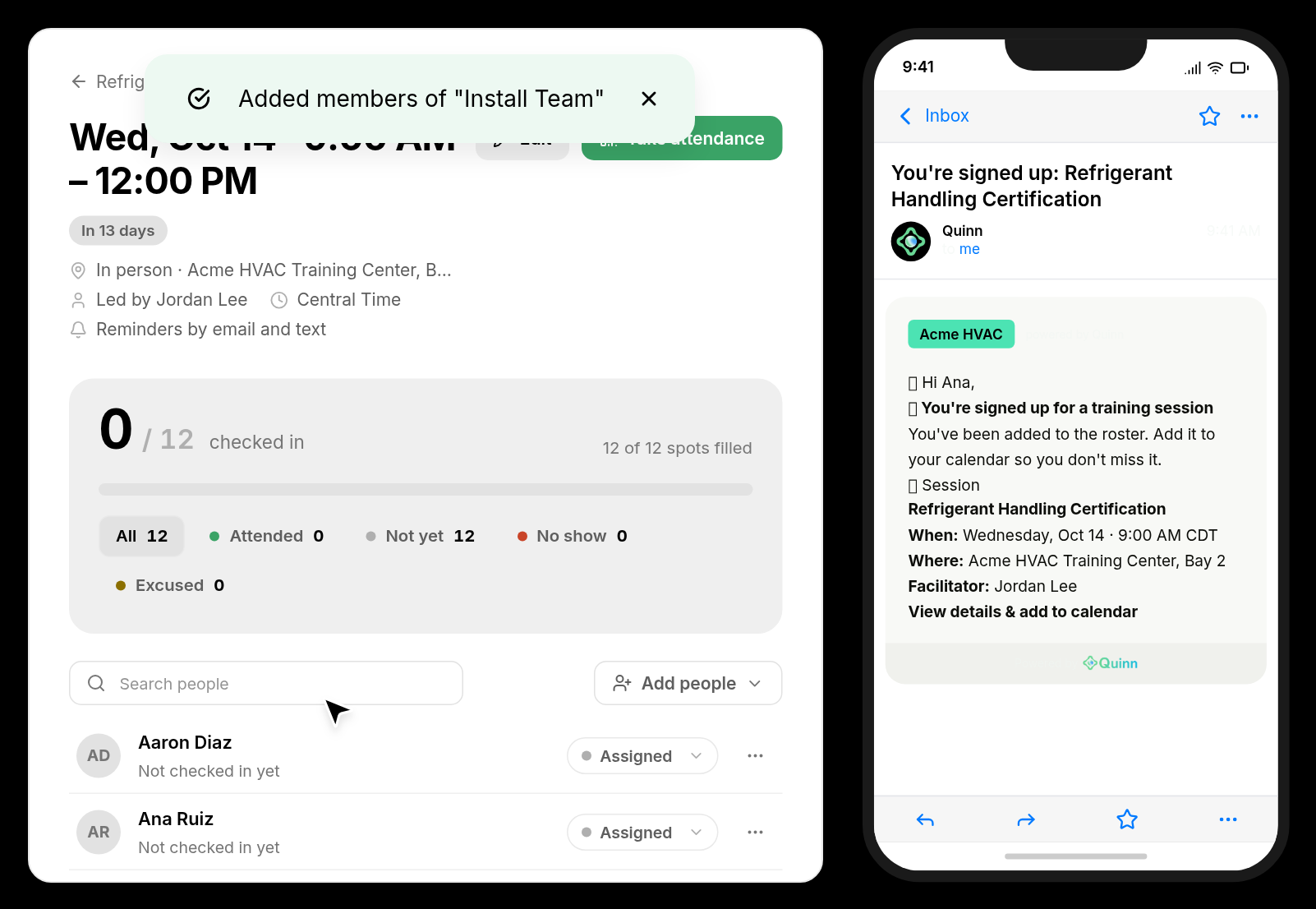
Open the session and click Add people. Add individual learners or an entire group — everyone added gets an invitation with the session details and a link to view it. You can also assign the Training itself (directly, via a group, or inside a program) and let learners Book a date from the open sessions themselves.
💡 Tip: When you assign the Training without picking a session, learners see it in their assignments with a Book a date button and choose from any session with open seats.
Step 5: Quinn Sends Reminders
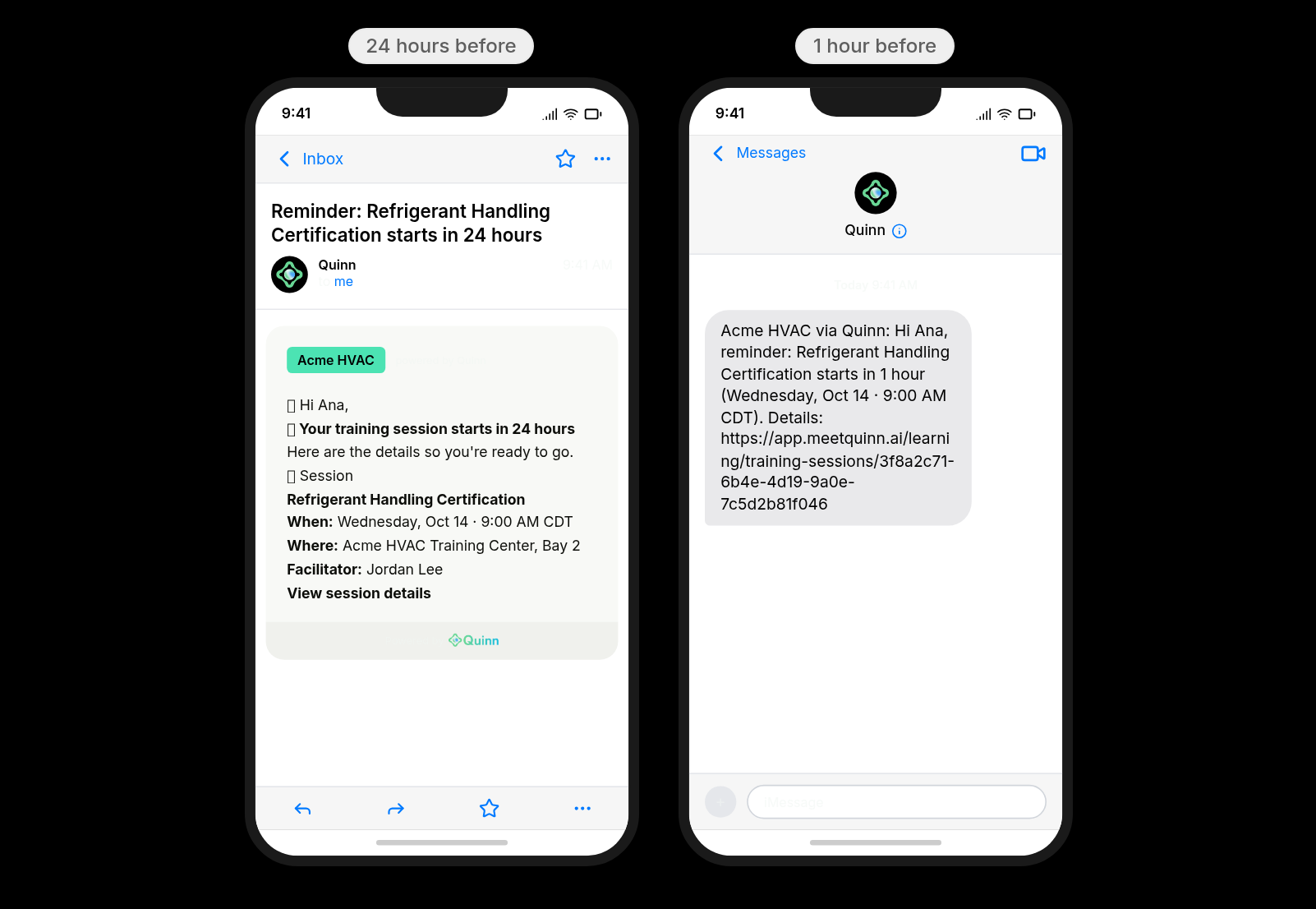
Nothing to do here — Quinn automatically reminds each learner 24 hours and 1 hour before the session starts, by email and text, with the time, location, and facilitator.
Step 6: Take Attendance
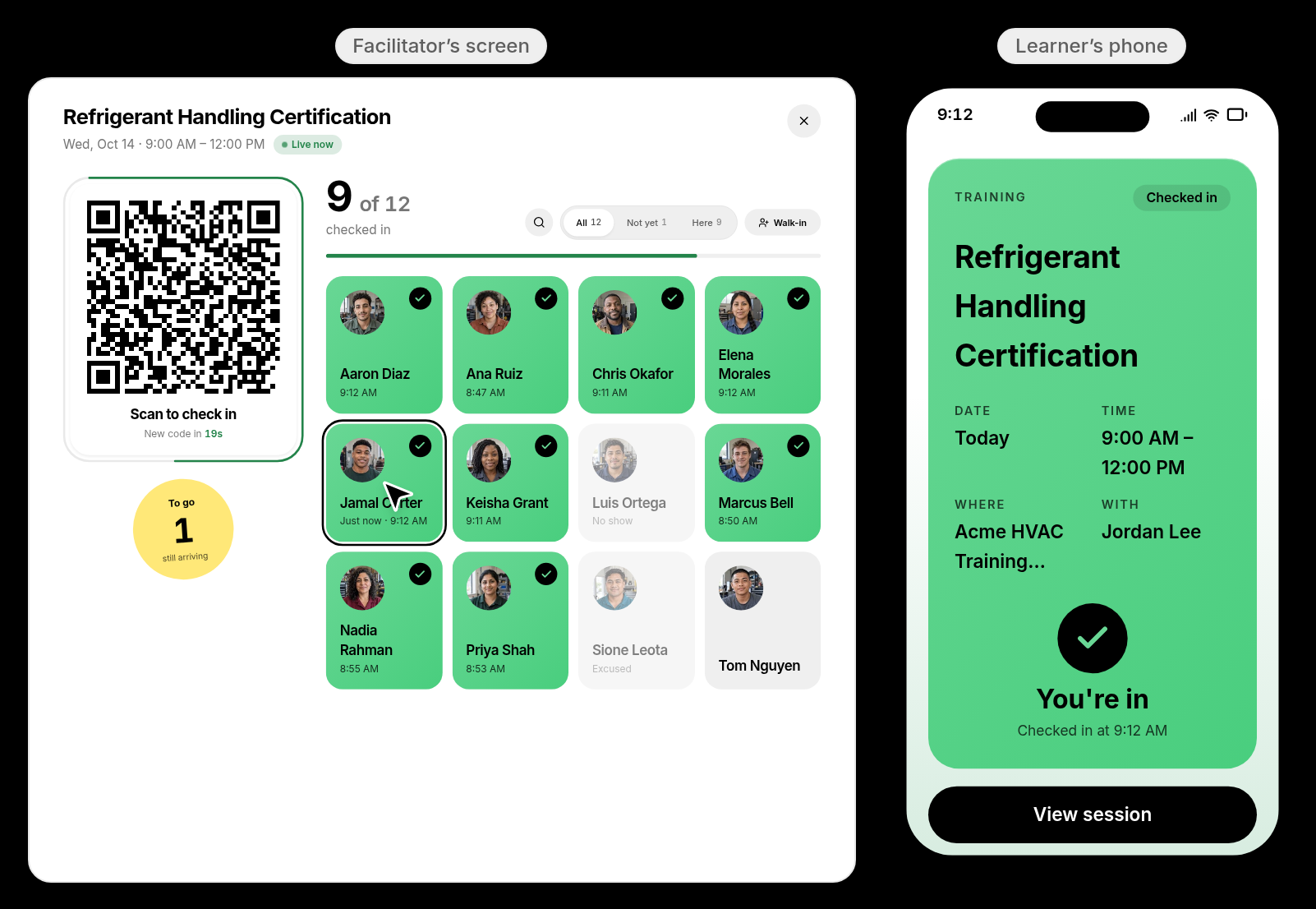
At the session, click Take attendance and show the Scan to check in QR code. Learners scan it with their phone and see You're in — the attendance board fills in as each person arrives. You can also mark learners Attended, No show, or Excused by hand.
Step 7: See Attendance at a Glance
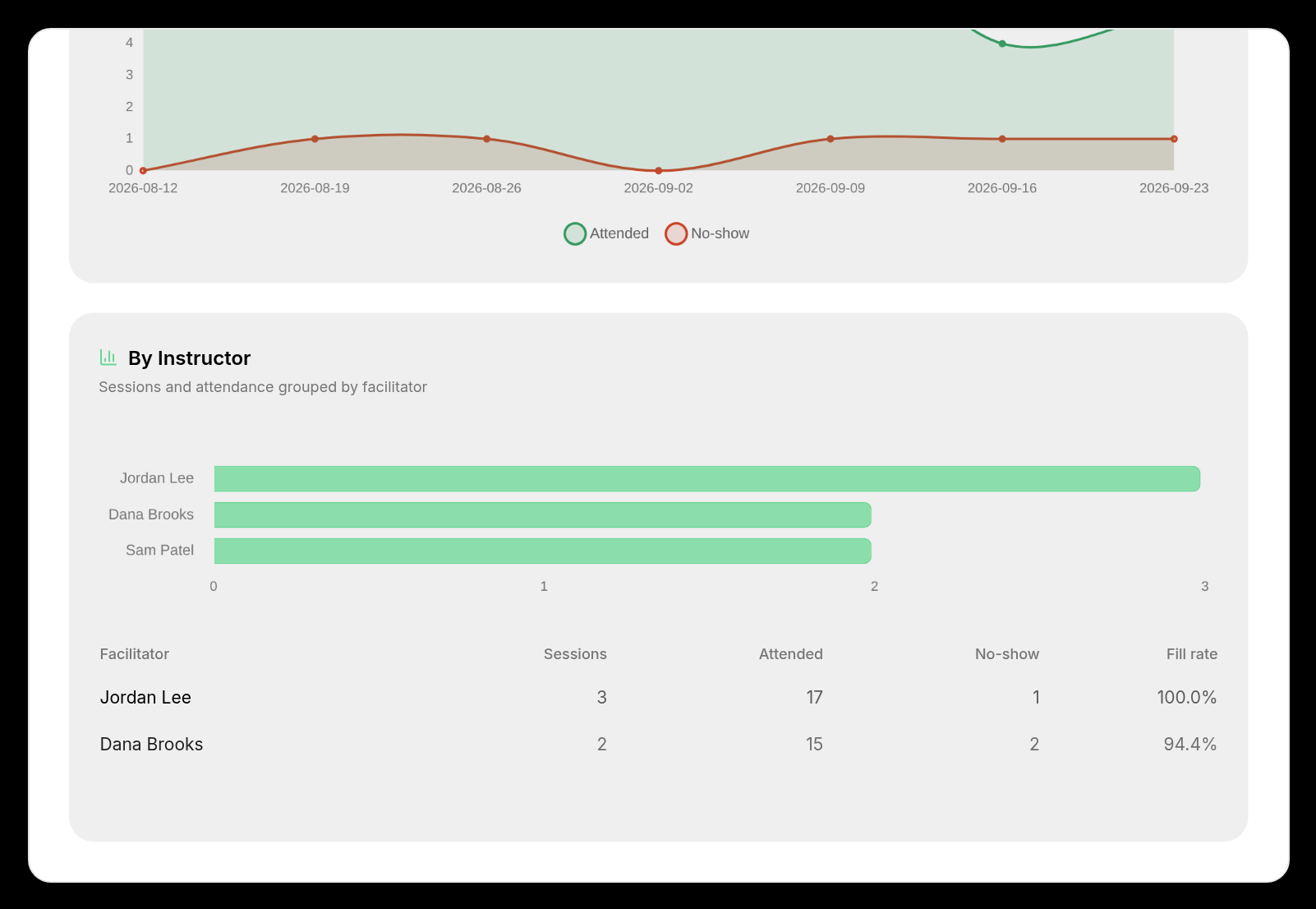
Open the Training's analytics to see attendance over time and a By instructor breakdown of sessions, attendance, no-shows, and fill rate.
💡 Tips
- Booking a session does not complete the requirement — only being marked Attended does. No-shows and excused absences keep the assignment open so the learner can book another session.
- Attending a session earns the learner 10 points when Points & Prizes is enabled.
- Links in ILT emails and texts take learners straight to their session page, where they can see the details, add it to their calendar, or rebook.