Reassign a Completed Course
📌 Overview
When a learner has already completed a course and needs to take it again — whether for recertification, updated content, or remediation — you can reassign the course directly from Quinn. Reassigning resets the learner's progress, sends them a notification email with a Take Again button, and marks the course as requiring a retake on their dashboard.
Option 1: Reassign from the Assign Course Modal
Step 1: Open the Course
From the sidebar, click Courses and select the course you want to reassign. On the course detail page, click the green Assign button.
Step 2: Select Learners
In the Assign Course modal, use the Invite by Email tab to select individual learners, or switch to Assign by Group Name to assign by group. You can also set a due date or schedule the assignment for later.
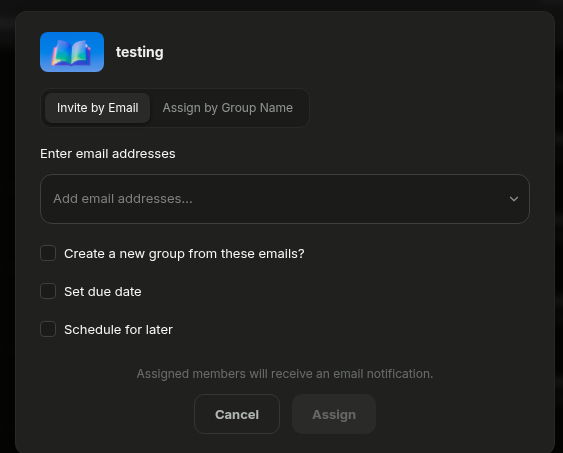
If any selected learners have already completed the course, Quinn shows a warning banner:
"X of Y selected learners have already completed this course — reassigning will ask them to retake it."
Step 3: Confirm
Click Assign. Learners who had already completed the course are automatically reassigned — their progress resets and they receive a new email notification.
💡 Tip: Reassigning also works when enrolling learners through groups or programs. If a learner in the group has already completed the course, Quinn automatically handles the reassignment.
Option 2: Reassign from Assessment Details
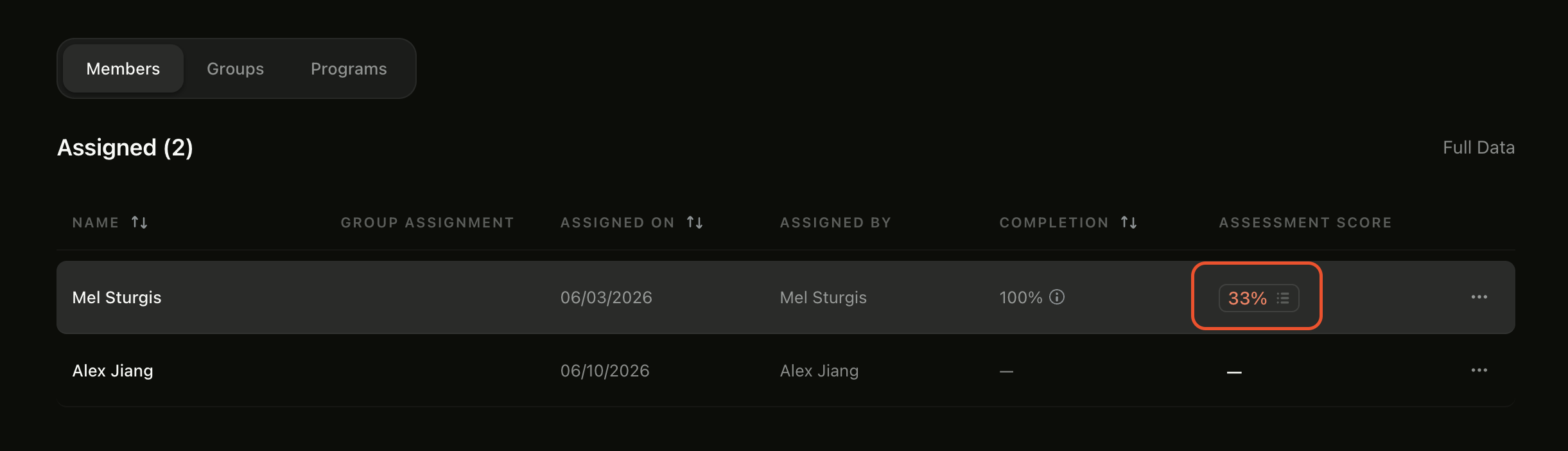
To reassign a specific learner after reviewing their results, navigate to the course detail page and click the Members tab. In the members list, find the learner who has completed the course — their Completion column will show 100% and their Assessment Score column will display a score. Click their assessment score to open the Assessment Details modal.
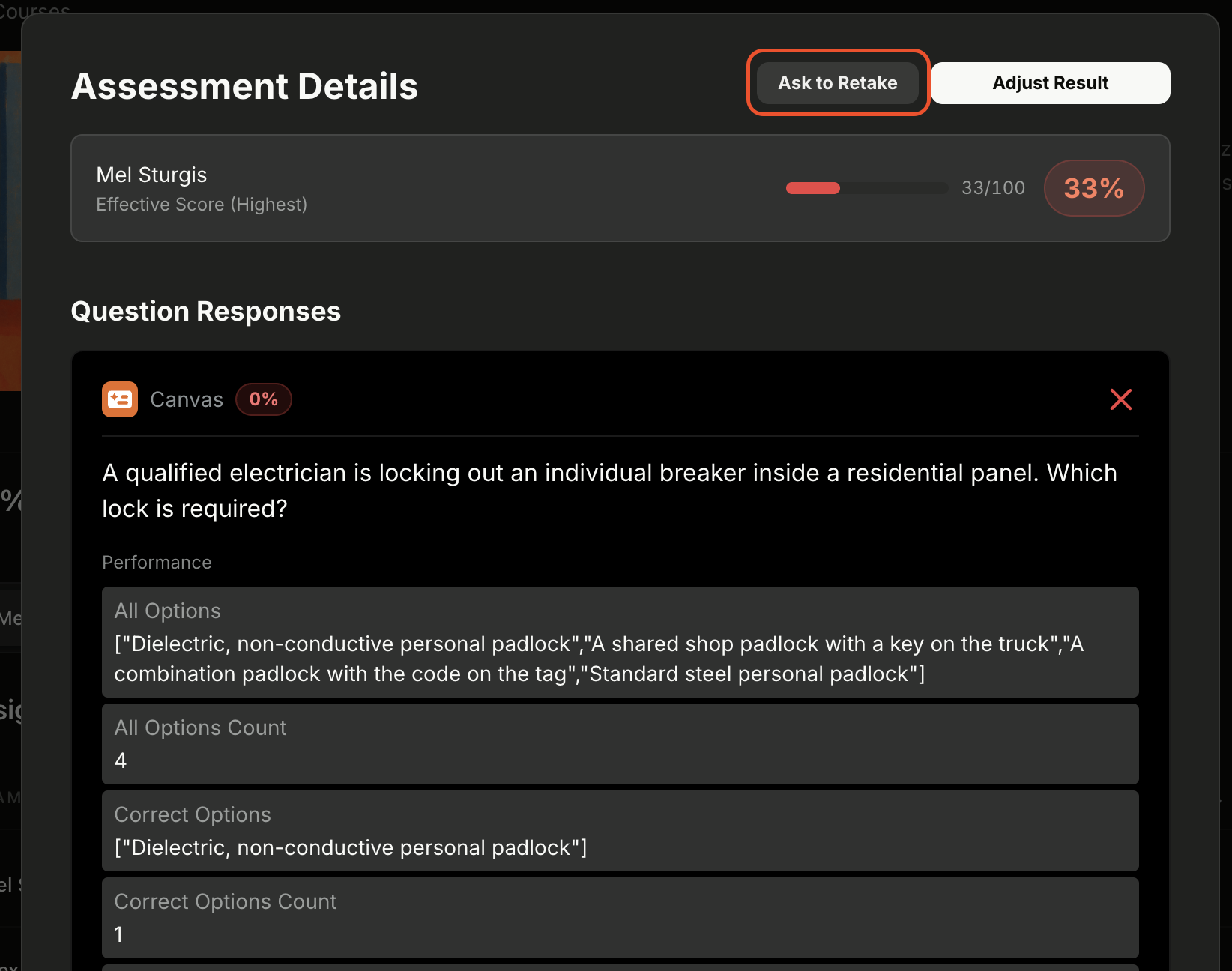
At the top of the Assessment Details modal, you'll see two buttons: Ask to Retake and Adjust Result. Click Ask to Retake to reassign the course to that learner. This button only appears when the learner has completed the course. The learner's progress resets and they receive a retake notification email.
What the Learner Sees
When a course is reassigned:
- A Retake required badge appears next to the course in the learner's Due Soon section on their dashboard.
- A Retake badge appears on the course card in the Assigned to You page.
- The course detail page shows a Retake button instead of the normal start button.
- Once the learner completes the retake, all badges return to their normal completed state automatically.
Email Notification
Reassigned learners receive an email with:
- Subject: "You've been asked to retake a course by [Admin Name] from [Organization]"
- Body: A message explaining they have been asked to retake the course, with a Take Again button linking directly to the course.
💡 Tips
Reassigning a course resets the learner's progress completely — they will need to go through all modules again.
You can reassign to multiple learners at once using the standard Assign Course modal.
The retake status clears automatically once the learner completes the course again.
For more about assigning courses, see Assign a Course.