Share and Review a Course
📌 Overview
Before assigning a course to learners, you can easily share it to collect feedback. Quinn allows you to send a review link—no login required—and enables reviewers to leave feedback directly on each slide.
Watch the tutorial video above
Step 1: Open the Share Menu
In the upper right corner of your course editor, click Share.
Step 2: Copy and Send the Link
Copy the generated link and send it to anyone you'd like to review the course.
Reviewers can access the course on desktop or mobile without having a Quinn account.
Step 3: Enable Review Mode (Optional)
You can turn on Review Mode to allow feedback.
When Review Mode is enabled, reviewers will see a banner indicating that they are in review mode.
Step 4: Collect Feedback
Reviewers can leave comments at the end of each slide.
All feedback will appear directly in your editor chat window, clearly tagged to the slide it relates to.
Step 5: Apply Feedback Instantly
To accept a suggestion, click Send to Quinn next to the feedback message.
Quinn's AI will automatically apply the change for you.
💡 Tips
Use Review Mode when sharing with managers, subject-matter experts, or clients for approval.
Feedback is slide-specific, making it easy to track and apply updates accurately.
You can disable the review link at any time to stop new submissions.
Control Review-Comment Emails for One Course
When reviewers leave comments, Quinn emails you a summary. You can now turn those emails off for a single course instead of muting every Quinn notification.
Step 1: Open the Request Review Dialog
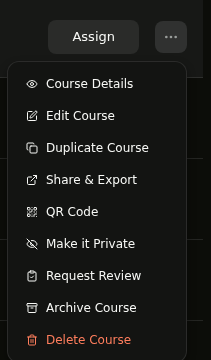
On the Courses page, open the ... menu on the course you own and choose Request Review.
Step 2: Choose Whether to Get Comment Emails
Add your reviewers with Invite by Email or Assign by Group Name, then use the Email me when reviewers leave comments on this course checkbox. It's on by default — uncheck it to mute comment emails for this course only, then click Request Review.
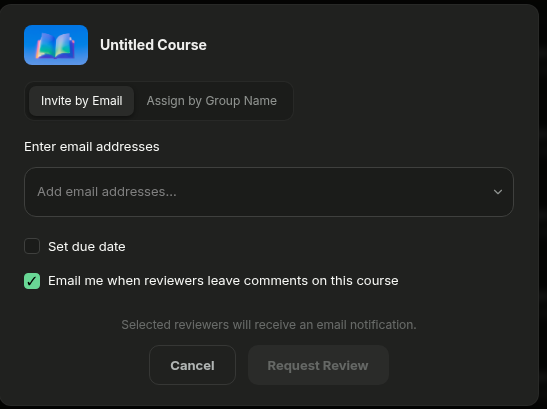
💡 Tip: This checkbox appears only for the course owner, so you'll see it on courses you created.
Step 3: Or Turn Them Off From the Email
Every review-comment email includes an unsubscribe link for that course. Opening it asks Turn off review-comment emails? — click Turn off these emails and you'll see Emails turned off, with Changed your mind? Turn them back on if you want them back.
💡 Tip: Unsubscribe links eventually expire. If yours shows This unsubscribe link is invalid or has expired., change the setting from the Request Review dialog instead.