Sign-offs
📌 Overview
Sign-offs let you confirm that someone can actually do the job — not just that they finished a course. One system covers every way you check work on the job: an evaluator watches a task live (a ride-along or observation), or the learner submits evidence such as photos and video for review. Each sign-off is a checklist of checks; the evaluator scores every check, leaves notes, and either approves the work or asks for another attempt with feedback. You'll find Sign-offs under More in the admin sidebar.
Step 1: Start from a Template
Open More → Sign-offs and click Templates. Pick a ready-made sign-off, such as AC Tune-Up Observation, and click Use template. It becomes your own copy, so you can rename it, edit the checks, and change what the evaluator scores.
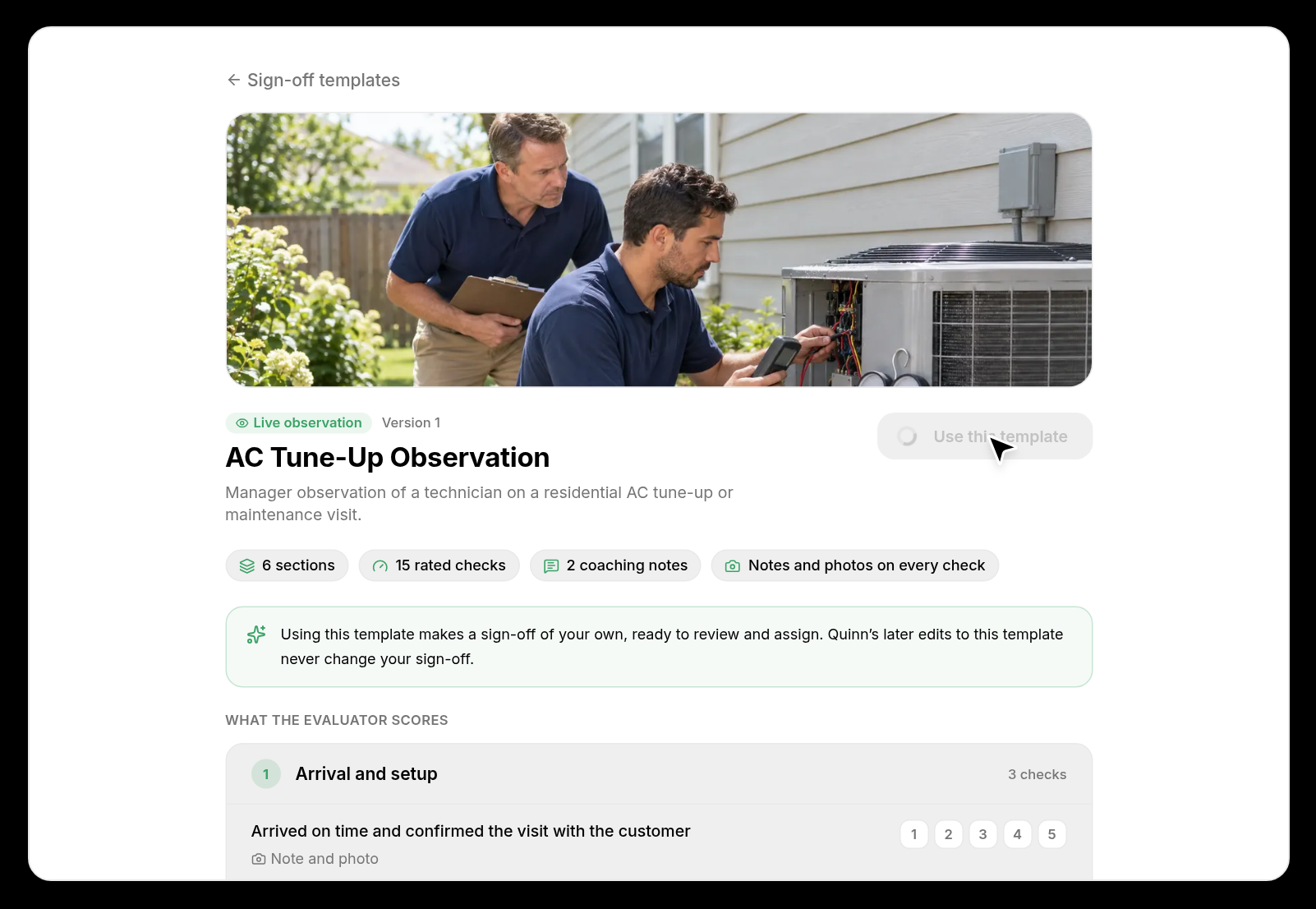
💡 Tip: Each template lists how many sections, checks, and coaching notes it includes. Checks marked with Note or Photo or video let the evaluator attach a comment or evidence to that specific step.
Step 2: Choose Who Observes
Click Evaluator routing in the top bar. Under Who observes the learner?, choose who evaluates each learner — for example The learner's manager, a specific person, or a group — and add fallback rules for learners who don't match. Click Apply to open work to save.
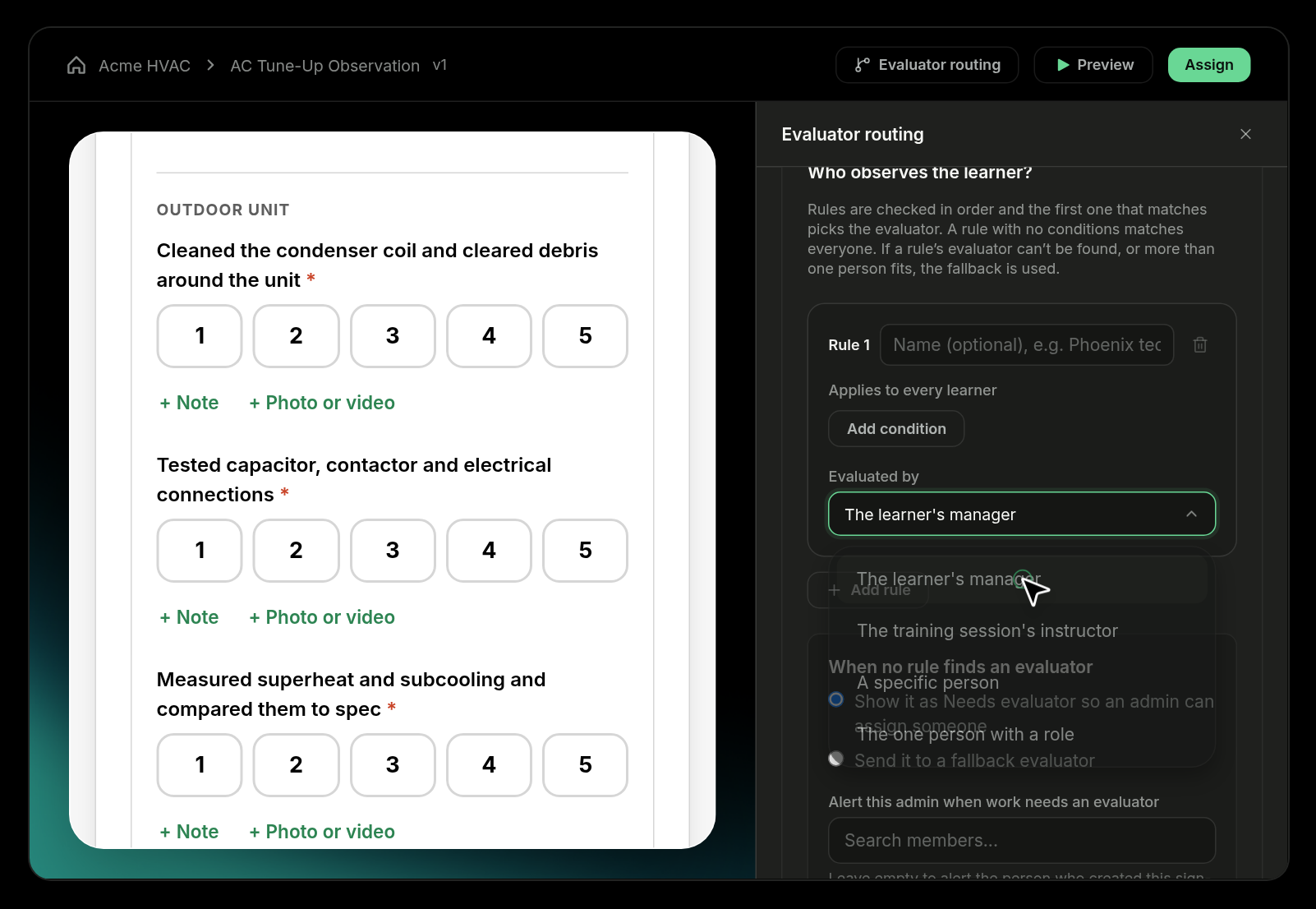
💡 Tip: Routing is set once per sign-off, so every future assignment goes to the right evaluator automatically. For evidence-based sign-offs, choose Learner submits evidence so the learner uploads proof and the evaluator reviews it.
Step 3: Assign It to Learners
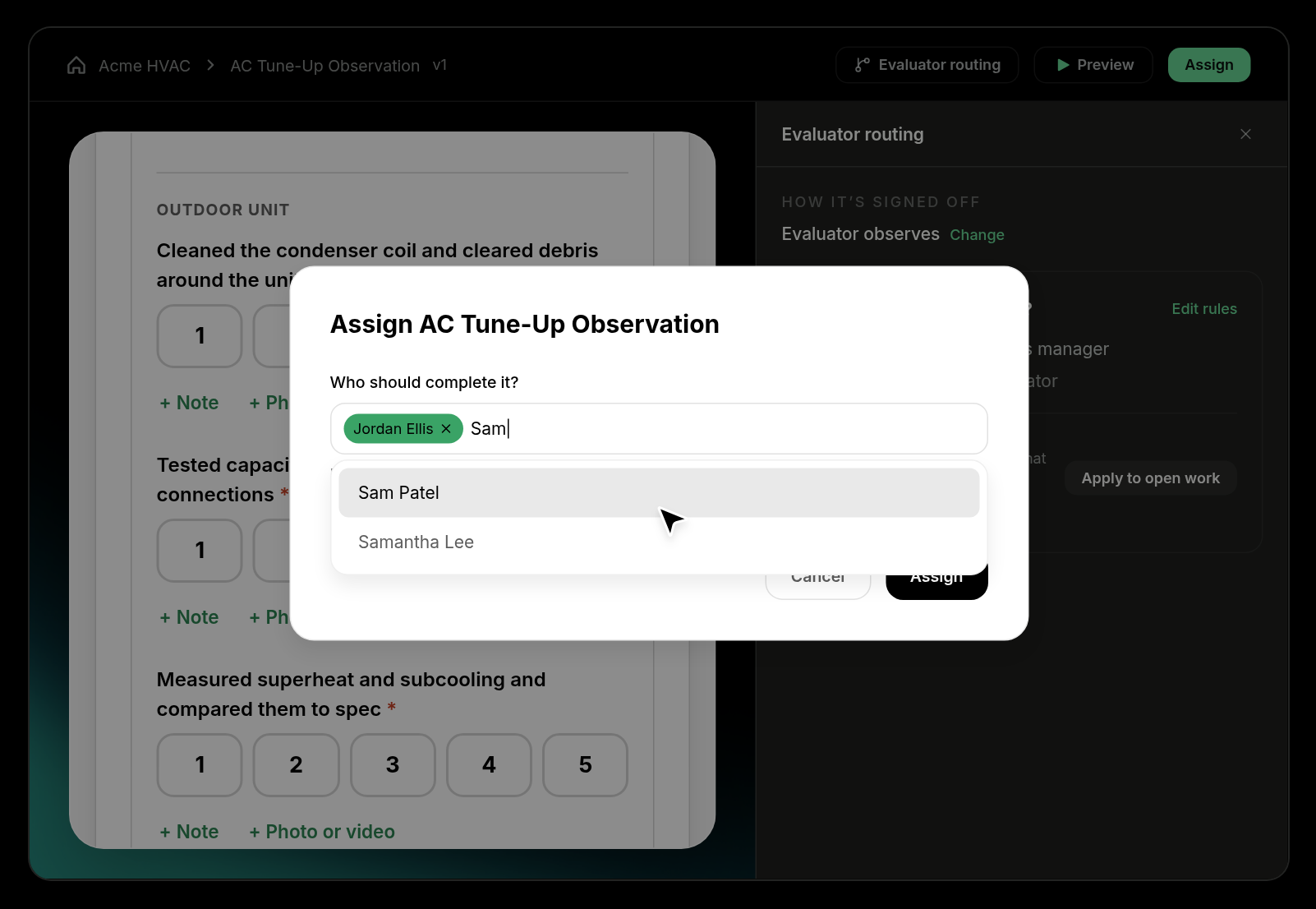
Click Assign, then search and select the learners who need this sign-off. Before you confirm, Quinn shows who will observe each person based on your routing rules. Click Assign to send it — a toast confirms how many assignments were created.
Step 4: Watch the Work and Score Each Check
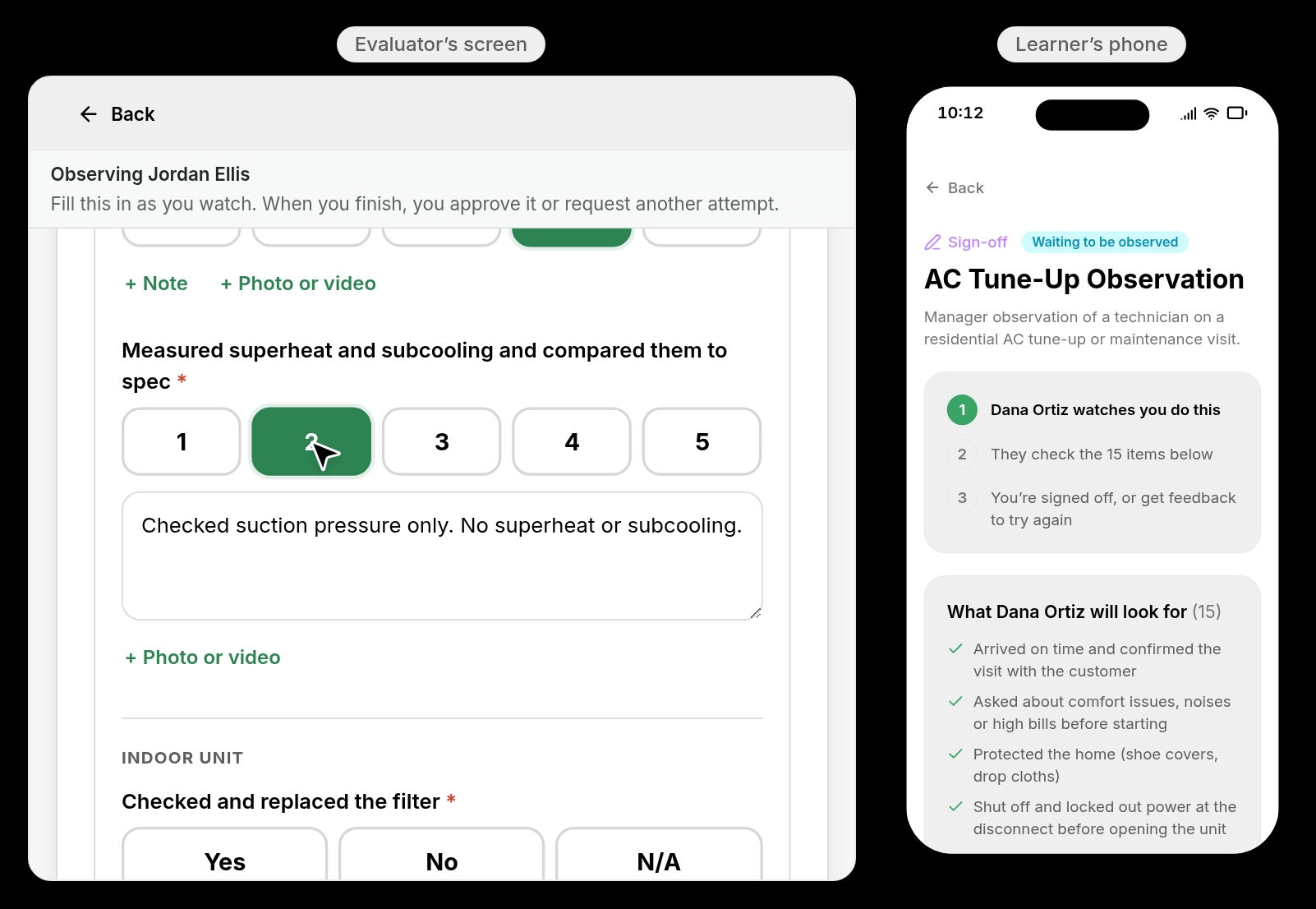
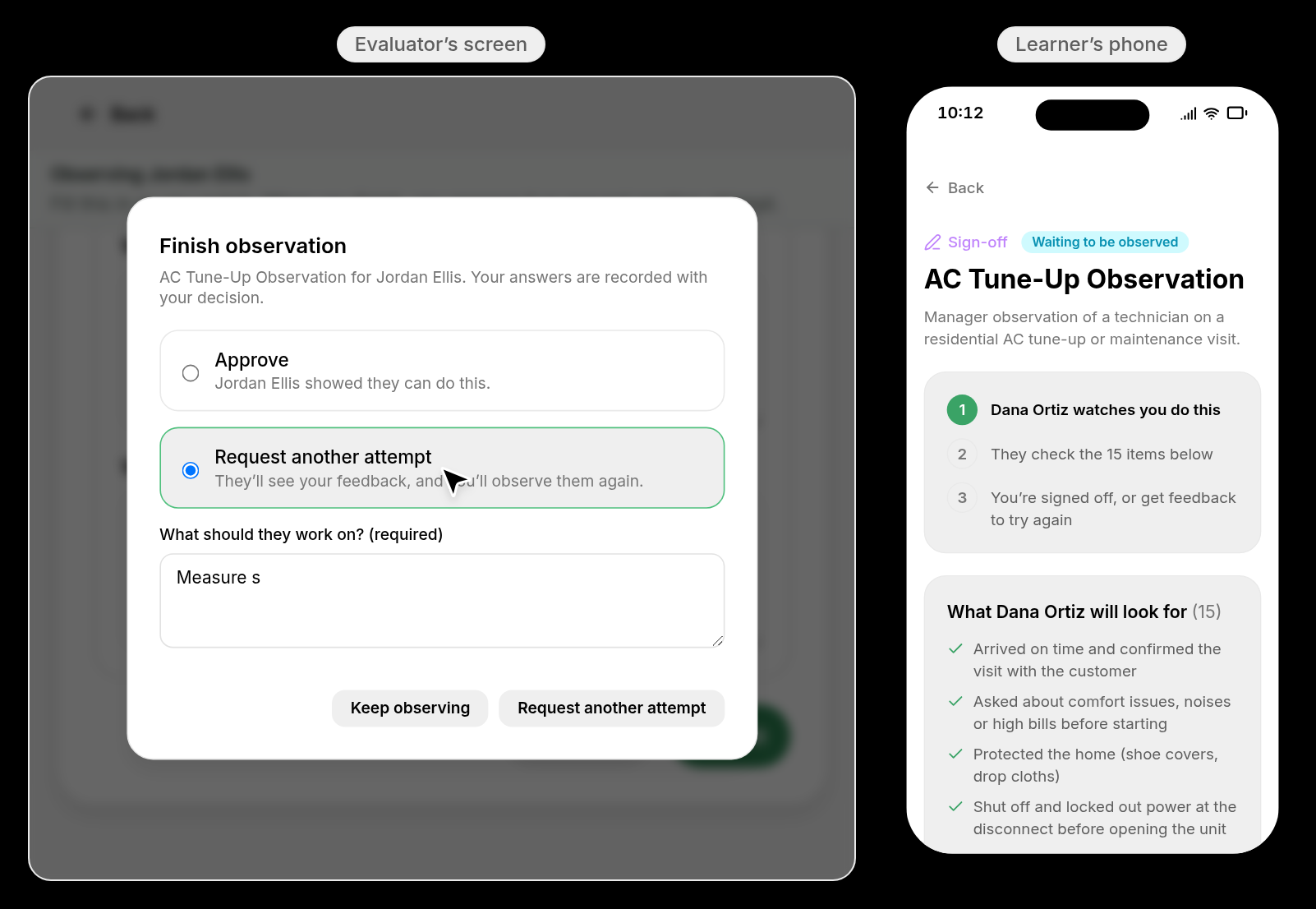
The evaluator opens the sign-off from their queue on the Evaluator's screen and fills it in while the learner does the job: score each check on the 1–5 scale (or Yes / No / N/A), add a Note where something fell short, and attach a Photo or video if the check asks for one. The learner sees the same sign-off on their phone, including who is observing them and what the evaluator will look for.
Step 5: Request Another Attempt
When the evaluator clicks Finish observation, they choose Approve or Request another attempt. For another attempt, they fill in What went well and What to work on next — the learner sees this feedback right away, and the sign-off shows Needs another attempt.
Step 6: Approve on the Next Try
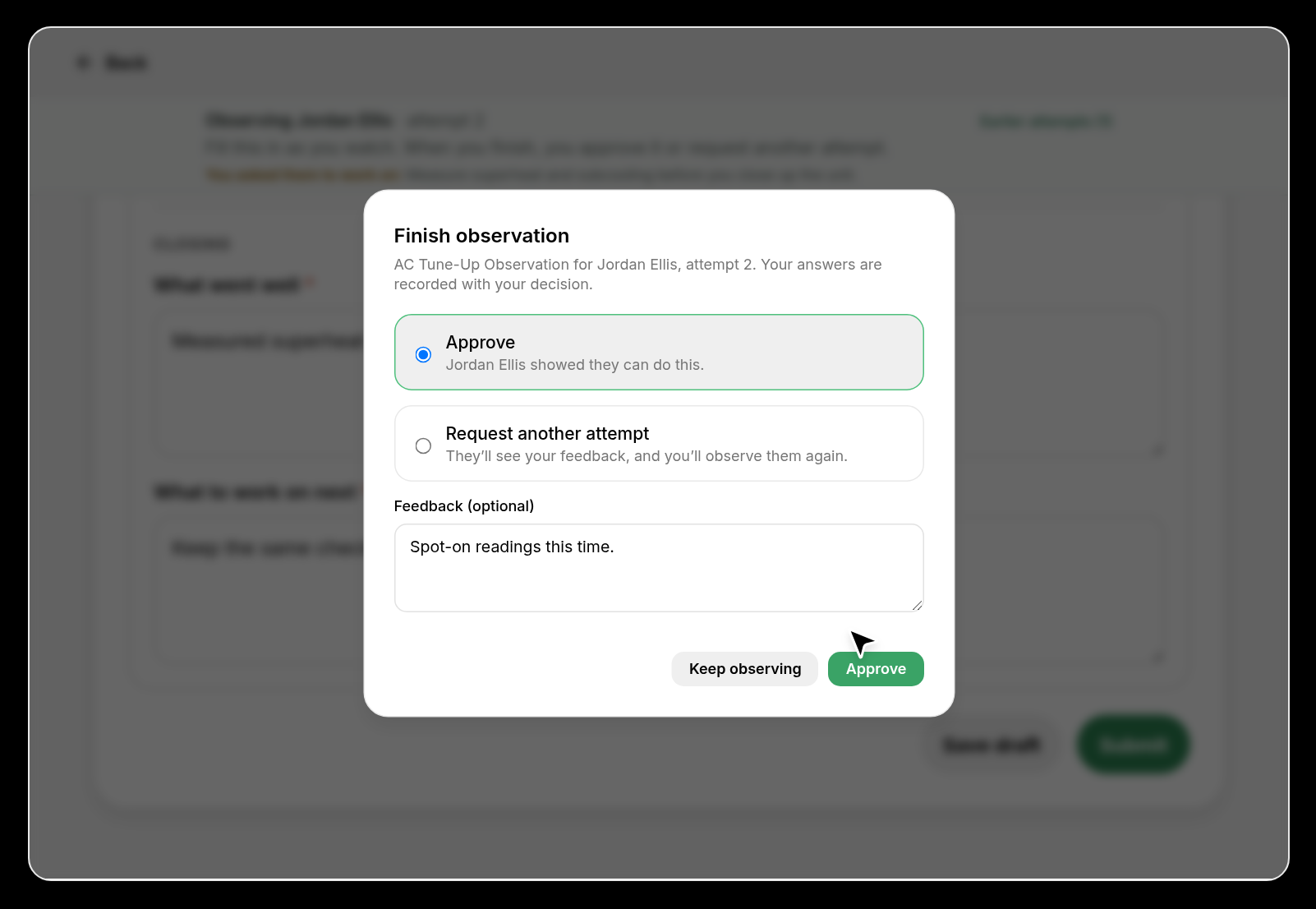
On the next attempt, the evaluator scores the checks again and chooses Approve. The sign-off is marked Approved for that learner, and it shows as done on the sign-off's Assignments tab along with every earlier attempt.
Step 7: See Where Everyone Stands
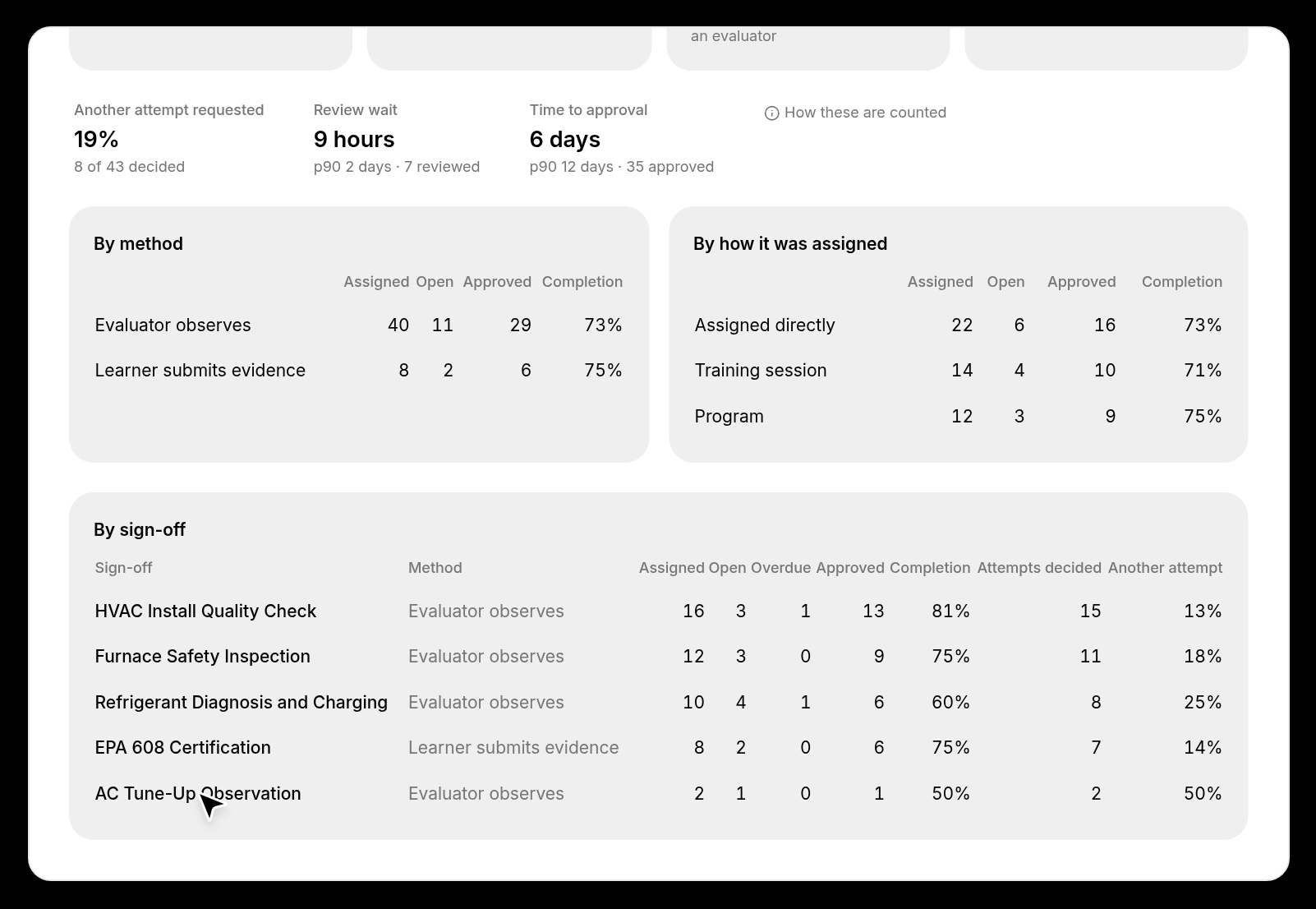
Click View analytics on any sign-off to see completion rate, how many requests needed another attempt, how long approvals take, and what's still open or overdue — broken down by sign-off, by evaluator method, and by how it was assigned.
💡 Tips
- Sign-offs can be assigned directly, through a group, or as a step inside a program, so they can sit alongside courses in a learning path.
- Completing a sign-off earns the learner 15 points when Points & Prizes is enabled.
- Evaluators get notified when work is waiting for them, and learners are notified when they're approved or asked to try again.