Tag and Filter Courses
📌 Overview
Tags let you organize your course library by labeling courses with categories like "Safety", "Onboarding", or "2025 Q3". Once tagged, you can use the Filter by Tag dropdown to instantly find the courses you need. You can add tags to a single course, use multi-select to tag in bulk, and then filter your course list by any tag.
Step 1: Open the Tag Editor
From the Courses page, hover over the course you want to tag. A + Add button appears in the Tags column. Click it to open the tag editor for that course.

Step 2: Search or Create a Tag
The tag editor shows the course name and a Search or create tags... dropdown. Click the dropdown to see existing tags, or start typing a new tag name.

Step 3: Create a New Tag
Type your tag name — for example, "Safety". A Create "Safety" option appears in the dropdown. Click it to create the tag and add it to the course.
💡 Tip: You can add multiple tags to a single course. Just keep searching and selecting tags before saving.
Step 4: Save Your Tags
Your selected tags appear as chips in the input field. Click Save to apply them, or Cancel to discard changes.
Step 5: Add Tags in Bulk with Multi-Select
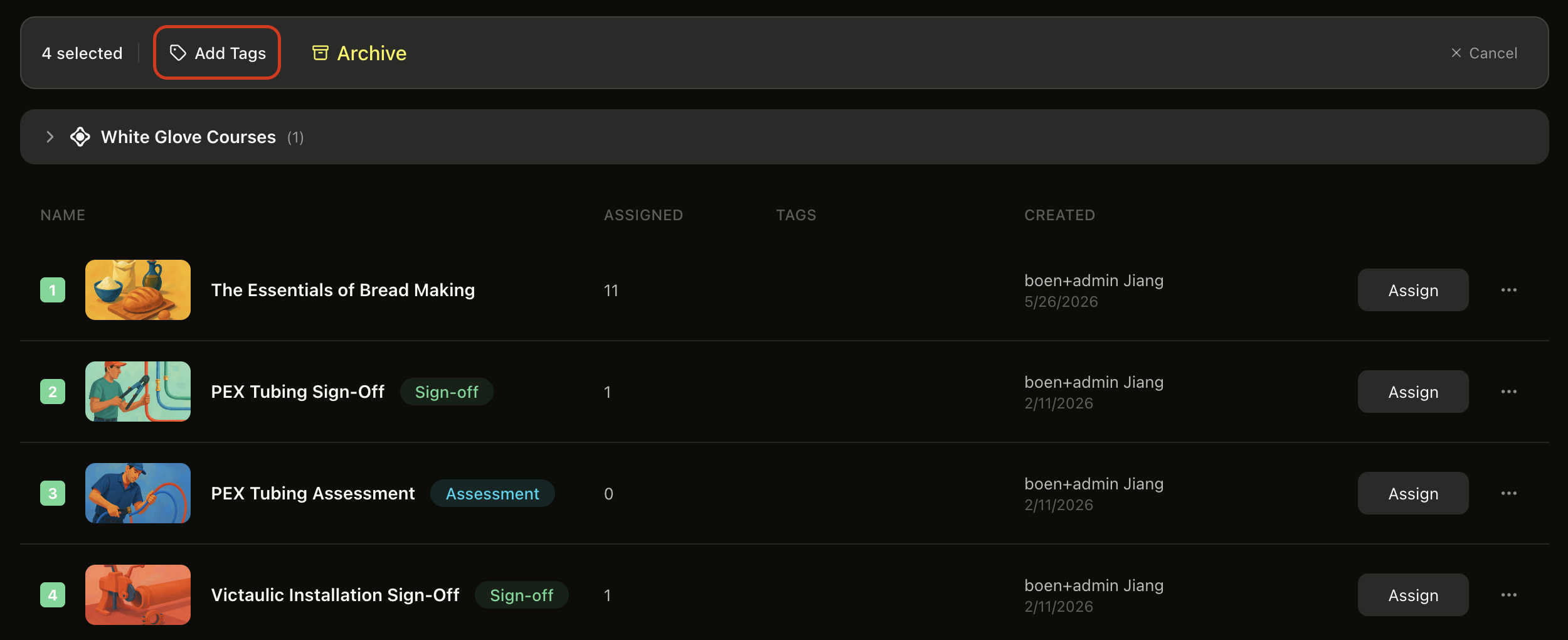
To tag multiple courses at once, click Select in the toolbar. Checkboxes appear on each course row. Click the courses you want to tag — each selected course shows a numbered badge. A floating action bar appears with Add Tags, Archive, and Cancel.
Click Add Tags to open the bulk tag editor.
Step 6: Apply Tags to Selected Courses
The bulk tag editor shows how many courses you selected. Use the same Search or create tags... dropdown to pick or create tags, then click Save. The tags are applied to all selected courses at once.
💡 Tip: Click Done in the toolbar to exit selection mode when you're finished.
Step 7: Filter Courses by Tag
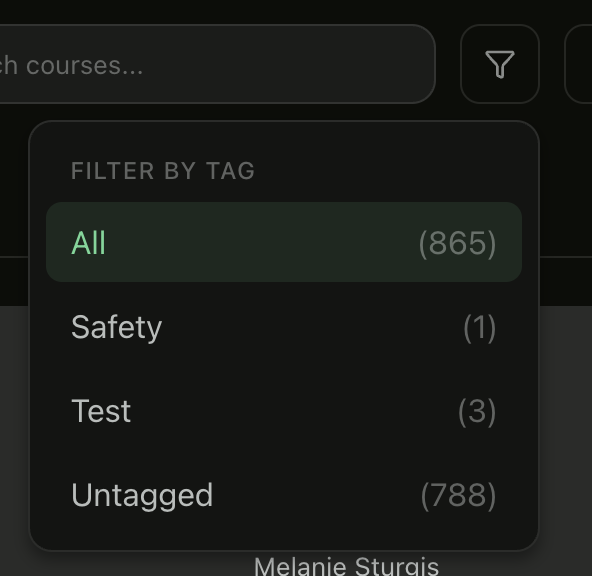
Once you've tagged your courses, use the filter icon (funnel) next to the search bar to filter your course list. Click it to open the Filter by Tag dropdown, which shows every tag in your organization along with a course count. Select a tag — for example, Safety — to show only courses with that tag. Select All to return to the full list, or Untagged to find courses that haven't been tagged yet.
💡 Tips
To remove a tag from a course, hover over the course row and click the tag. In the tag editor, click the x on the tag chip and then click Save.
Use tags to organize courses before archiving — add a tag like "Deprecated" or "2024" so you can find them later if needed.
Tags are shared across your organization — any tag you create is available for all admins to use.
For more about managing your course library, see Archive Courses & Bulk Actions.