Training Libraries
📌 Overview
Quinn comes with a full public library of pre-built courses, ready for you to use. You can browse by category, preview any course, and add it directly to your course library with a single click.
Watch the tutorial video above
Step 1: Go to the Training Library
Head to the Training Library page in Quinn.
You'll find courses organized across a range of categories.
Step 2: Browse by Category
Navigate to the category you're interested in.
Browse through the available courses in that category.
Step 3: Preview and Add to Your Library
Click on any course to preview it.
When you find one you like, click Add to My Library.
The course will instantly appear on your Courses page, ready to use just like any other course in your collection.
Step 4: Search Across All Libraries
Use the Search courses... bar at the top of the Libraries page to find courses by name across all your libraries at once. Results display individual course cards with the parent library name labeled on each card, so you can see exactly where every course lives.
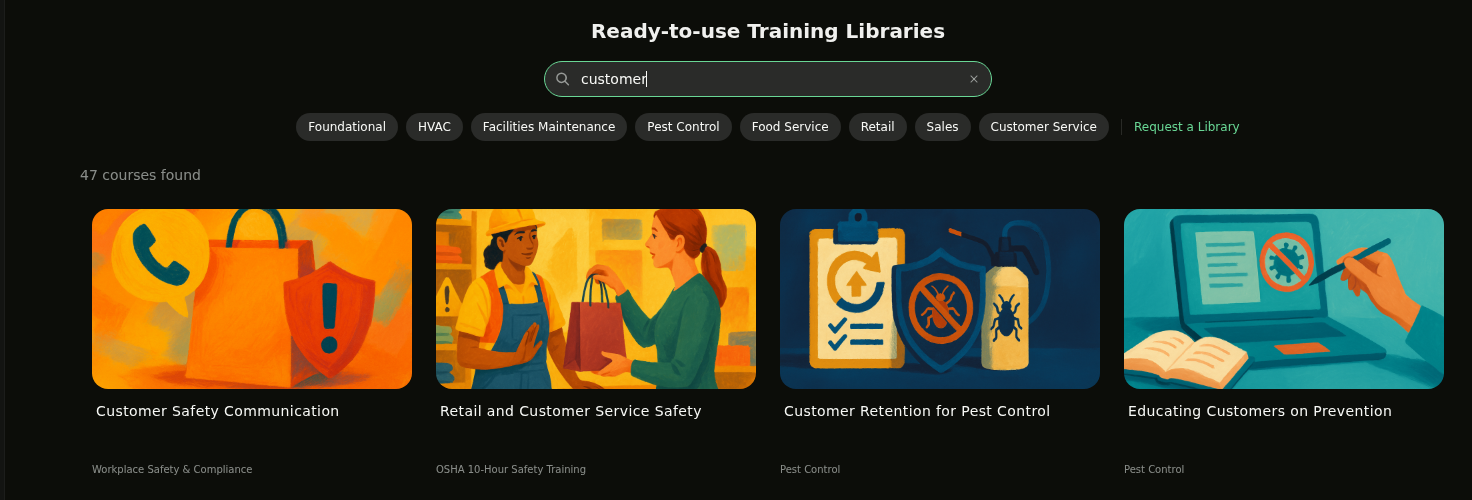
💡 Tip: The search matches course names across every library in your organization — you don't need to open each library separately.
Step 5: Search Within a Library
Open any library to view its courses. Use the search bar at the top of the library detail page to filter courses within that specific library.

💡 Tips
Pre-built library courses are a great starting point — you can assign them directly or customize them to fit your team's needs.
Once added, you can assign the course to members or groups just like any course you've created.
Check back regularly — new courses are added to the library over time.
Use the cross-library search to quickly find a course when you're not sure which library it's in — each result card shows the parent library name.