Course Report
📌 Overview
Quinn gives you access to detailed performance reports for every course and every individual member. You can see overall completion, individual scores, and a full breakdown of how each person performed on each question.
Watch the tutorial video above
Step 1: Open the Course
Go to the Courses page.
Select the course you want to review.
Step 2: View Overall Completion
On the course detail page, you can see overall completion data — how many members have started and finished the course.
Step 3: Check Individual Progress
In the member list below, you can see each member's progress.
If a member has completed the course, their assessment score will appear.
Step 4: View the Score Breakdown
Click on a member's score to see a full breakdown of how they performed on each question — so you can identify exactly where they struggled.
See Time Spent and Attempts
Quinn measures how long learners are actively engaged in a course — it only counts time when the course is in focus and the learner isn't idle, so the numbers reflect real effort rather than a tab left open. It also tracks how many attempts each learner makes.
Where Time and Attempts Appear
- Analytics: On the Analytics page, the Learners tab shows a Time Spent Training column and a Time Spent Training summary card. Switch to the Courses tab to also see an Avg Time column.
- Learner course view: Learners see Time spent and Attempts next to their score on the course.
- CSV export: Click the download icon on the Analytics page to export the full breakdown, including time and per-attempt fields.
View a Learner's Assessment Details
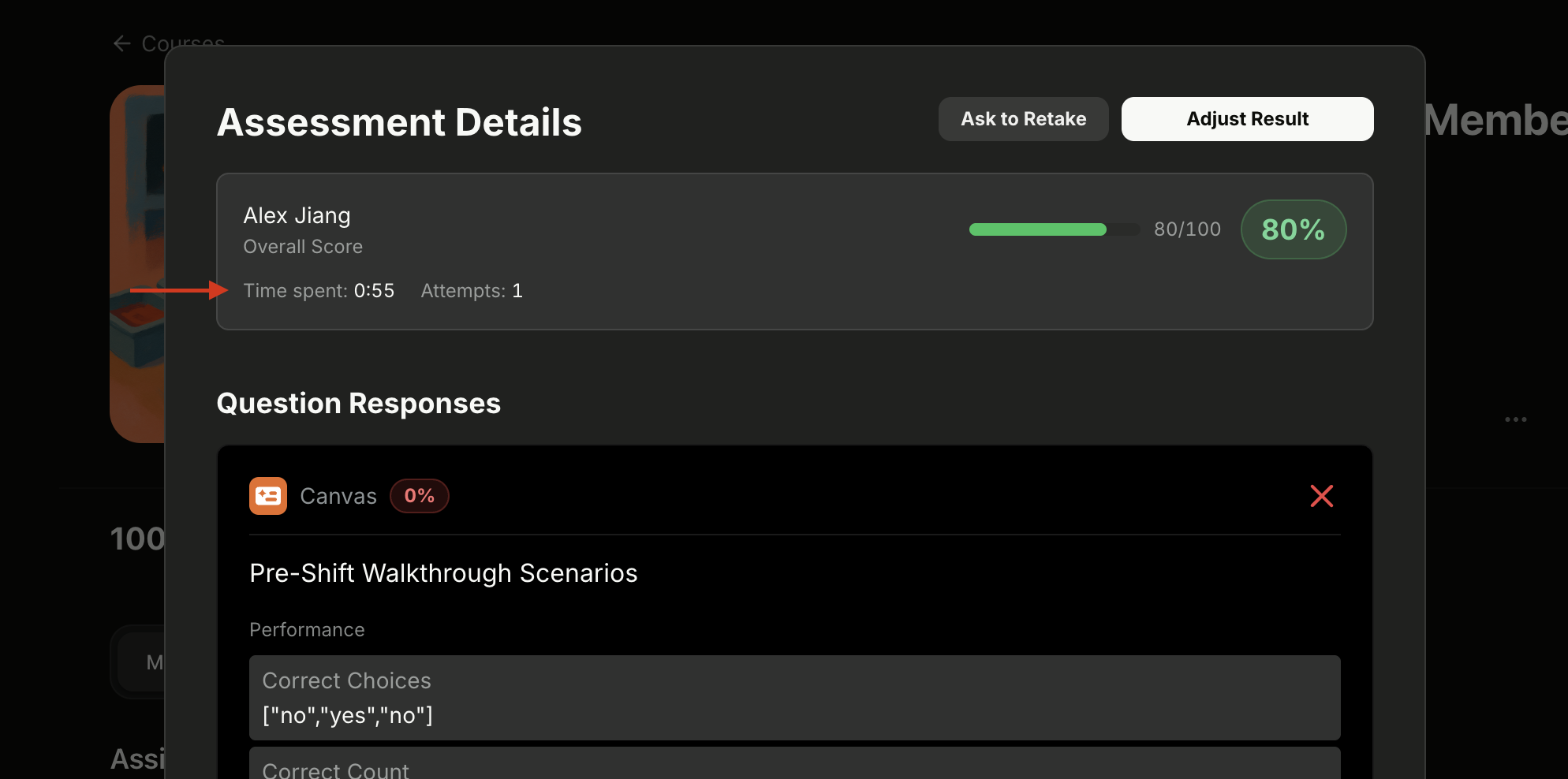
Click a learner's score to open their Assessment Details, where you'll see Time spent and Attempts for that learner right below their overall score, along with a full question-by-question breakdown.
💡 Tip: Click a column header on the Analytics page to sort learners or courses by time spent — a quick way to spot who's rushing through training or which content takes the longest.