Certificates
📌 Overview
When a learner completes a course or a program, Quinn issues a PDF certificate of completion. Admins can download a single learner's certificate or every earned certificate at once as a ZIP, and learners can download their own from their dashboard or profile — or turn them into a social-ready image to share.
Certificates only go to learners who genuinely qualify: if a program sets a required score, finishing it isn't enough on its own.
✅ For Admins
Step 1: Download a course certificate for one learner
Open Courses from the sidebar and select the course. In the Assigned members table, completed learners show a completion date — click the ⋯ menu on that learner's row and choose Download Certificate. The PDF downloads straight away.
Step 2: Download every certificate for a course
From the course action menu, choose Download All Certificates. Quinn builds a ZIP with one PDF per completed learner.
Step 3: Open a program's assigned list
For programs, open the program from Programs and scroll to Assigned. The Completion and Assessment Average columns show who has finished and how they scored, and Download All Certificates counts how many certificates exist right now.
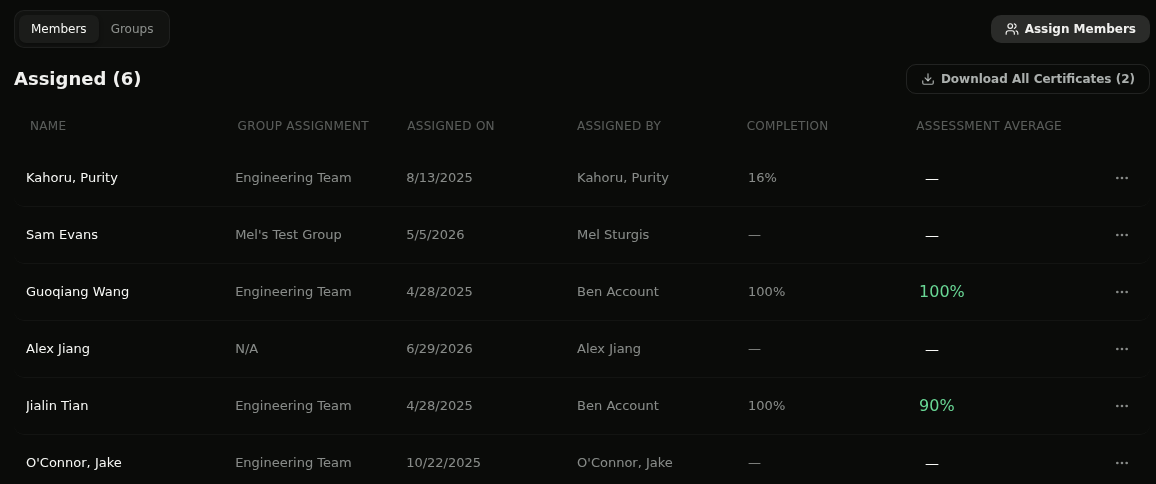
💡 Tip: The number in brackets is the number of certified learners, not the number assigned — so Download All Certificates (2) in a program of six means two people have earned one so far.
Step 4: Download every program certificate at once
Click Download All Certificates. Quinn gathers them into one ZIP named after the program, with a separate PDF per learner — Certificate_Management_Training_Guoqiang_Wang.pdf, and so on — so you can drop the whole folder into your records.
Step 5: Download one learner's program certificate
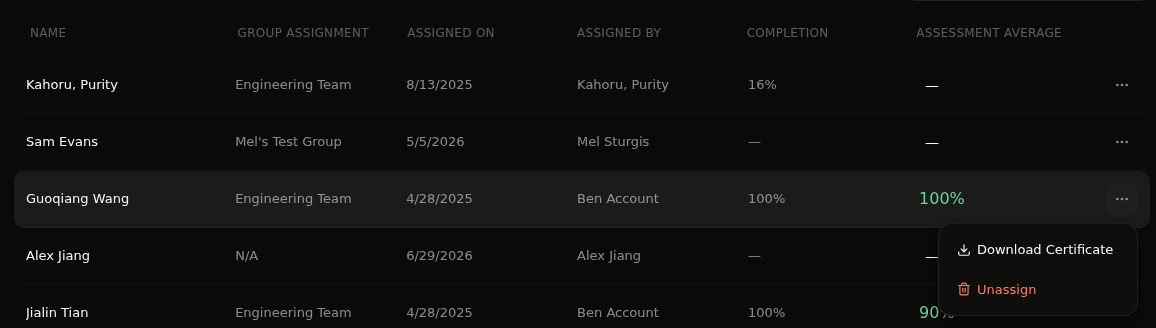
Need just one? Open the ⋯ menu on that learner's row and choose Download Certificate. The option only appears once the certificate has been earned.
✅ For Learners
Step 6: Download a certificate from your dashboard
On your learner dashboard, scroll to the Completed section and click the download icon on a finished course. The PDF generates instantly.
Step 7: Grab all of them from your profile
On your learner profile, Your programs offers a certificate download for every program you've completed, and All certificates — in the Course by course header, in your programs section, and in the dashboard's Completed section — collects the lot. Choose Download all for every certificate you've earned, or Share as image to build a shareable version.
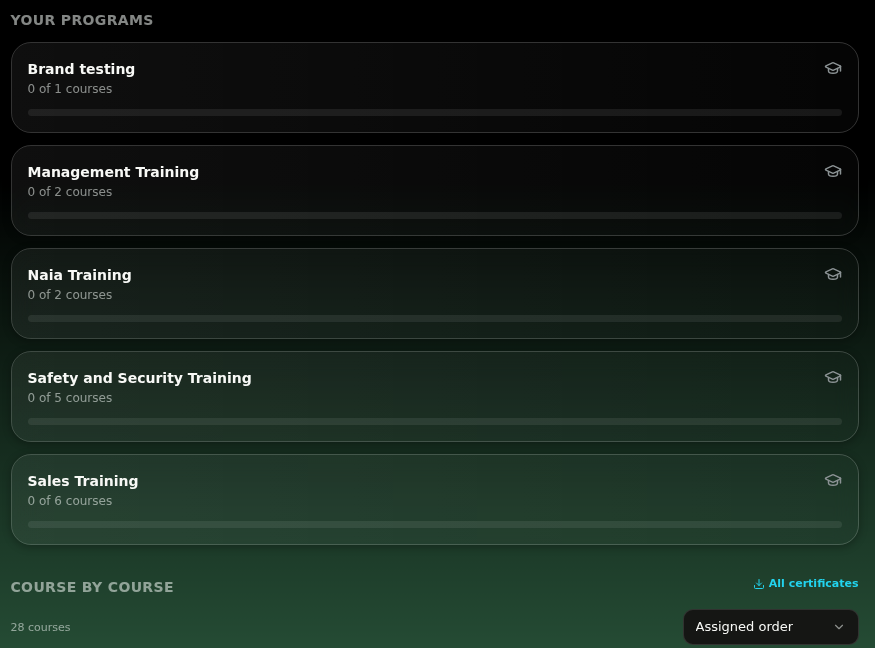

💡 Tip: Program certificates appear here once you've completed the program and met its required score.
Step 8: Review your certificate wall
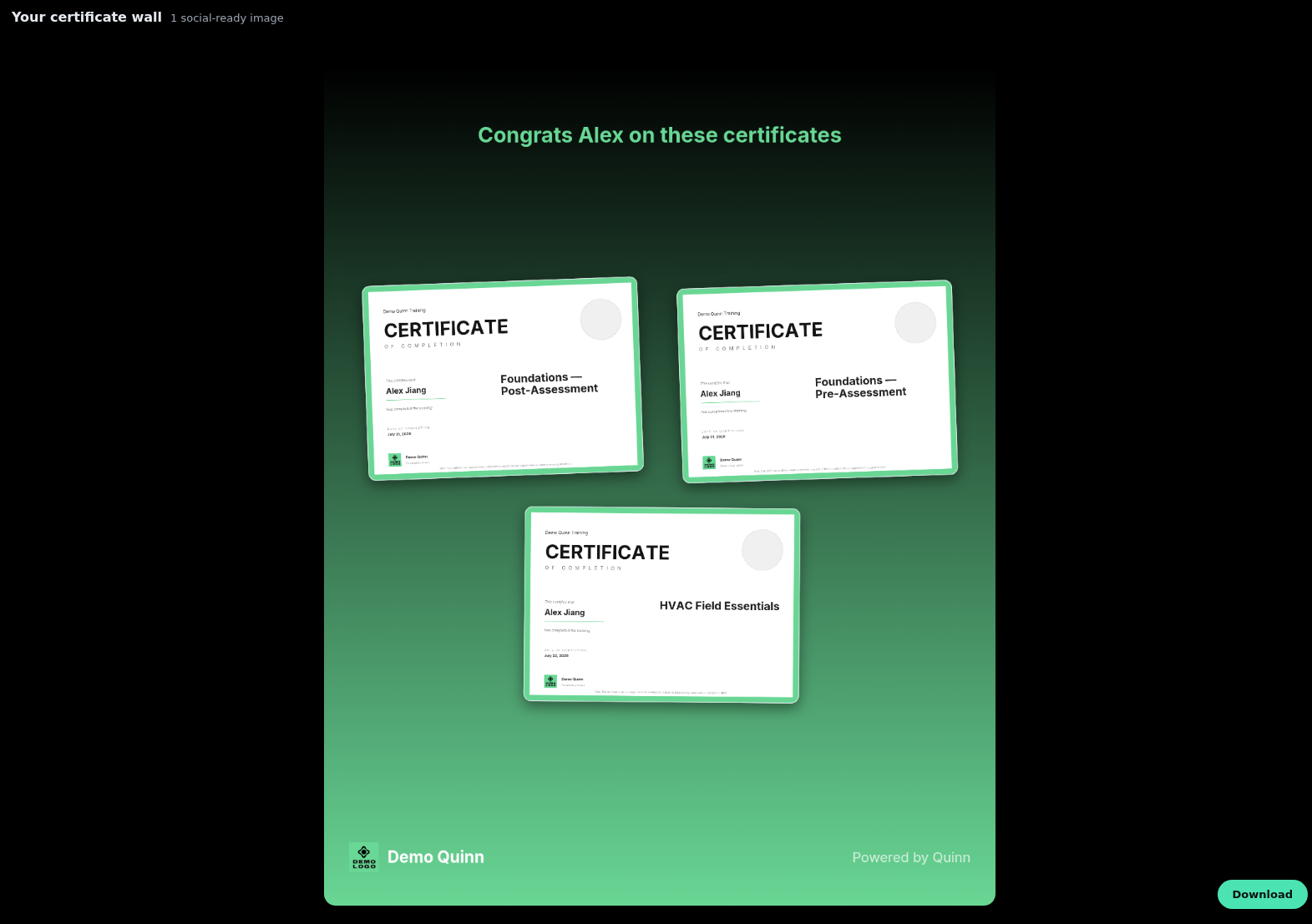
Share as image opens Your certificate wall — a portrait, social-ready image of your certificates with your organization's branding. Up to eight certificates fit on one image; if you've earned more, Quinn creates additional images you can page through.
Step 9: Download and post it
Click Download to save the image, then post it to LinkedIn, Instagram, or anywhere else you want to show off your completions.
💡 Tip: Admins can do the same from a learner's profile in Analytics — handy for celebrating a team milestone. See Learner Profiles.
What's on the Certificate
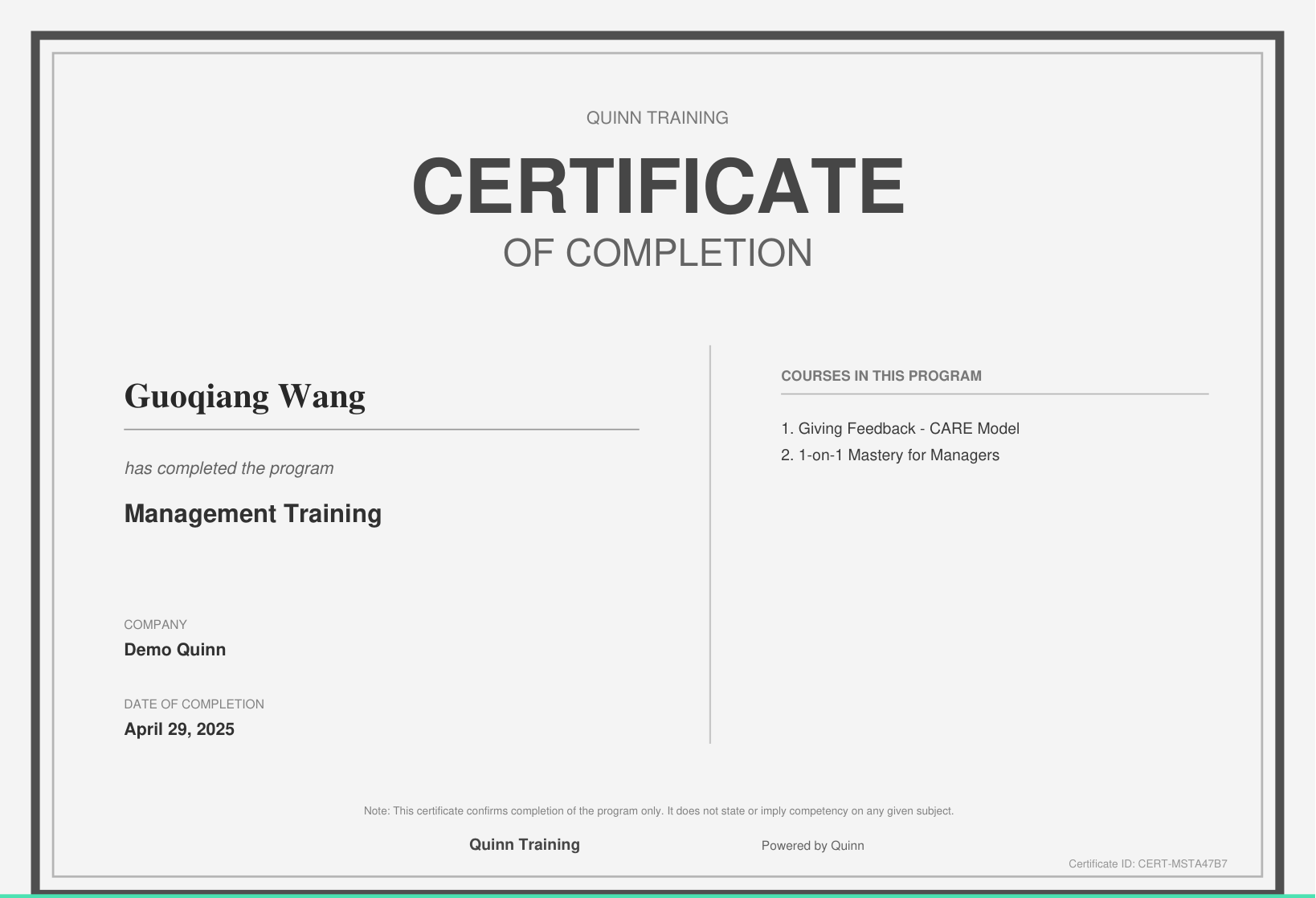
Each certificate includes:
- Learner name — the person who completed the training
- Course or program name — the title of what they finished
- Completion date — displayed in the learner's local timezone
- Organization name — your company name
- Certificate ID — a unique identifier for verification
- Your brand styling — brand-colored borders plus your organization's or brand's logo and seal
- Course details — for a program certificate, every course it covers is listed
💡 Tips
- If a program sets a required score, a learner who completes it but scores below that mark is shown as Below required score and no certificate is issued — ask them to retake the assessment.
- Certificates are generated on the spot from current learner and course data, but a program certificate lists the courses as they were at completion, so later edits don't rewrite certificates already earned.
- Certificates are only available for completed training. If a course is still in progress, the download option won't appear.
- Nothing is emailed automatically — downloading is always something you or the learner chooses to do.
- Certificates confirm completion of training only; they don't state or imply competency in a subject, and the certificate says so in its footer.
- Need the underlying numbers instead of certificates? See Create and Assign Programs and Course Report.